In 30 seconds
In this 2024 short, Matthew Berman walks through installing Obsidian and LM Studio, starting a local model server, and connecting a compatible community plugin. He promotes NVIDIA RTX PCs for local inference and discloses that NVIDIA partnered on the video.
- 1Linked Markdown notesBerman describes Obsidian as a cross-platform app for connecting ideas and notes.
- 2Start a local serverInstall LM Studio, download a model, and start its server from the developer interface.
- 3Connect a compatible pluginBrowse Obsidian's community plugins and configure a plugin that supports the local server's API. NVIDIA's accompanying guide names Text Generator and Smart Connections as examples.
- 4Hardware and sponsorshipBerman promotes RTX AI PCs for running local models and thanks NVIDIA for partnering with him.
Takeaways
- Obsidian organizes linked notes using Markdown and was free for personal use at the time of the video.
- LM Studio can run a downloaded model and expose a local server to a compatible Obsidian plugin.
- The plugin's endpoint and other settings depend on the plugin and software versions; local inference alone does not guarantee every integration or sync service stays offline.
- NVIDIA partnered with Berman on the video; local model performance depends on the model and hardware.
Read the edited text by chapter
Obsidian and local models
Berman introduces the Markdown note-taking app and the idea of connecting its AI plugins to LM Studio.
Obsidian is a cross-platform note-taking app that uses Markdown to connect your ideas and notes. At the time of this video, it was free for personal use. You can also connect compatible AI plugins to a local language model through LM Studio.
Install and connect
He describes starting a local model server and configuring an Obsidian community plugin. The short ends with an NVIDIA partnership disclosure.
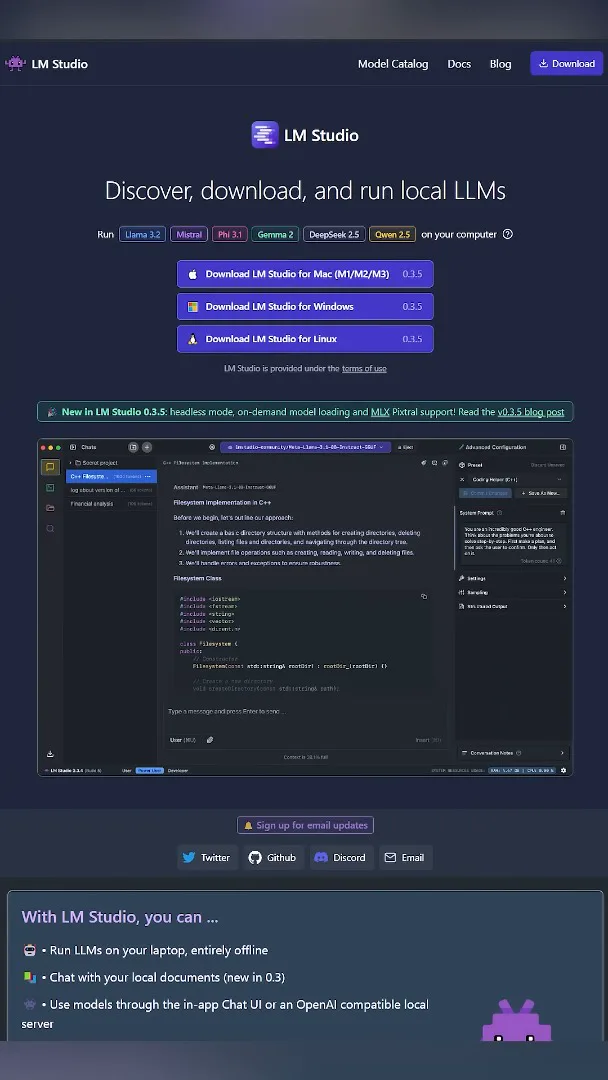
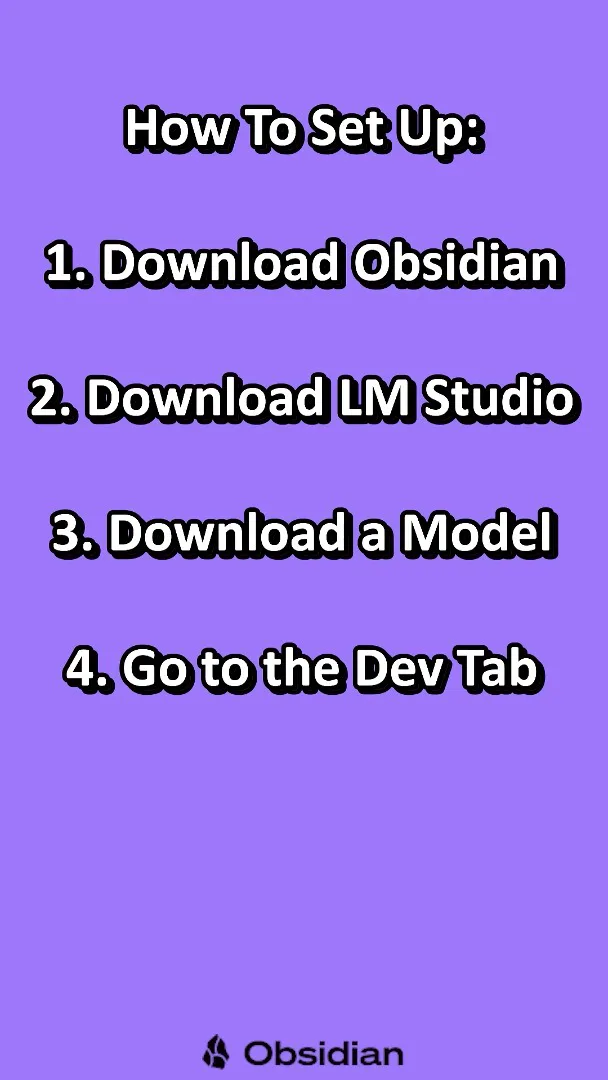
To set it up, download Obsidian and LM Studio, then download a model that fits your computer. In the LM Studio developer tab, start a server. These are the steps shown in 2024; interfaces and settings can change.

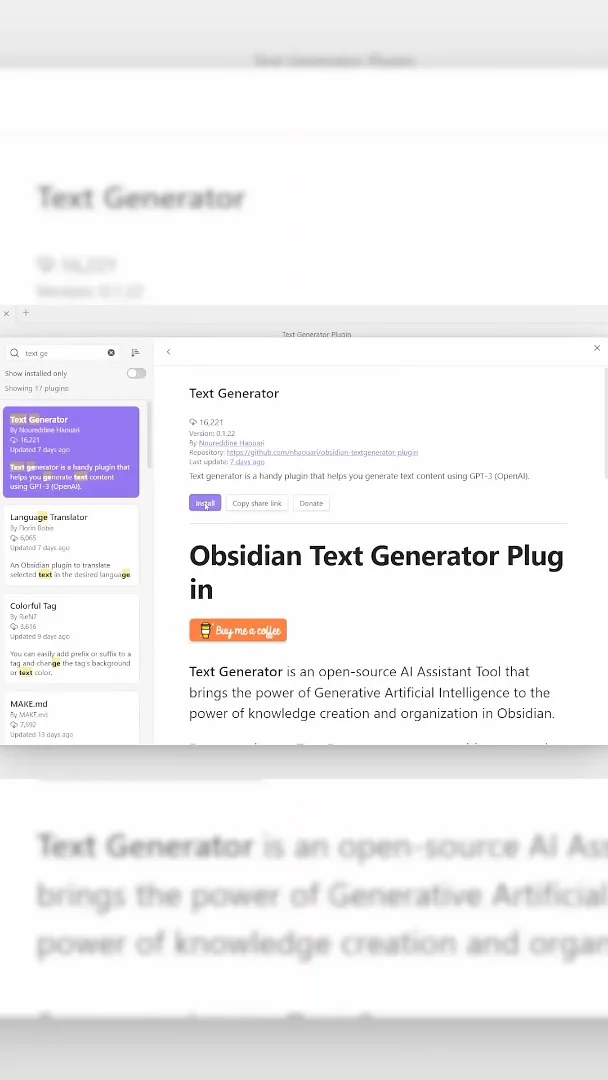
Open Obsidian, go to Settings, then Community plugins, and click Browse. Install an AI plugin that supports a local OpenAI-compatible endpoint, and enter the server URL in its settings. The accompanying [NVIDIA guide](https://blogs.nvidia.com/blog/ai-decoded-obsidian/) discusses Text Generator and Smart Connections; the precise URL and other settings depend on the plugin. Check its instructions and your sync settings if keeping data local matters to you.
Berman says local models can run quickly on NVIDIA RTX AI PCs; actual speed depends on the model and hardware, and an RTX GPU is not a universal requirement for local inference. He points readers to the AI Decoded blog and thanks NVIDIA for partnering on the video.
More from this channel
 34:21EN
 Matthew Berman· Oct 27, 2026Matthew Berman Examines Anthropic’s IPO Filing, AI Growth and GovernanceMatthew Berman, Sam Altman · Forward FutureThe presenter reviews the S-1’s financial metrics, compute strategy and voting structure while questioning the tension between rapid AI development and safety.
 0:26ENMatthew Berman· Oct 25, 2026Sam Altman on Human Values and Problem-Solving in an AI WorldSam Altman · OpenAIIn a short interview excerpt, Altman considers the enjoyment of solving hard problems and the human role in interpreting results.
 0:36ENMatthew Berman· Oct 25, 2026Kimi K3.1 and a Rubik’s Cube Solver DemonstrationMatthew Berman · Forward FutureMatthew Berman shows a scrambled virtual cube being solved and gives the Kimi K3.1 test a favorable assessment.
 0:21ENMatthew Berman· Oct 24, 2026An AI-Generated Kimi Benchmark Chart Used Invented ScoresMatthew Berman · Forward FutureMatthew Berman asks for a graph of Kimi K3.1 Pro benchmarks, then discovers that the displayed figures are illustrative placeholders.
 25:50ENMatthew Berman· Oct 24, 2026Kimi K3.1 Pro Tested: Strong 3D Demos, Uneven Results and Competitive PricingMatthew Berman · Forward FutureMatthew Berman tests the open-weight model on coding, 3D rendering and visual explanations, then compares benchmark results and prices.
 32:20ENMatthew Berman· Oct 23, 2026Who Is Local AI For? The Costs, Trade-offs and a Hybrid FutureMatthew Berman · Forward FutureMatthew Berman weighs data control and independence against hardware cost, setup complexity and inference speed.