In 30 seconds
In this NVIDIA-partnered tutorial, Matthew Berman sets up the 3D Guided Generative AI RTX blueprint and demonstrates how Blender geometry and a prompt guide image generation through ComfyUI and NVIDIA NIM. He shows how to install the prerequisites, connect the tools, and adjust both objects and prompts. The demonstration produces 2D images guided by 3D geometry, not a textured 3D scene.
- 1A scene-guided image workflowThe NVIDIA reference blueprint connects simple Blender geometry to image generation through ComfyUI and NIM. NVIDIA partnered with Berman on the tutorial and requested feedback.
- 2One layout, several looksBerman changes a village prompt from a snowy scene to modern and cartoon styles, then adds a boat and changes the viewpoint. Each output is an image generated from the scene and prompt.
- 3Hardware and licenseThe displayed 2025 requirements name particular RTX GPUs and recommend 48 GB system RAM. The displayed FLUX.1-dev terms are non-commercial; the components have different licenses.
- 4Download and connectCreate a read-scoped Hugging Face token and accept the model terms, clone the blueprint, run setup, and enter the resulting paths in Blender’s add-on preferences.
- 5Name objects in the promptA boat placed in the scene can be rendered as a boat-shaped fountain when the prompt still describes a fountain. Describing a yacht in the prompt steers the output toward the intended object.
Takeaways
- Blender geometry supplies composition and spatial guidance while the prompt describes the desired appearance and subject.
- Changing the prompt can transform the same village layout into a winter photograph, a futuristic scene, or a cartoon.
- The demonstrated output is a generated image; another camera angle requires another generation and does not guarantee visual consistency.
- The 2025 demonstration lists specific NVIDIA GPUs and recommends 48 GB of system RAM; consult current documentation for current requirements.
- The blueprint includes separately licensed components: FLUX.1-dev model weights have non-commercial terms, so check the model and component licenses before commercial use.
- Model downloads and access permissions must be set up before running the demonstrated workflow locally.
Read the edited text by chapter
A 3D guide for generated images
Berman introduces NVIDIA’s Blender and ComfyUI blueprint, discloses the NVIDIA partnership, and changes the appearance of a village scene. He shows how adding an object and changing the viewpoint affect a generated image.
I can lay out a simple 3D environment in Blender and use ComfyUI to guide an image generation model, changing the scene’s appearance and filling in details that are not present in the geometry. The NVIDIA RTX 3D Guided Generative AI blueprint is a reference project built around NIM microservices. The 3D scene guides the composition; the result shown is a generated 2D image, not an automatically textured 3D world.
NVIDIA partnered with me on this tutorial: the team wanted a step-by-step setup guide and feedback on the project. It is a starting point that developers can inspect and build on. Although I describe it as completely open source and free in the video, the components have different licenses. In particular, the displayed FLUX.1-dev model terms are non-commercial; check the model and repository licenses before any commercial use.
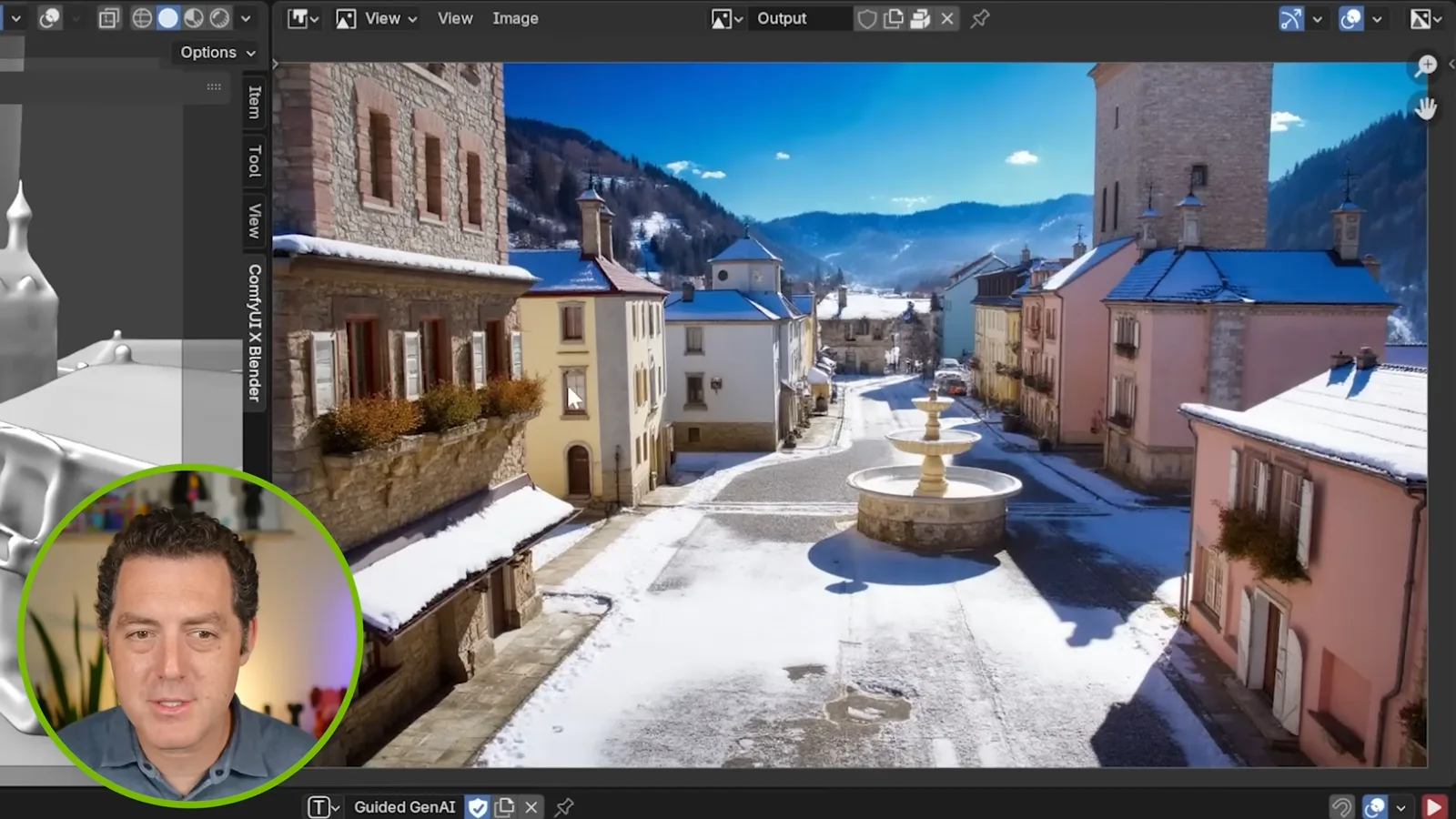
My first example is a little town with a fountain in the square. The prompt asks for a professional photo of a quaint mountain village in winter, with a snow-covered fountain. I change the prompt to make the same layout hypermodern, then render it as a cartoon. The geometry supplies the layout while the words steer the visual treatment.
Next I place a boat asset in the middle and change the prompt. Because the underlying layout is 3D, I can rotate the view and generate an image from a top-down angle as well. Each view is generated separately, however, so the demonstration does not establish that details will remain consistent across angles.
Hardware and prerequisites
The demonstration lists supported GPUs, then installs NIM prerequisites, Git, Visual C++ and Blender. Berman also creates a Hugging Face token and accepts model terms.
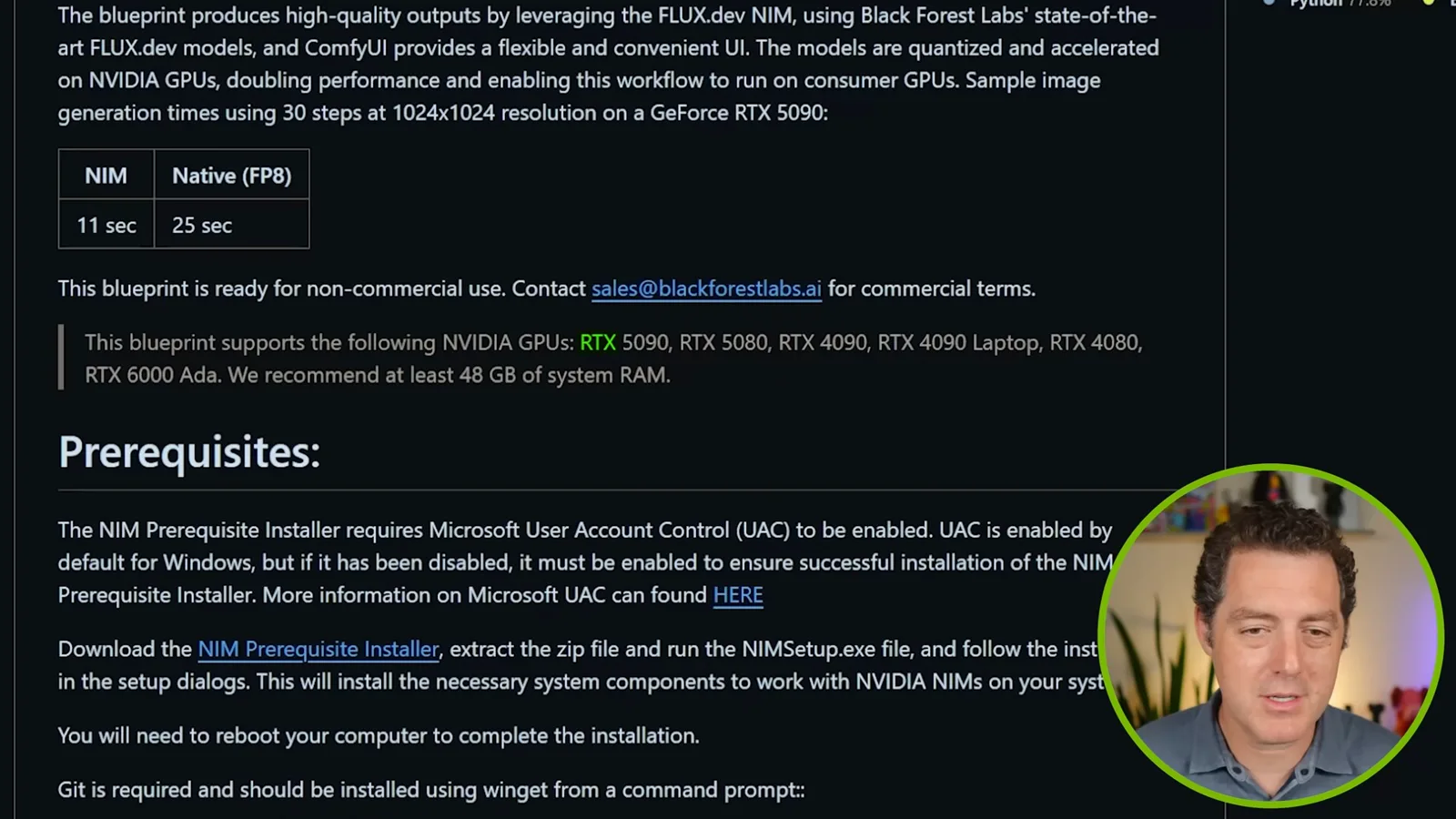
The code and installation instructions are in the [NVIDIA blueprint repository](https://github.com/NVIDIA-AI-Blueprints/3d-guided-genai-rtx). The 2025 screen lists RTX 5090, 5080, 4090 including laptop, 4080, and RTX 6000 Ada GPUs, with 48 GB of system RAM recommended. Hardware support can change, so check the repository’s current requirements. The screen also flags the model’s non-commercial terms; see the [FLUX.1-dev model license](https://huggingface.co/black-forest-labs/FLUX.1-dev) for details.
Start by downloading the NIM prerequisite installer linked in the instructions. Run the Windows setup, accept the agreement, and let it install the required AI Workbench components. The displayed instructions include an administrator prompt and a restart; follow the current installer instructions for your system.
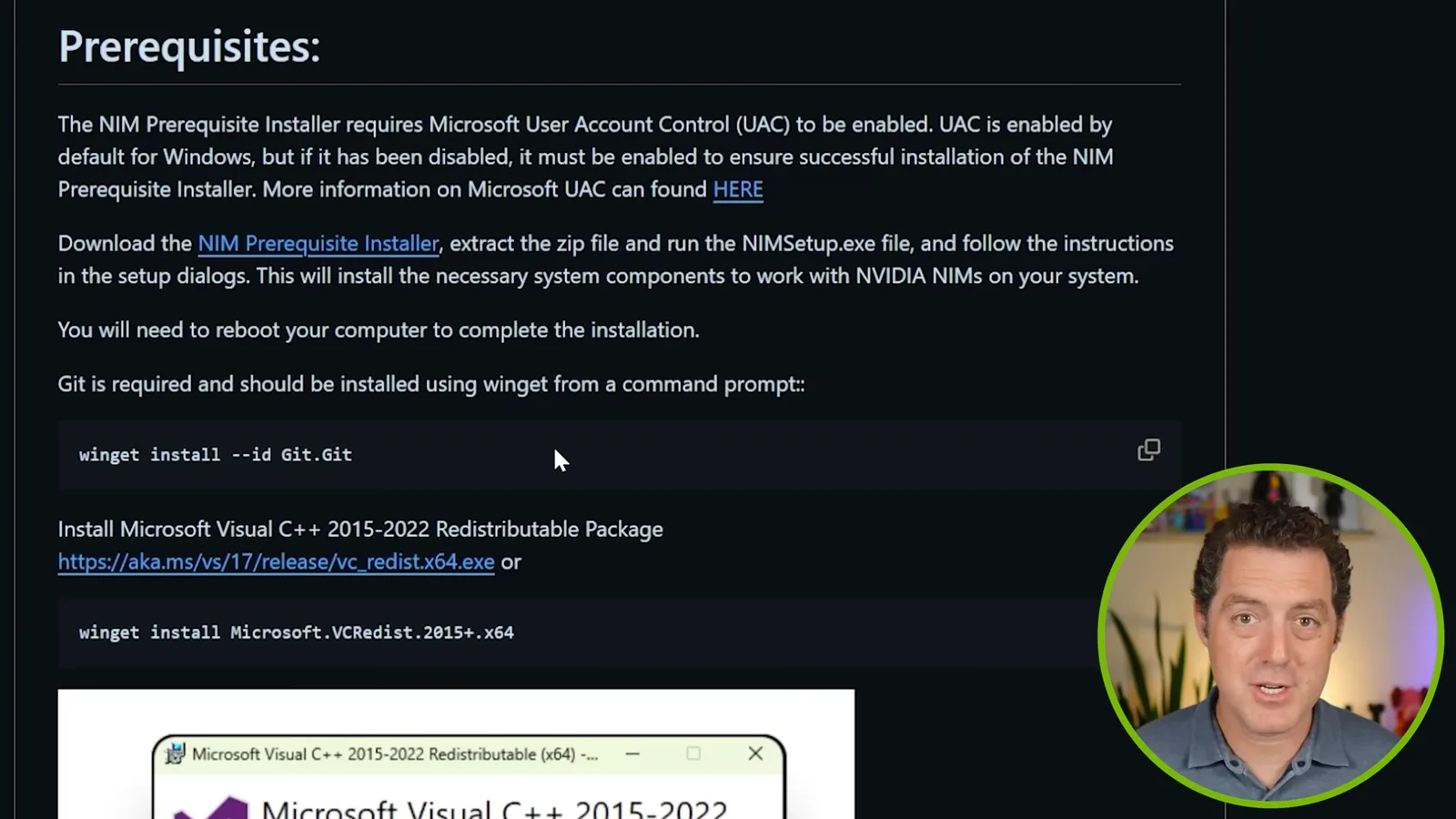
Next install Git from PowerShell with `winget install --id Git.Git`, and install Microsoft Visual C++ with `winget install Microsoft.VCRedist.2015+.x64`. If those components are already present, the installer may report that instead. Download and install Blender as well.
The workflow uses FLUX, so create a Hugging Face access token with read permission. The instructions list the required model pages: visit each one and accept its terms before downloading. Keep the token private. These downloads require internet access; Berman says the demonstrated generation can then run locally.
Set up the blueprint in Blender
He clones the repository and runs setup to download the models. He then configures the add-on paths, opens the supplied Blender file and connects ComfyUI.
Clone the NVIDIA blueprint repository into the folder where you want it, enter the new directory, and run `setup.bat`. Allow time for the download: it retrieves a substantial amount of model data. When setup finishes, leave the window open because it displays the ComfyUI and Python paths needed in Blender.
In Blender, open Edit → Preferences → Add-ons, enable the ComfyUI Blender AI node add-on, and paste in the ComfyUI and Python paths from setup. Then open the supplied guided-generation `.blend` file. Berman notes that he is a Blender beginner and that the interface becomes easier with practice and tutorials.
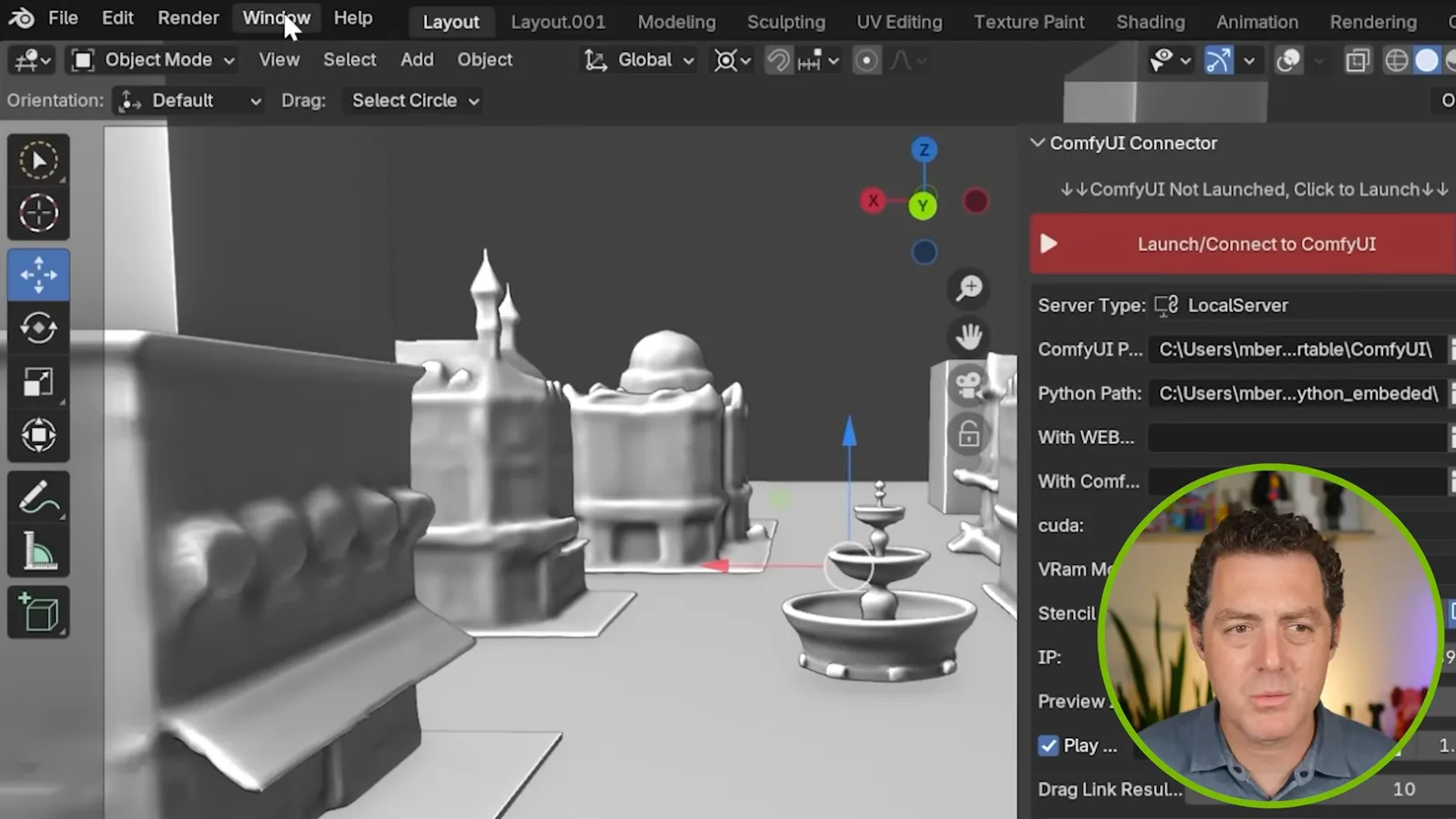
The lower area contains the ComfyUI workflow while the rest is Blender. I like to open Window → Toggle System Console so I can see background progress. Before generating, press the red launch/connect control and wait while the NIM starts and Blender connects to the ComfyUI server; the first startup can take a while.
Edit the scene and the prompt
Berman adds assets and changes the text prompt. A boat-shaped fountain illustrates why the prompt and the geometry need to agree.
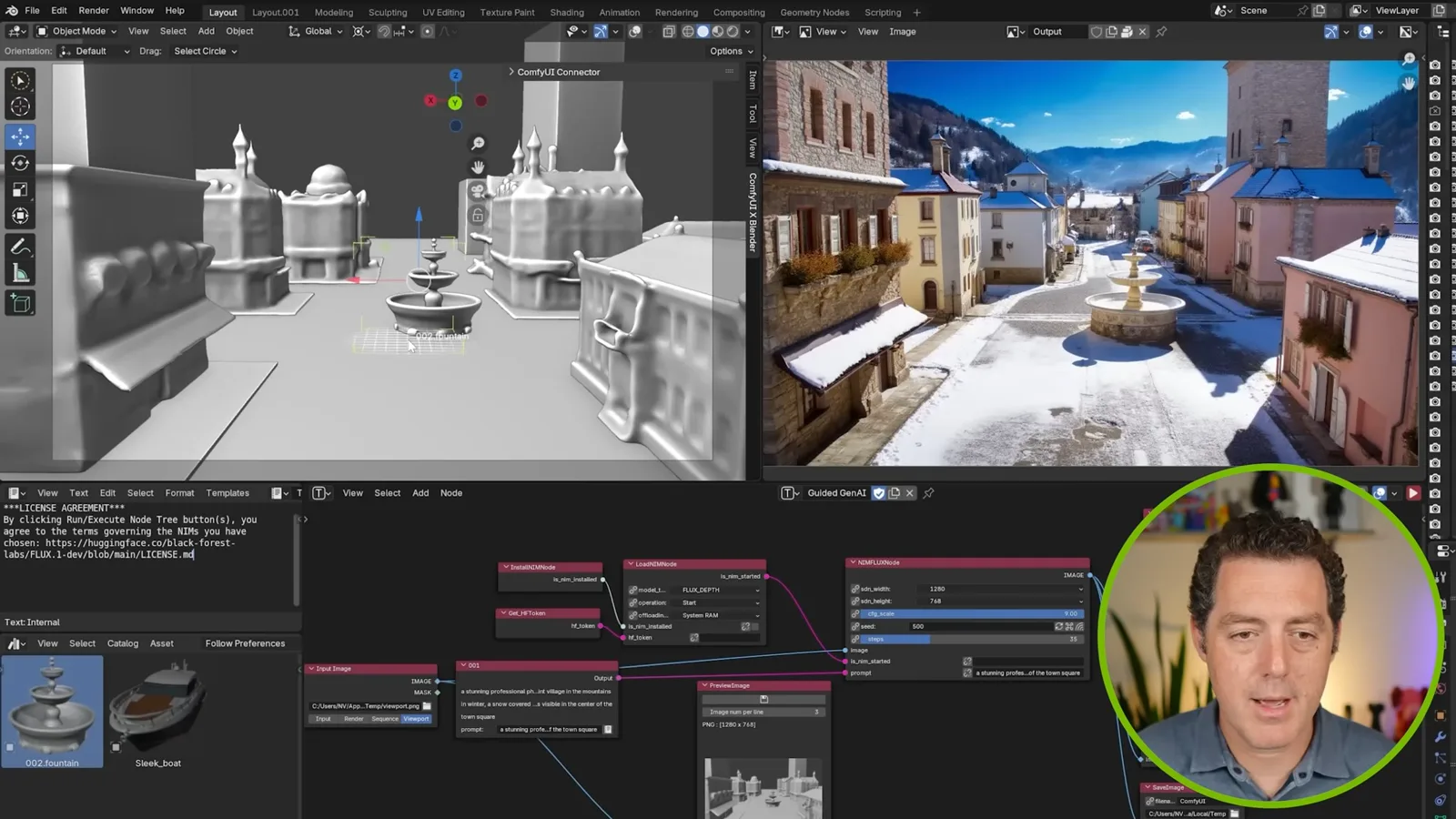
While the connection starts, I can drag an asset into the scene—for example, a second fountain. Once the server is ready, the queue shows pending and running jobs. The prompt to edit is in the 001 panel; I copy it into a text editor because it is easier to read and revise there.
The model pays close attention to the prompt. If I add a boat to a scene whose description still calls for a fountain, the output may interpret that shape as a fountain instead of a boat. The demonstration produces a peculiar boat-shaped fountain. To get the intended yacht, explicitly describe a yacht on water in the town and generate again.
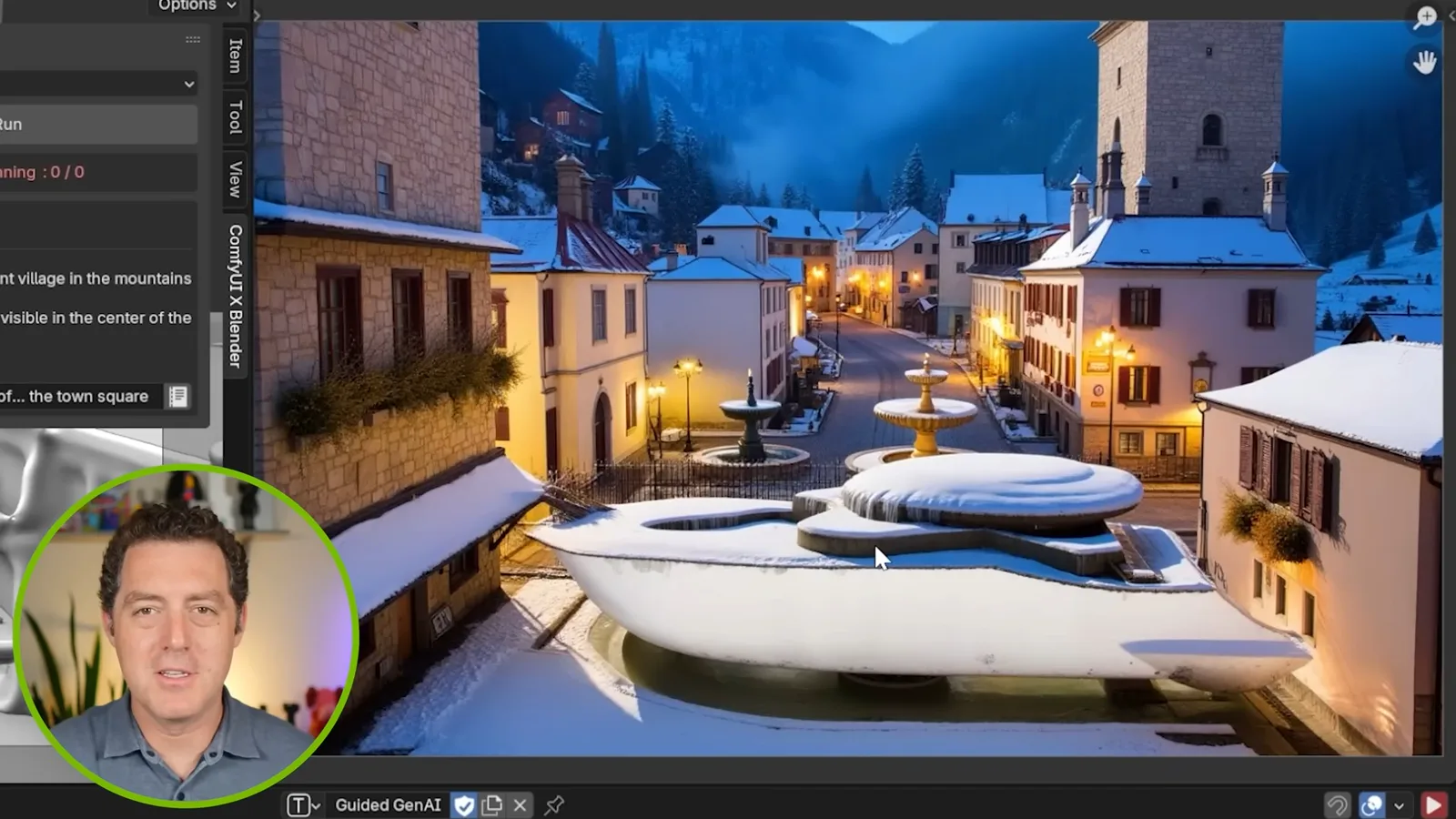
After correcting the prompt, the output shows a yacht. Berman says the setup was difficult the first time but became more straightforward with practice, and invites viewers to give NVIDIA feedback on the blueprint. The workflow can run locally after the necessary files are downloaded, subject to its hardware and component-license requirements.
More from this channel
 34:21EN
 Matthew Berman· Oct 27, 2026Matthew Berman Examines Anthropic’s IPO Filing, AI Growth and GovernanceMatthew Berman, Sam Altman · Forward FutureThe presenter reviews the S-1’s financial metrics, compute strategy and voting structure while questioning the tension between rapid AI development and safety.
 0:26ENMatthew Berman· Oct 25, 2026Sam Altman on Human Values and Problem-Solving in an AI WorldSam Altman · OpenAIIn a short interview excerpt, Altman considers the enjoyment of solving hard problems and the human role in interpreting results.
 0:36ENMatthew Berman· Oct 25, 2026Kimi K3.1 and a Rubik’s Cube Solver DemonstrationMatthew Berman · Forward FutureMatthew Berman shows a scrambled virtual cube being solved and gives the Kimi K3.1 test a favorable assessment.
 0:21ENMatthew Berman· Oct 24, 2026An AI-Generated Kimi Benchmark Chart Used Invented ScoresMatthew Berman · Forward FutureMatthew Berman asks for a graph of Kimi K3.1 Pro benchmarks, then discovers that the displayed figures are illustrative placeholders.
 25:50ENMatthew Berman· Oct 24, 2026Kimi K3.1 Pro Tested: Strong 3D Demos, Uneven Results and Competitive PricingMatthew Berman · Forward FutureMatthew Berman tests the open-weight model on coding, 3D rendering and visual explanations, then compares benchmark results and prices.
 32:20ENMatthew Berman· Oct 23, 2026Who Is Local AI For? The Costs, Trade-offs and a Hybrid FutureMatthew Berman · Forward FutureMatthew Berman weighs data control and independence against hardware cost, setup complexity and inference speed.