30초 요약
In this June 2023 tutorial, Matthew Berman demonstrates a historical WarpFusion workflow in Google Colab: upload a notebook and source video, mount Google Drive, choose model weights and prompts, and run a lengthy render. In a later update within the same video, he discusses a newer interface, alternative models, ControlNet settings and previews. Prices, notebook versions and cloud availability described are specific to the time of the demonstration.
- 1Video restylingBerman introduces WarpFusion with examples of generated visual styles applied to source footage.
- 2Colab setupHe describes the 2023 notebook and cloud costs, and notes that local installation was another route.
- 3Connect Drive and inputsHe mounts Google Drive, uploads the source clip, chooses dimensions and supplies model-weight paths.
- 4Prompt and renderHe enters a style prompt and runs the notebook, warning that processing may take hours.
- 5Newer notebook featuresAn update covers the graphical interface, alternative models, ControlNet and previewing results.
핵심 정리
- The demonstrated workflow restyles an existing input video using a text prompt and diffusion-model weights.
- Berman chose Google Colab over a more involved local setup and described paid options available in 2023.
- Uploading a video and pointing the notebook to both the clip and model weights are central setup steps.
- Higher output resolution requires more memory, and the demonstrated render could take hours.
- A newer notebook version in the video provides a settings interface, ControlNet options and intermediate previews.
챕터별로 다듬은 전문 읽기
Choosing a WarpFusion setup
Berman introduces the effect and compares Colab with local installation. He describes the paid notebook and Colab options he used in 2023.
Matthew Berman introduces WarpFusion by showing stylized footage and explains how to produce a similar effect. Although the video title uses “text-to-video,” the demonstrated workflow takes an existing video and restyles it using a text prompt and image-generation models.
He says WarpFusion can be run locally or through Google Colab and chooses Colab for the demonstration. In June 2023, he describes obtaining a notebook through creator Sxela’s Patreon for $10 and using a $10-per-month Colab Pro account; he says a local setup can avoid the Colab charge but requires more work. These are his historical descriptions, not a statement of current prices or requirements.
Preparing the notebook and assets
He uploads the notebook, mounts Drive and adds an input video. He configures the output size and model weights.
Berman downloads the notebook file from Sxela’s page, opens a new Colab notebook and uploads the .ipynb file. He points out the extensive code, change notes, local installation guide and separate step-by-step instructions provided with it.
In the notebook’s folder preparation section, he runs the cell that mounts Google Drive and authorizes access. Once Drive is connected, he uploads the source video through the file pane. Connecting a drive gives the notebook access to files under the granted permissions.
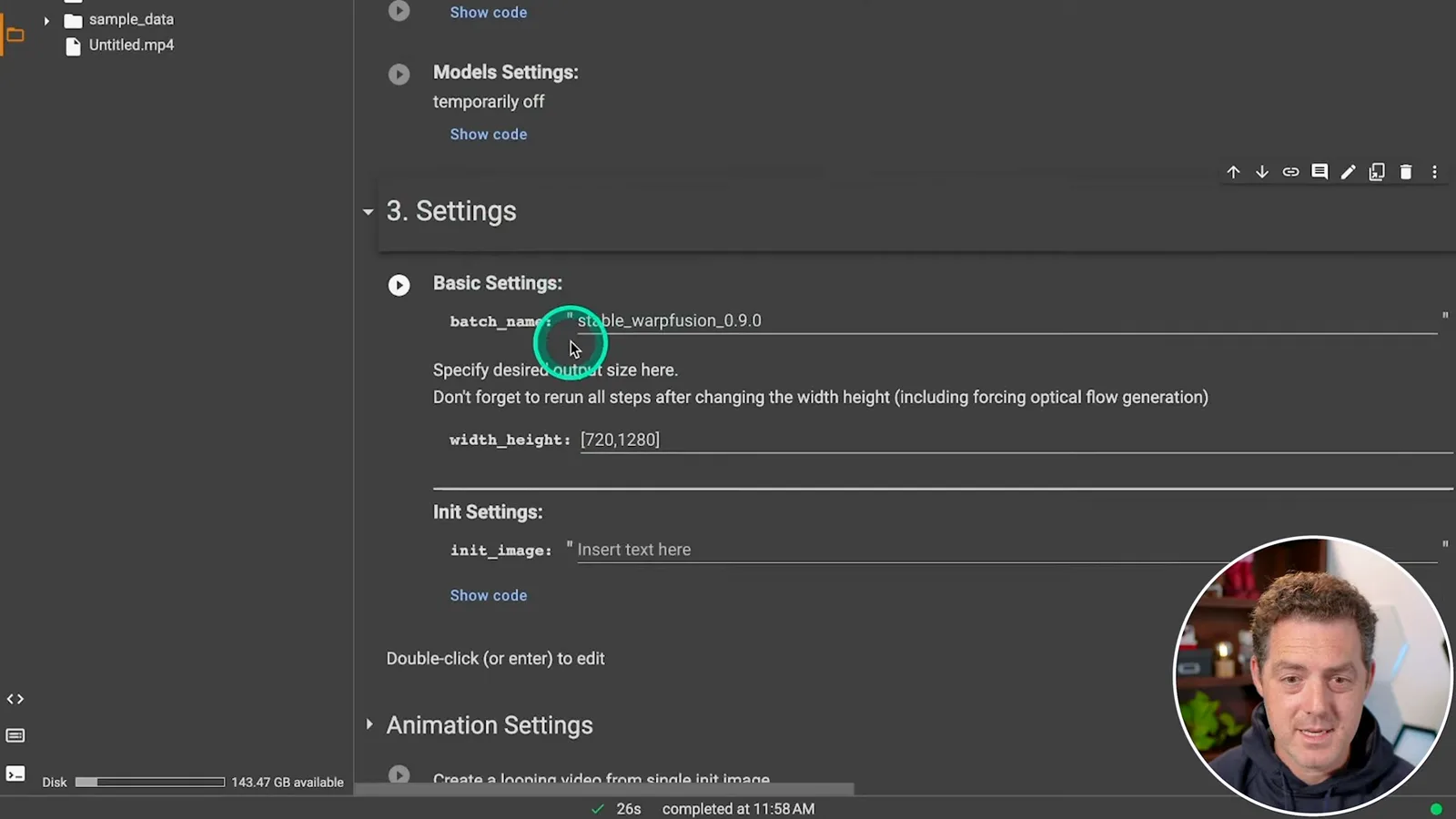
In the settings section, he chooses an output size of 1280 by 720 and warns that a larger size can exhaust available GPU memory. He copies the uploaded clip’s path into the video input setting so the notebook knows which footage to process.
He obtains model weights from Hugging Face, uploads them to Google Drive, copies the resulting path and inserts it into the notebook’s model setting. The video links to the Stable Diffusion 1.4 original weights; model availability, compatibility and license terms depend on the chosen weights.
Prompting and rendering
A text prompt specifies the desired visual style. The notebook runs the processing pipeline, which he says can take hours.
The text-prompt section determines the desired appearance. Berman replaces the default with a detailed dragon-man prompt, then selects Runtime and Run all. He says processing may take hours and recommends leaving the tab open; runtime and session behavior depend on the environment.
Newer controls and previews
Berman adds an update about a more recent version, model choices, ControlNet and saved settings. He explains that previews can guide changes before creating a video.
Before publishing the tutorial, Berman adds an update after discovering he had used an older notebook version. He says newer versions include more features and a graphical settings interface. He also demonstrates finding alternative style models on Civitai and placing their files in Drive, subject to compatibility with the workflow.
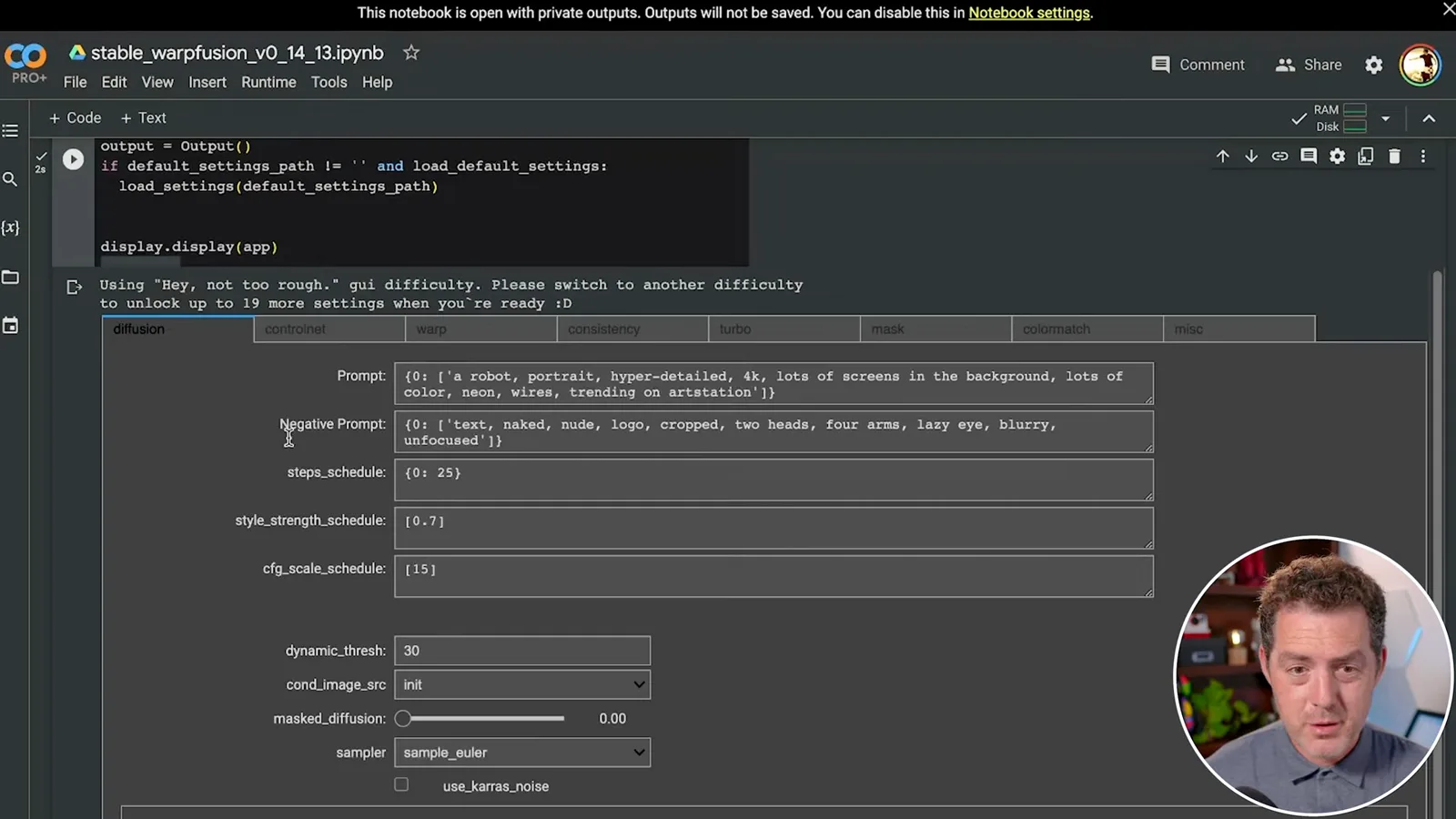
The newer interface exposes prompts, negative prompts and step schedules, as well as ControlNet settings that can be enabled or disabled for different source videos. Berman encourages experimentation because those choices can substantially change the visual result.
A saved settings file can be placed in Drive and loaded into the notebook so the user does not need to enter every setting again. Berman also explains that the render can show intermediate previews before the entire video is complete.
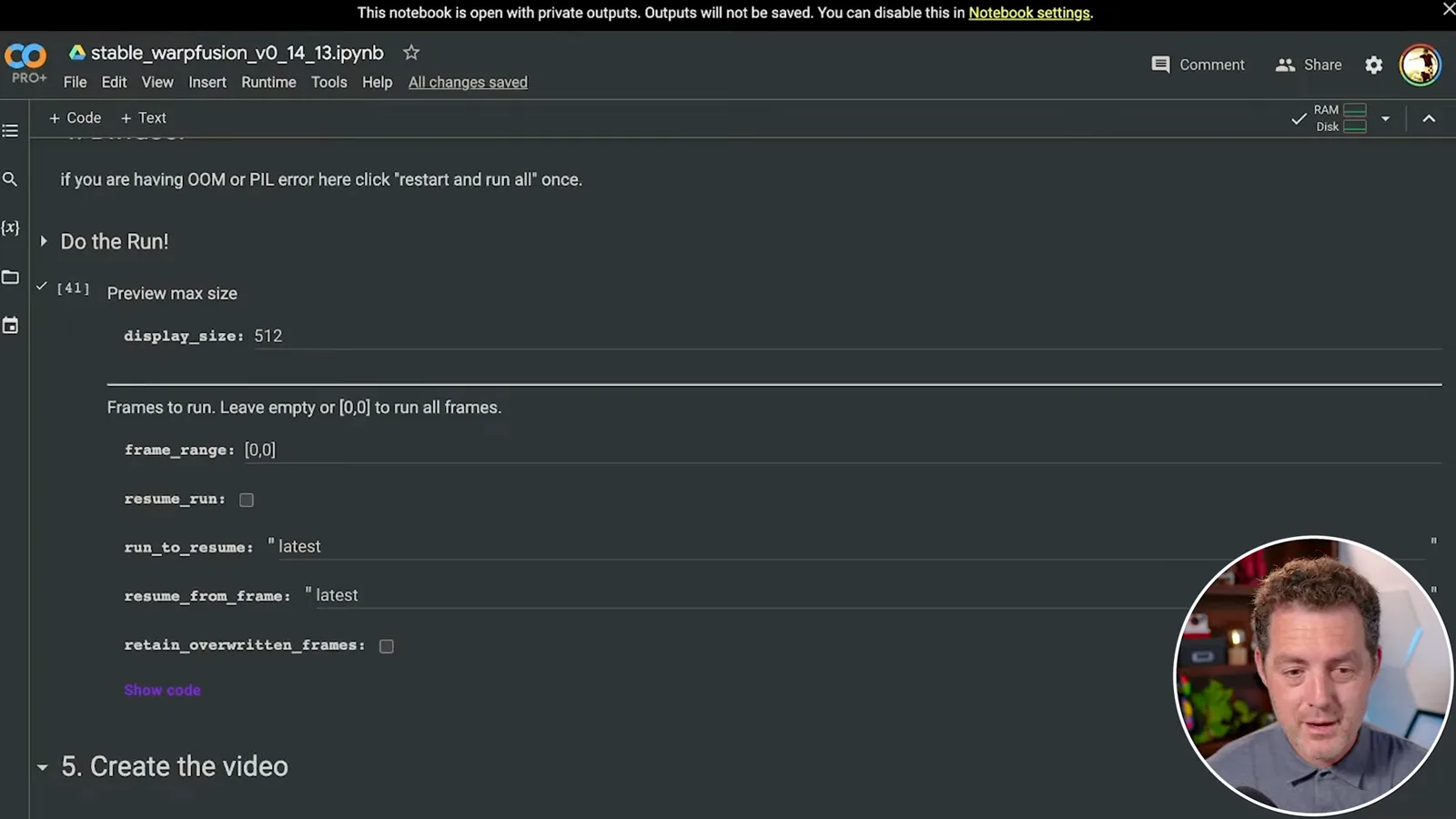
If a preview is unsatisfactory, he suggests changing settings and running the relevant step again. Once the style is pleasing, the Create video step assembles the output. He then shows examples from the WarpFusion community and notes that settings can affect consistency across frames.
Berman encourages viewers to experiment and learn from others in the community. His walkthrough records the notebook and services as they existed in 2023; later versions, subscription terms and interfaces can differ.
같은 채널의 다른 글
 34:21EN
 Matthew Berman· 2026년 10월 27일Matthew Berman Examines Anthropic’s IPO Filing, AI Growth and GovernanceMatthew Berman, Sam Altman · Forward FutureThe presenter reviews the S-1’s financial metrics, compute strategy and voting structure while questioning the tension between rapid AI development and safety.
 0:26ENMatthew Berman· 2026년 10월 25일Sam Altman on Human Values and Problem-Solving in an AI WorldSam Altman · OpenAIIn a short interview excerpt, Altman considers the enjoyment of solving hard problems and the human role in interpreting results.
 0:36ENMatthew Berman· 2026년 10월 25일Kimi K3.1 and a Rubik’s Cube Solver DemonstrationMatthew Berman · Forward FutureMatthew Berman shows a scrambled virtual cube being solved and gives the Kimi K3.1 test a favorable assessment.
 0:21ENMatthew Berman· 2026년 10월 24일An AI-Generated Kimi Benchmark Chart Used Invented ScoresMatthew Berman · Forward FutureMatthew Berman asks for a graph of Kimi K3.1 Pro benchmarks, then discovers that the displayed figures are illustrative placeholders.
 25:50ENMatthew Berman· 2026년 10월 24일Kimi K3.1 Pro Tested: Strong 3D Demos, Uneven Results and Competitive PricingMatthew Berman · Forward FutureMatthew Berman tests the open-weight model on coding, 3D rendering and visual explanations, then compares benchmark results and prices.
 32:20ENMatthew Berman· 2026년 10월 23일Who Is Local AI For? The Costs, Trade-offs and a Hybrid FutureMatthew Berman · Forward FutureMatthew Berman weighs data control and independence against hardware cost, setup complexity and inference speed.