En 30 secondes
Matthew Berman demonstrates how Leonardo.ai users could assemble image datasets, configure a custom model, and use it for generation. He compares platform and community models with his own experiments, including character art and self-portraits. The interface, free allowance and Stable Diffusion choices described are from the video’s 2023 recording. Although its title mentions ten minutes, Berman says training itself takes about 30 minutes; he does not start a new training run in the demonstration.
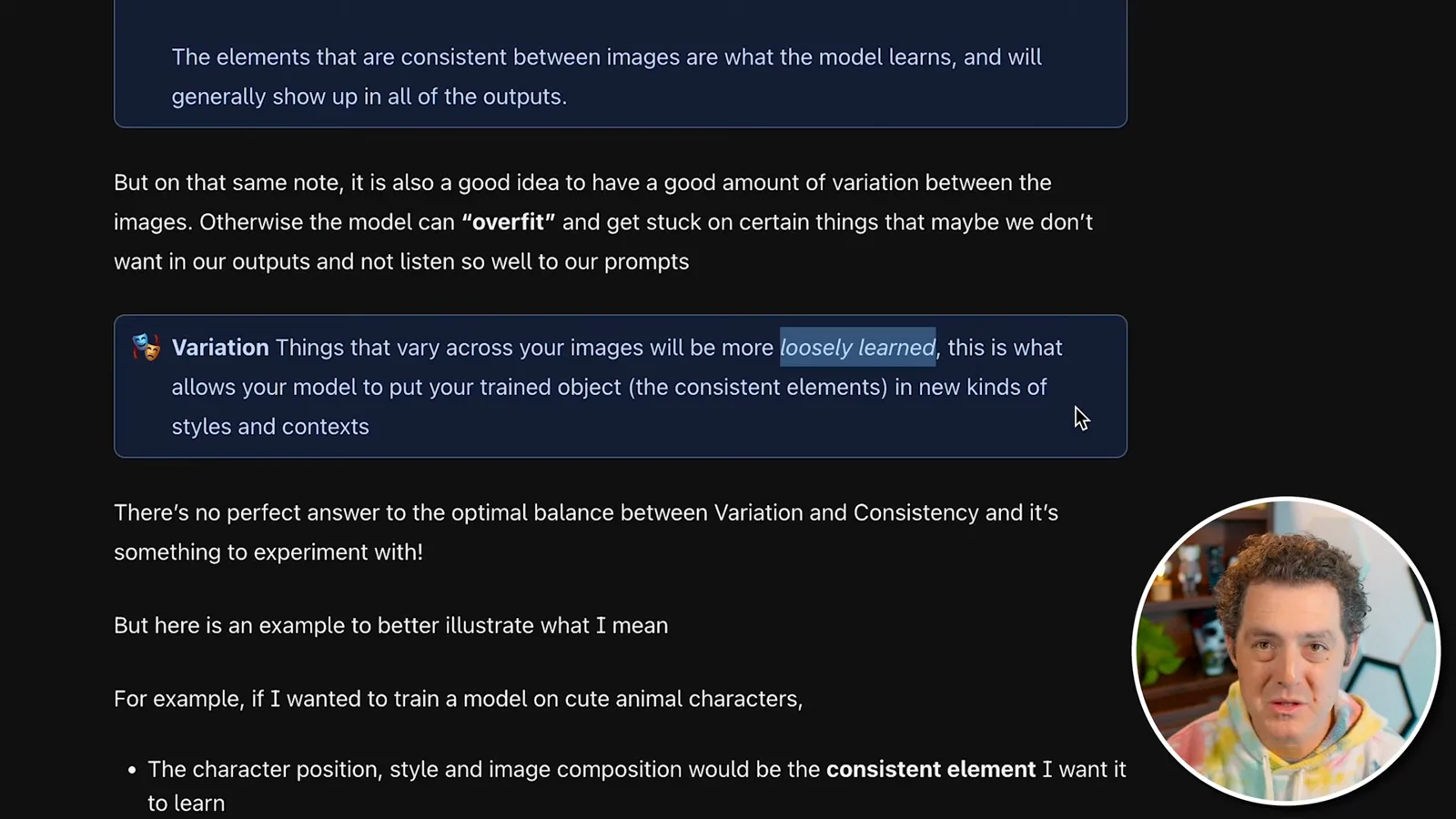
- 1Build a coherent datasetThe 2023 FAQ suggested 8–15 images as a sweet spot and listed 30 as a maximum. Consistent style and framing help define the shared pattern, while variation is learned more loosely.
- 2Inspect existing modelsPlatform and community galleries show examples, base models, resolution and generation settings. Berman uses those details to judge what might work in his own images.
- 3Configure a custom modelUpload a dataset, choose a resolution and category, and set an instance prompt. In the interface shown, 512 pixels corresponded to Stable Diffusion 1.5 and 768 pixels to 2.1.
- 4Allow time for trainingBerman says training takes about 30 minutes and sends an email on completion. His demonstration dataset is not actually submitted for training.
- 5Learn from imperfect examplesHe notes duplicates in his Pokémon dataset and varied angles in his self-portrait dataset, then shows results from models he had trained earlier.
À retenir
- Leonardo’s FAQ recommended roughly 8–15 images with a consistent theme, while allowing variation across examples.
- Berman warns against duplicate training images, a mistake he made in his Pokémon dataset.
- In the demonstrated interface, the instance prompt specified during training should also appear in generation prompts.
- Platform and community model pages expose example outputs and settings that can inform experiments.
- Berman says training takes about 30 minutes and completion is announced by email.
Lire le texte remanié, chapitre par chapitre
Dataset guidance
Berman introduces Leonardo.ai and reviews its FAQ on image count, consistency, variation and duplicates. He contrasts coherent training examples with a less consistent animal dataset.
After the positive response to my earlier Leonardo.ai video, I want to go deeper into the available models and show how to train your own. At the time of this 2023 demonstration, Leonardo was free with a limit of 200 credits per day; I suspected a paid version might arrive soon.
The FAQ is a useful place to start because it explains what makes a good training set. It also shows examples of generated outputs and mentions a future moving-sprites feature. Rather than just repeat the setup instructions, I want to focus on the quality of the images you supply.
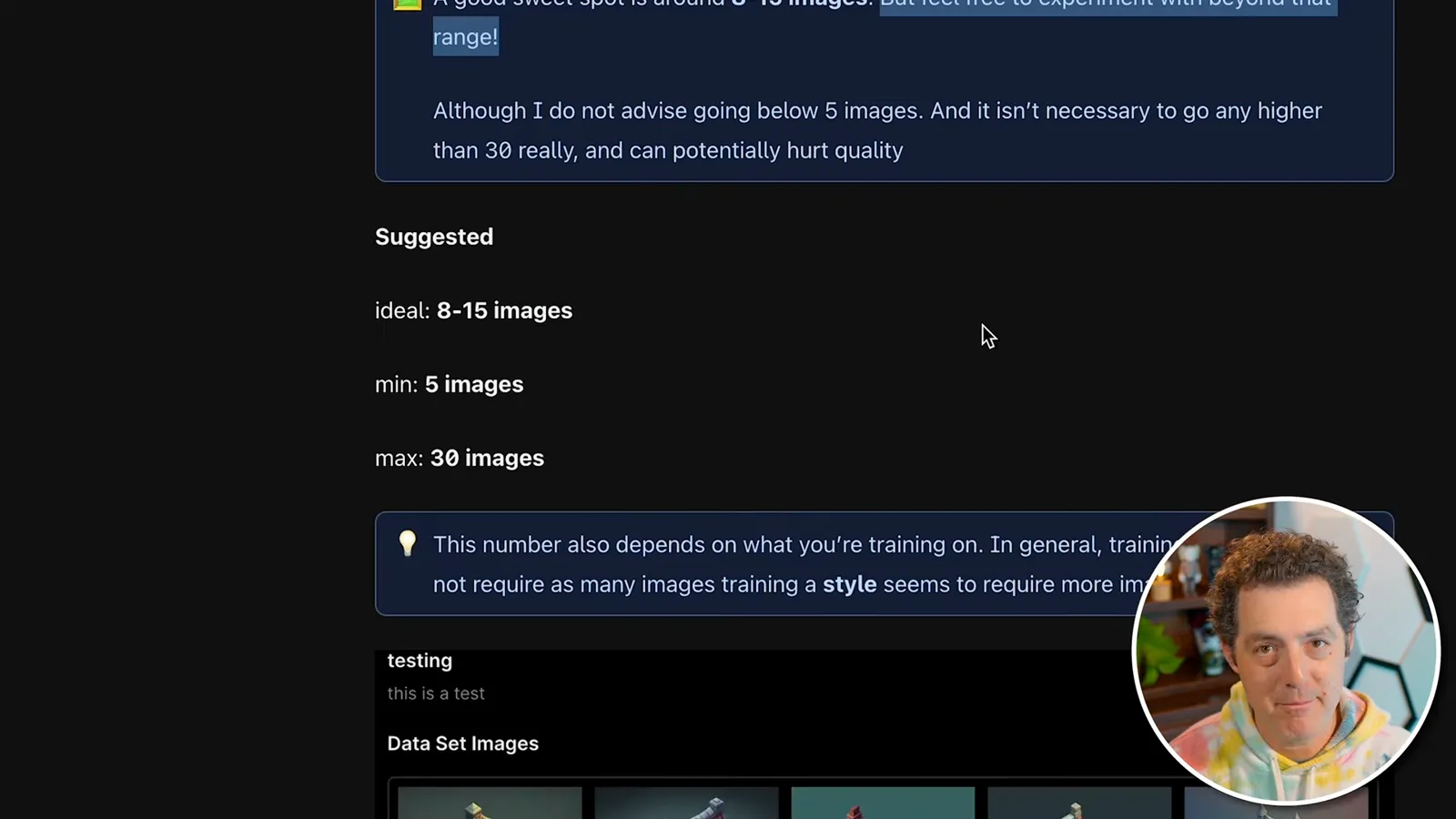
Leonardo recommends a sweet spot of about eight to fifteen images, though I have seen community models with more. The FAQ lists a maximum of 30. The important thing is a common theme or pattern: the examples in its good dataset share a style, camera angle and framing.
Some variation is fine, but the FAQ says features that vary across images are learned more loosely than those that remain consistent. The bad animal dataset mixes different kinds of images and camera distances and includes duplicates. I made the duplicate mistake myself in a Pokémon dataset, which I will show later.
Platform and community models
He explores model galleries and example images. Their metadata includes base model, resolution, guidance scale and step count.
Under fine-tuned models, the platform models are built by the Leonardo team. You can open a model, generate with it, or browse images other people have made. I particularly like Deliberate 1.1 for detailed images. Individual examples also show information such as resolution, guidance scale and step count, so you can see what settings others used.
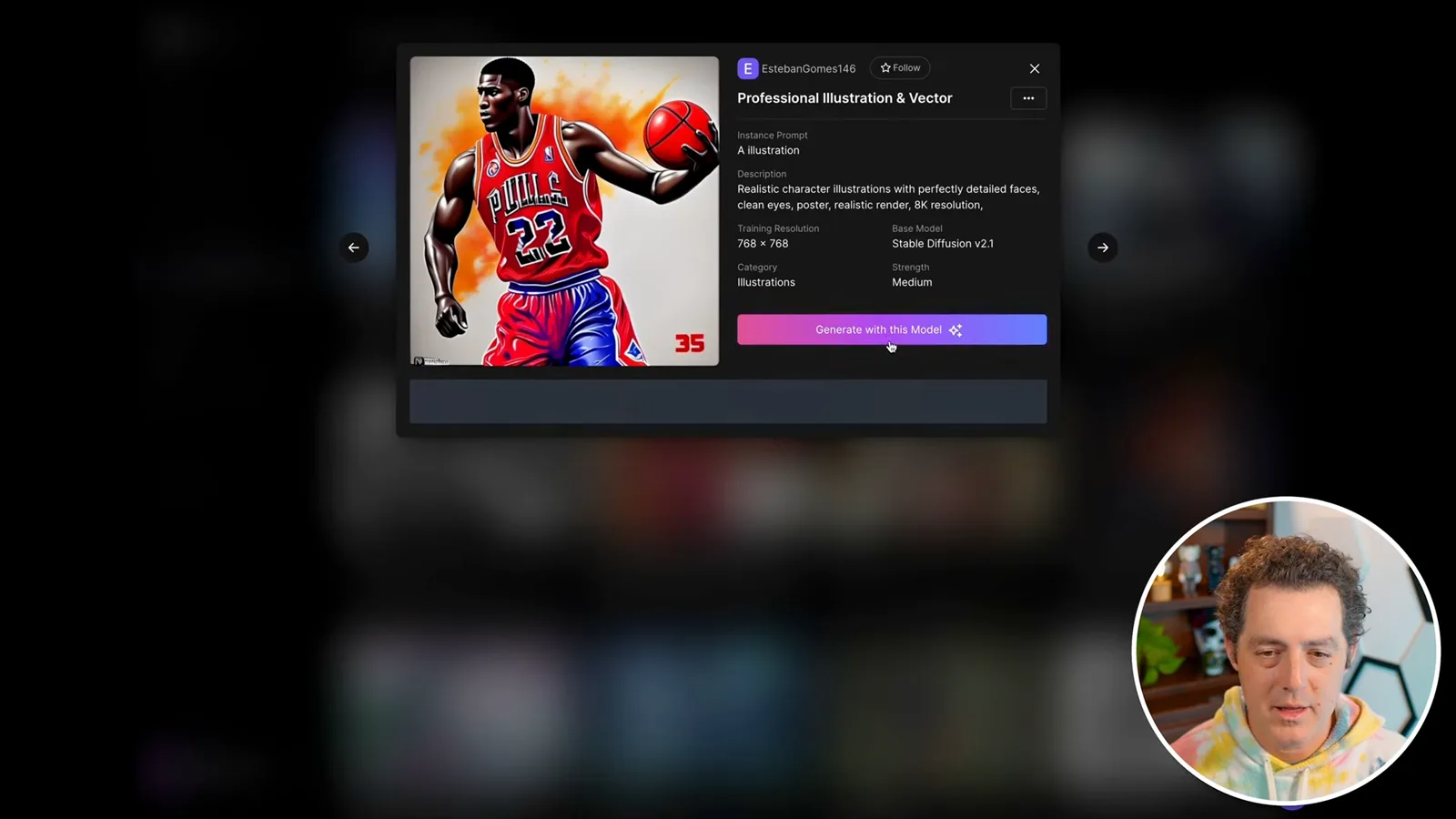
The model details also identify the Stable Diffusion base. In this interface most examples I saw used version 1.5, with newer version 2 models available too. Community models, meanwhile, are created by users and vary in quality. You can inspect their examples, resolution, category and base model before choosing one to generate with.
Creating a custom model
Berman uploads a test dataset and explains the training settings and instance prompt. He describes the training time and checks his existing jobs without starting a new run.
To prepare a custom model, create a dataset and upload or drag in your images. I upload a collection of Marvel character pictures to a test dataset. Once the images finish uploading, the Train Model button opens a form for a name, optional description and training settings.
The interface offers 512 × 512 or 768 × 768 training resolution. At the time, 512 was associated with Stable Diffusion 1.5, which Leonardo recommended, and 768 with version 2.1. I suspect the larger resolution may take longer, but I do not test that here. I leave the smaller option selected and choose the characters category.
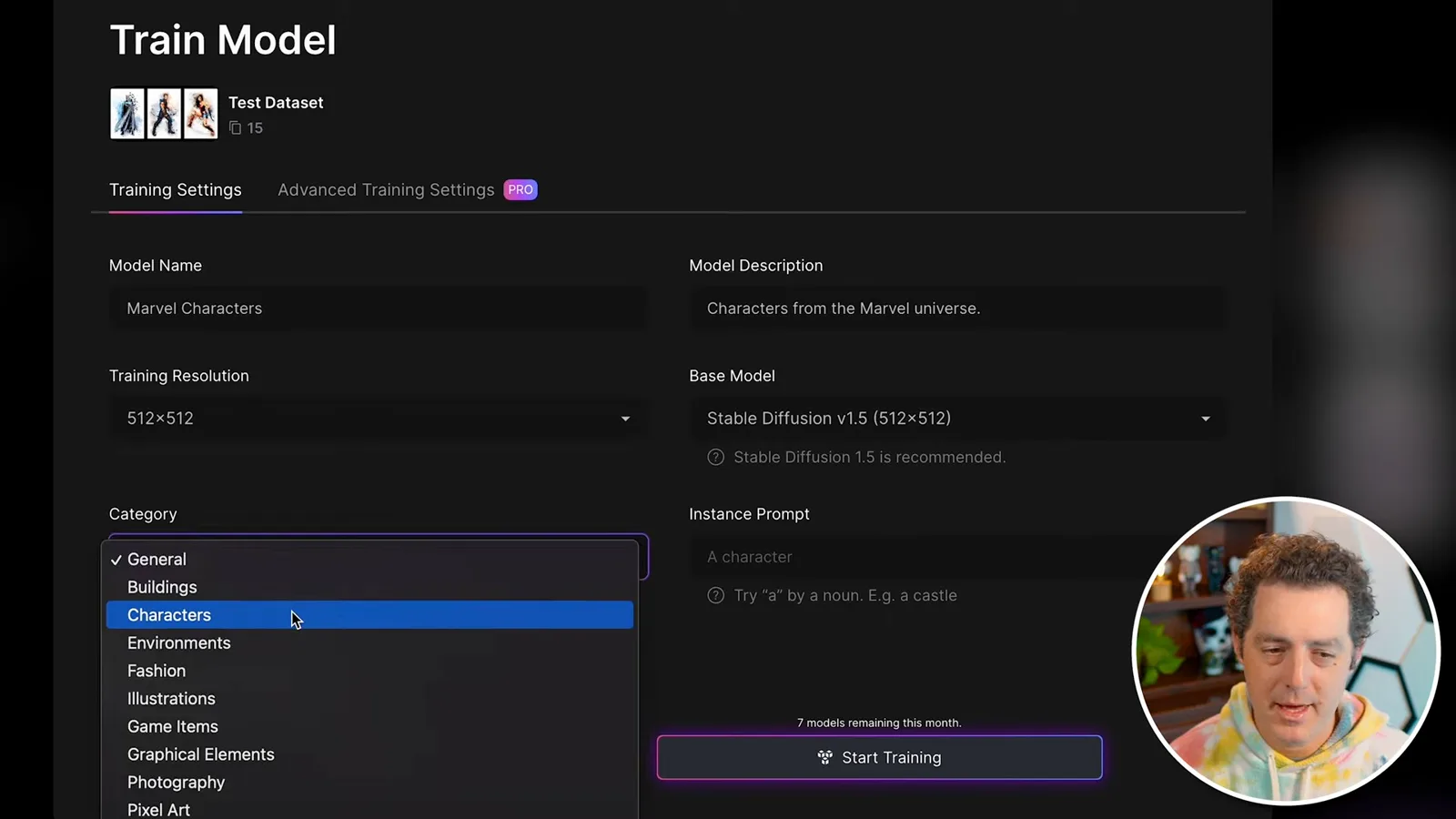
The instance prompt is especially important: use the phrase you choose here in prompts when generating with the model, or the results may not resemble the training images. My example phrase is “a Marvel character.” The next step would be to start training, but I do not actually train this test dataset. In my experience, training takes about 30 minutes, and Leonardo sends an email when it finishes.
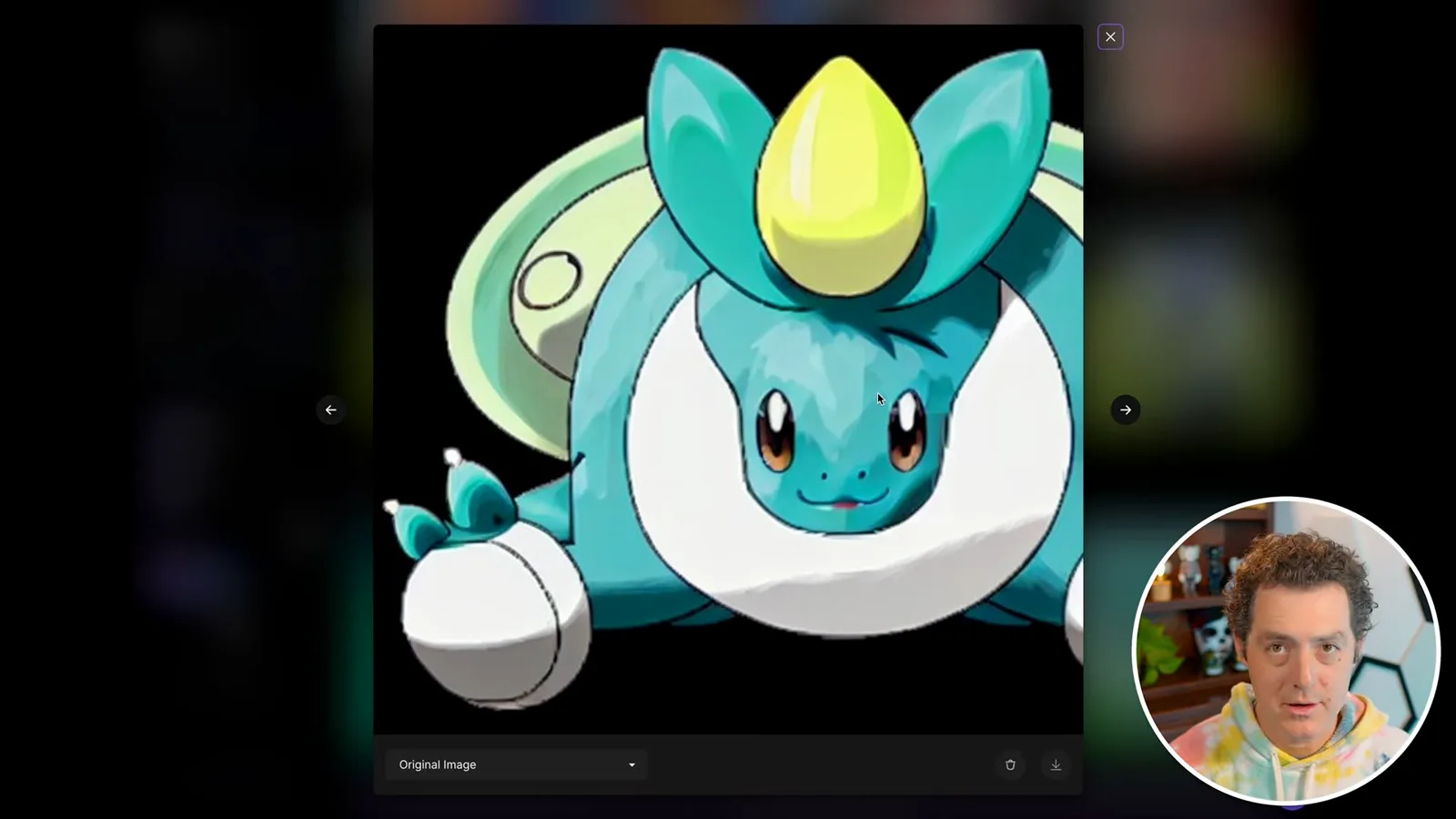
I have already trained several models. My Pokémon dataset accidentally included duplicate images despite the FAQ’s warning. I also trained on photos of myself with different styles and camera angles, and the result does not work particularly well. For another experiment I uploaded work by the Japanese artist Takashi Murakami; I say I do not have rights to that work and am showing it for educational purposes.
The job status tab shows whether training is still in progress or complete. To use a finished model, open image generation and select it from recent models, or choose Select Custom Model if it is not in the dropdown.
Generating and browsing results
He selects previously trained models and shows Marvel, self-portrait and Pokémon outputs. He then demonstrates finding and using community models.
I use a prompt created with ChatGPT to generate examples with my Marvel model. My self-portrait model gives me amusing James Bond GoldenEye images that look like retro movie posters. I also use ChatGPT to describe Pokémon, then feed those prompts to the model I trained. Some outputs are highly pixelated; I think that may reflect pixelated images in my training set.
You can favorite models and browse images created with them; I particularly like a paper-art style model. To try a community model, open Fine-tuned Models, select the Community Models tab, choose one, and click Generate with This Model. The model page also shows its instance prompt. Platform and community models provide alternatives to training your own.
Sur la même chaîne
 34:21EN
 Matthew Berman· 27 oct. 2026Matthew Berman Examines Anthropic’s IPO Filing, AI Growth and GovernanceMatthew Berman, Sam Altman · Forward FutureThe presenter reviews the S-1’s financial metrics, compute strategy and voting structure while questioning the tension between rapid AI development and safety.
 0:36ENMatthew Berman· 25 oct. 2026Kimi K3.1 and a Rubik’s Cube Solver DemonstrationMatthew Berman · Forward FutureMatthew Berman shows a scrambled virtual cube being solved and gives the Kimi K3.1 test a favorable assessment.
 25:50ENMatthew Berman· 24 oct. 2026Kimi K3.1 Pro Tested: Strong 3D Demos, Uneven Results and Competitive PricingMatthew Berman · Forward FutureMatthew Berman tests the open-weight model on coding, 3D rendering and visual explanations, then compares benchmark results and prices.
 32:20ENMatthew Berman· 23 oct. 2026Who Is Local AI For? The Costs, Trade-offs and a Hybrid FutureMatthew Berman · Forward FutureMatthew Berman weighs data control and independence against hardware cost, setup complexity and inference speed.
 1:03:37ENMatthew Berman· 23 oct. 2026Matthew Berman’s Team Tests Kimi K3.1 on Animation, Games, and ChartsMatthew Berman, Alex, Brian · Forward FutureA live team AMA turns into an informal test of Kimi K3.1, from personal-agent workflows to motion graphics, a browser game, and a benchmark chart.
 0:53ENMatthew Berman· 22 oct. 2026Sam Altman on AI and the Discovery of New KnowledgeSam Altman · OpenAIAltman expects progress in mathematical discovery to extend to biology, materials and energy.