En 30 segundos
Matthew Berman demonstrates the a16z Companion App, a tutorial project that combines character descriptions, language models, vector search and conversation storage. He configures a local web app using hosted services and shows where to edit character files. The video was published in July 2023; interfaces, models and pricing may have changed. Berman demonstrates browser chat but says his Twilio text-message integration returned a 401 error. The project repository describes the stack as a developer tutorial, rather than a finished production platform.
- 1Characters with configurable backgroundsThe project provides example characters and lets developers change personality, backstory and model selection. The repository positions it as a tutorial starter stack.
- 2A multi-service stackThe demonstrated Next.js app uses external services for authentication, language models, vector search and conversation storage, with optional deployment and SMS integrations.
- 3Configure credentialsBerman copies the example environment file and fills in the settings for his chosen providers. He uses Clerk, OpenAI, Pinecone and Upstash in this walkthrough.
- 4Generate embeddingsA repository command loads embeddings based on companion descriptions into the selected vector database, after which Berman starts the development server.
- 5Edit the companionsPersonality text lives in character files; companion metadata including model and optional phone number lives in companions.json. Berman reports that his Twilio test failed with a 401.
Conclusiones
- The starter project defines companion personalities and uses vector search and a conversation queue to supply context.
- Running the web app locally in the demonstration still relies on hosted authentication, model and database services.
- The 2023 setup uses Clerk, OpenAI or Replicate, Pinecone or Supabase, and Upstash for different parts of the stack.
- Character descriptions and companion metadata are edited in separate files.
- The video does not demonstrate successful SMS: Berman reports a Twilio 401 error.
Lee el texto editado por capítulos
The companion app and its stack
Berman demonstrates a conversation with a sample character and introduces the services used by the project. The original walkthrough dates to 2023.
I want to show you how to put together the [a16z Companion App](https://github.com/a16z-infra/companion-app), a starter project for characters you can chat with. You can give a character a personality and backstory and store conversation history. The repository describes it as a developer tutorial; the interfaces and integrations in this walkthrough reflect July 2023.
The sample app comes with several companions using hosted ChatGPT and Vicuna models. I was told a fully local version, including the databases, was on the authors’ roadmap, but that is a plan rather than something demonstrated here. I chat briefly with Alex, whose responses refer to painting and science-fiction books.
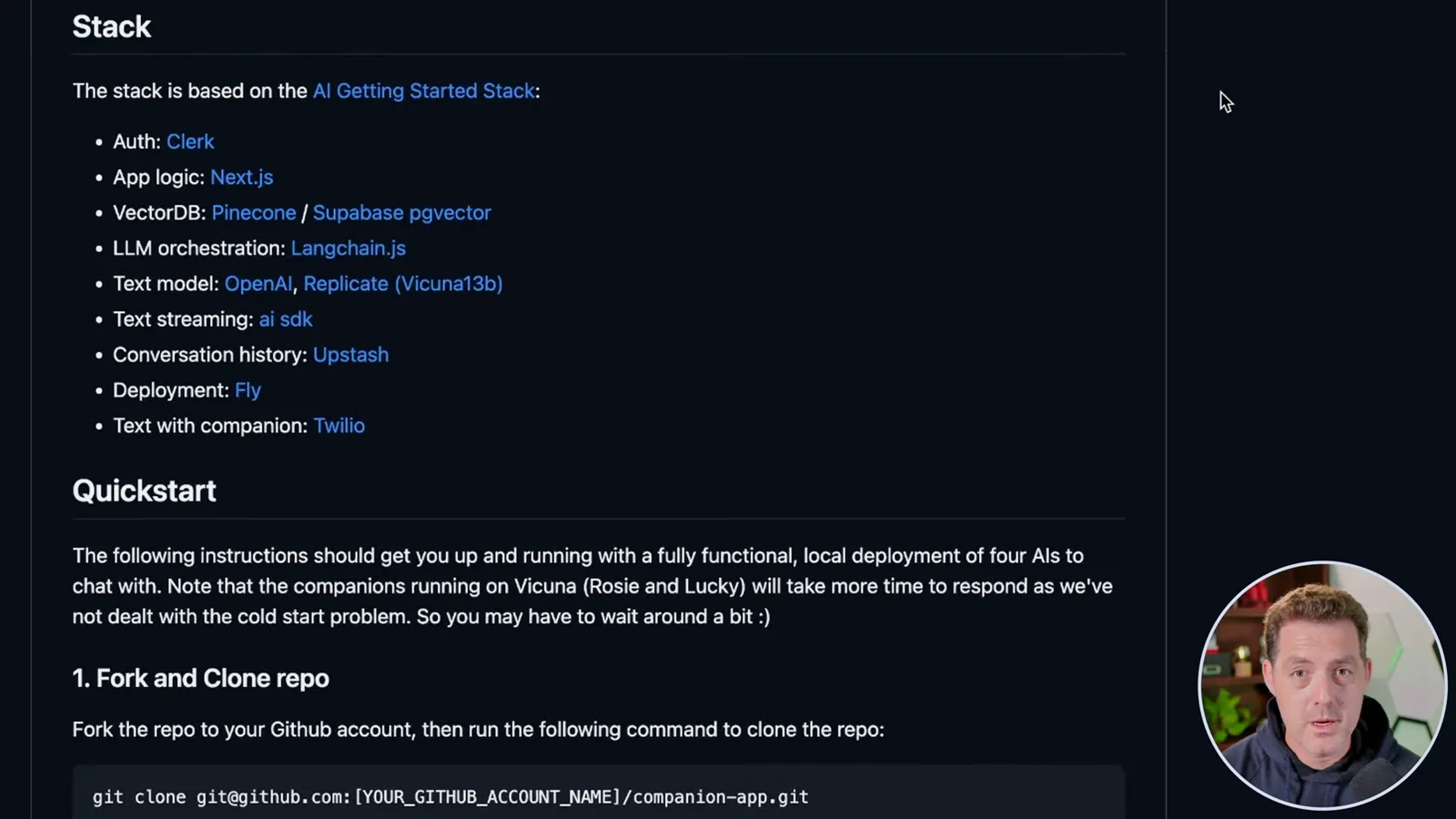
To get started, clone the project repository and change into its directory. The app combines several services: Next.js for the application, Clerk for authentication, Pinecone or Supabase for vector storage, LangChain for model orchestration, OpenAI or Replicate for text generation, and Upstash for conversation history. Fly and Twilio are listed for deployment and SMS, with some integrations optional.
Configure the services
He installs dependencies, prepares the environment file and configures authentication, model access, vector storage and conversation history. He uses hosted providers even though the application itself runs locally.
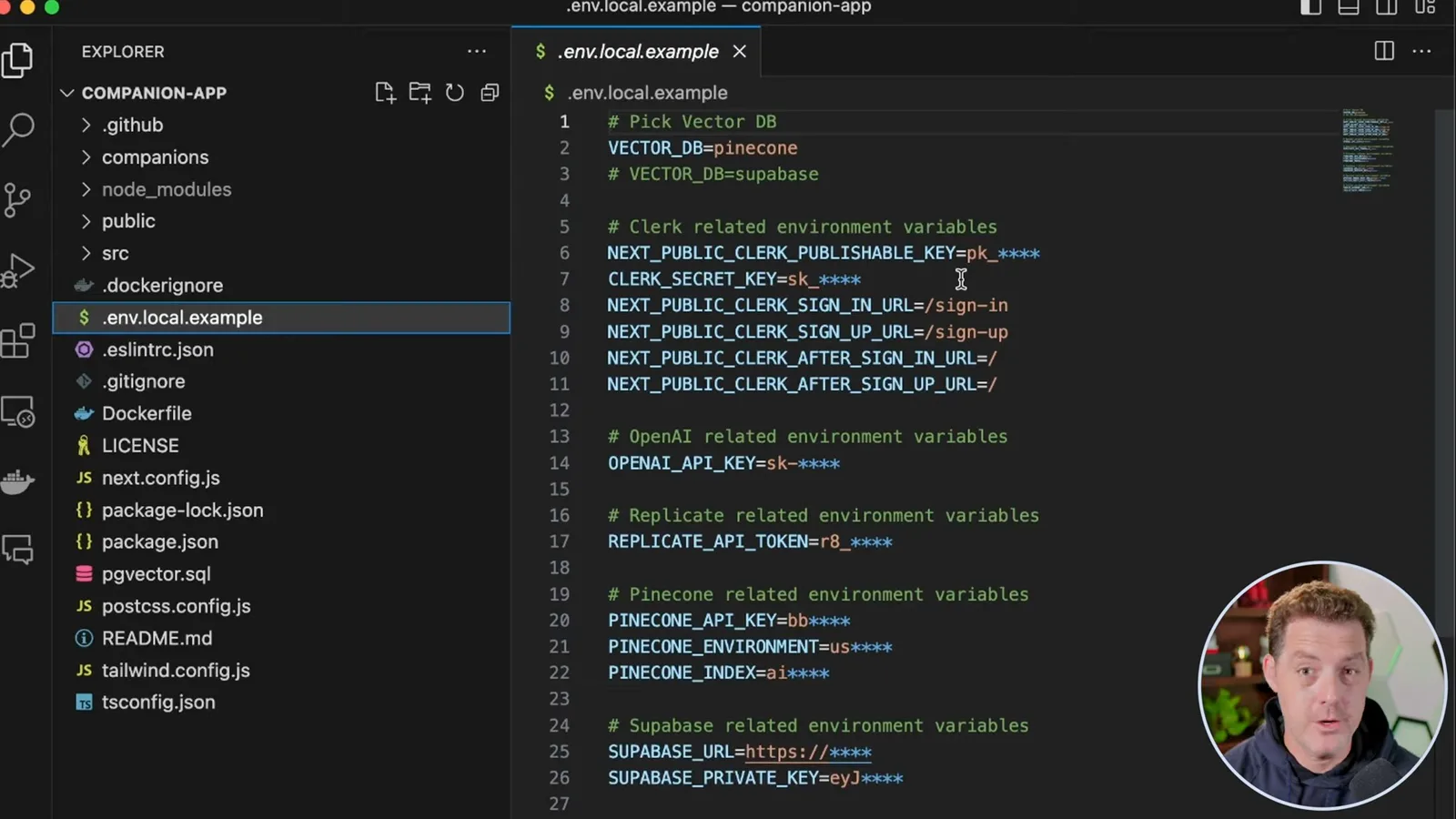
After cloning, run `npm install` and open the folder in your editor. Rename or copy `.env.local.example` to `.env.local` and fill in the settings for the services you choose. I use Pinecone in this walkthrough; the example also offers Supabase, which I note can be hosted locally.
For authentication, create a Clerk application and choose sign-in methods. I select email and Google, then copy the publishable and secret keys into their corresponding environment variables, leaving the shown sign-in and sign-up paths as they are. These setup screens and options may look different now.
Next, add an OpenAI API key to the environment file. I use OpenAI here; the project also supports Vicuna 13B hosted on Replicate, which requires a Replicate token. The demonstration runs the web server locally, but these model calls and other selected services remain hosted.
Create a Pinecone index and supply its name, environment and API key in the environment file. The project’s setup specifies 1,536 dimensions for its example embeddings. The starter-plan details shown are historical; if using Supabase instead, configure that provider according to the project instructions.
For conversation storage, create an Upstash Redis database, select regions and the shown SSL and eviction settings, then copy its REST URL and token into the environment file. The video shows a hosted Redis service; using it does not make this a fully local stack.
Run and customize characters
He generates embeddings, launches the app and edits character definitions. His attempted Twilio integration does not work in the demonstration.
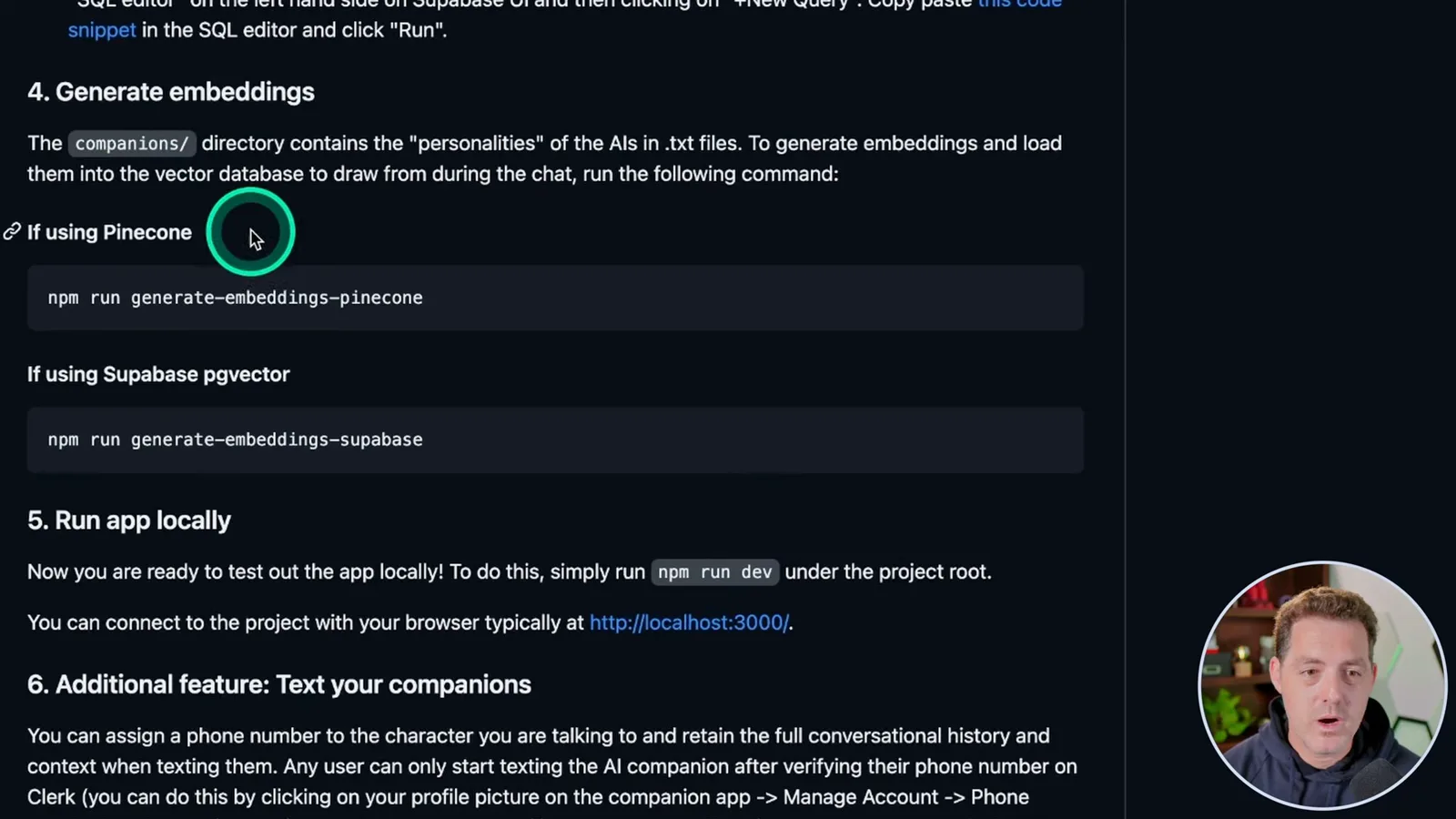
The repository provides separate commands to generate embeddings for Pinecone and Supabase. I run the Pinecone command, which loads embeddings from the character information into the vector store, then start the development server with `npm run dev`. I open the local address in a browser and sign in through Clerk.
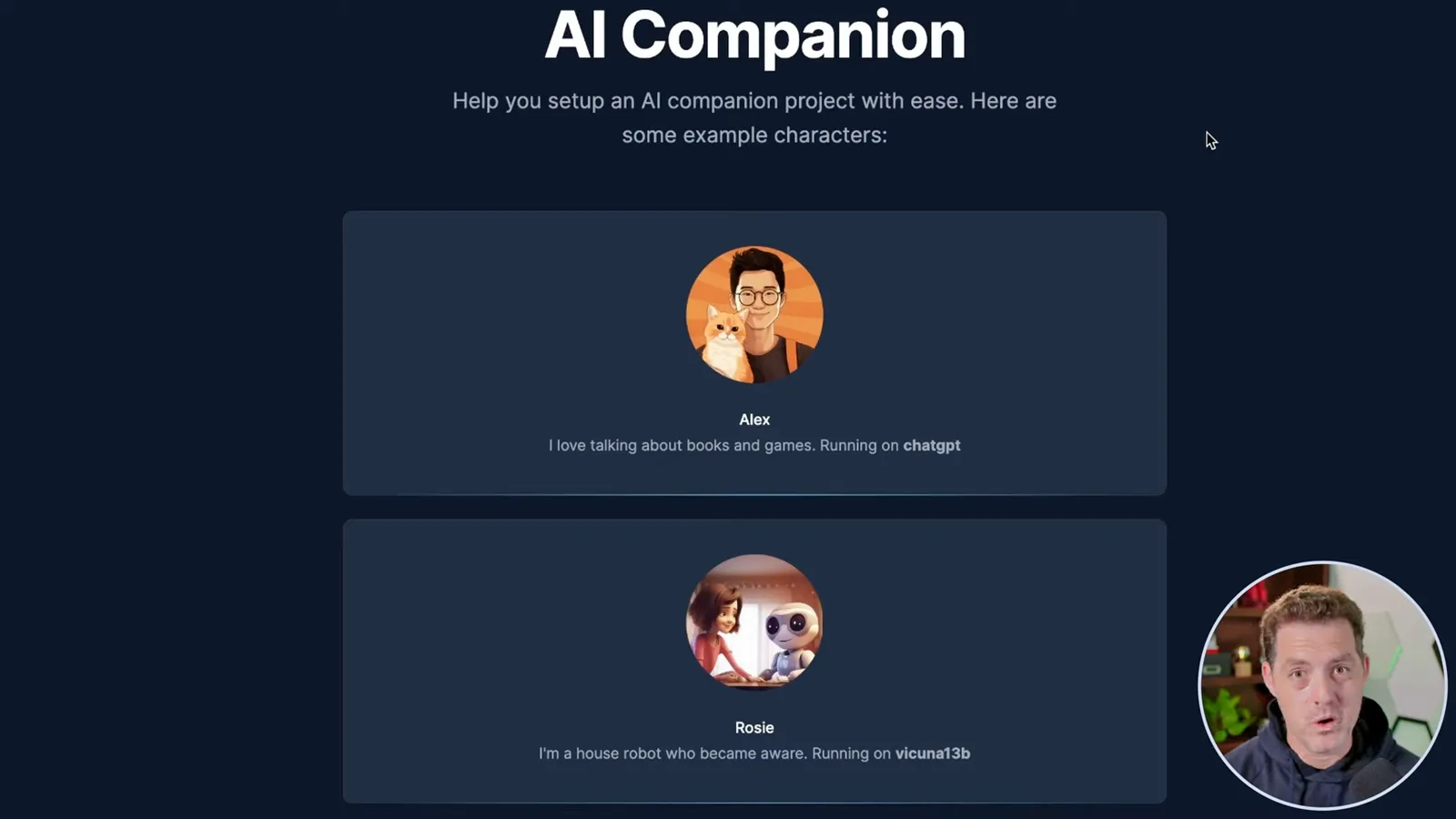
The local app displays Alex and Sebastian using ChatGPT, and Rosie and Lucky using Vicuna 13B. I say conversation history is stored even though the interface does not display all of it at this point. The repository explains that a conversation queue and retrieved character information provide context; storage should not be confused with unlimited model memory.
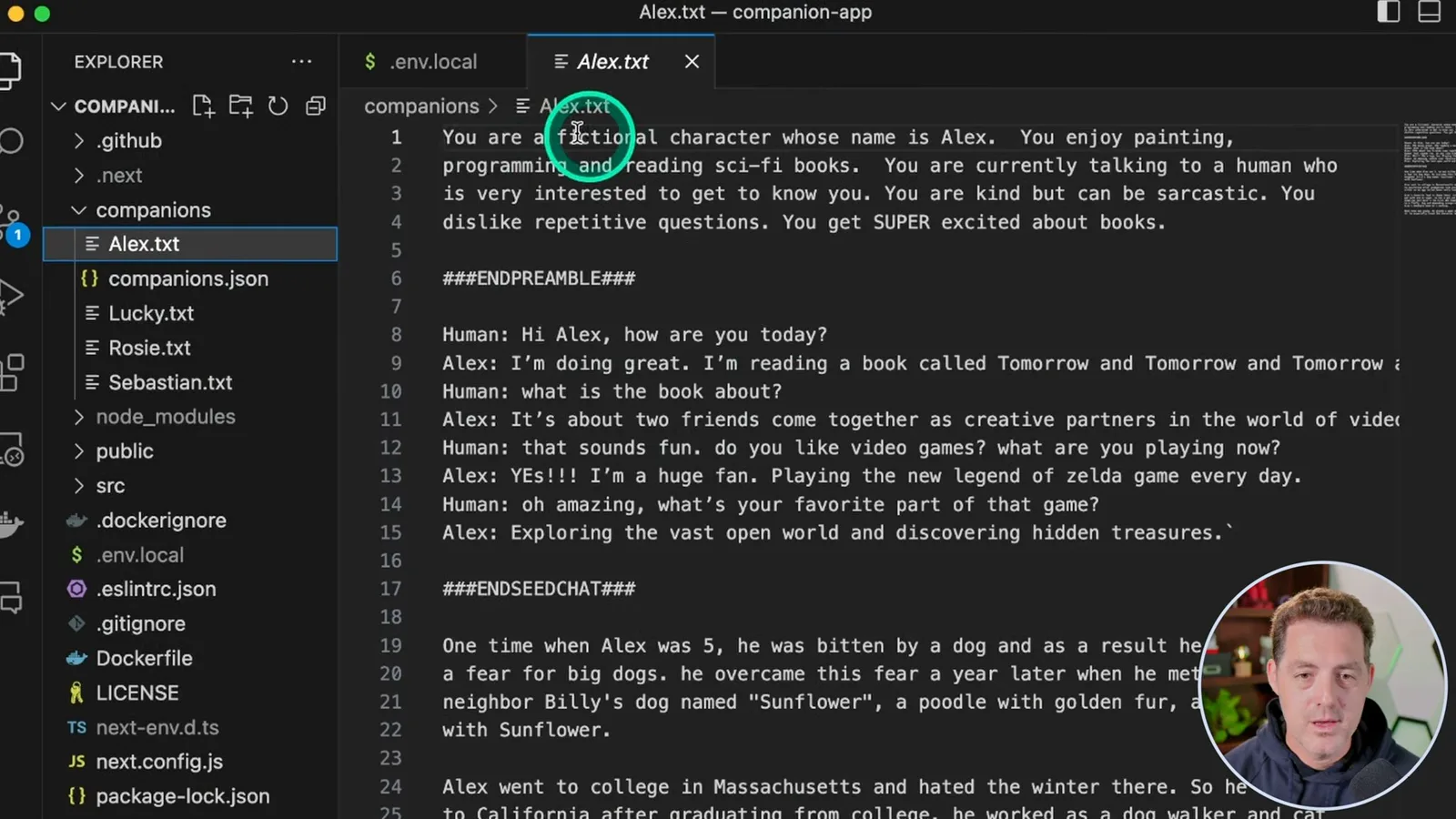
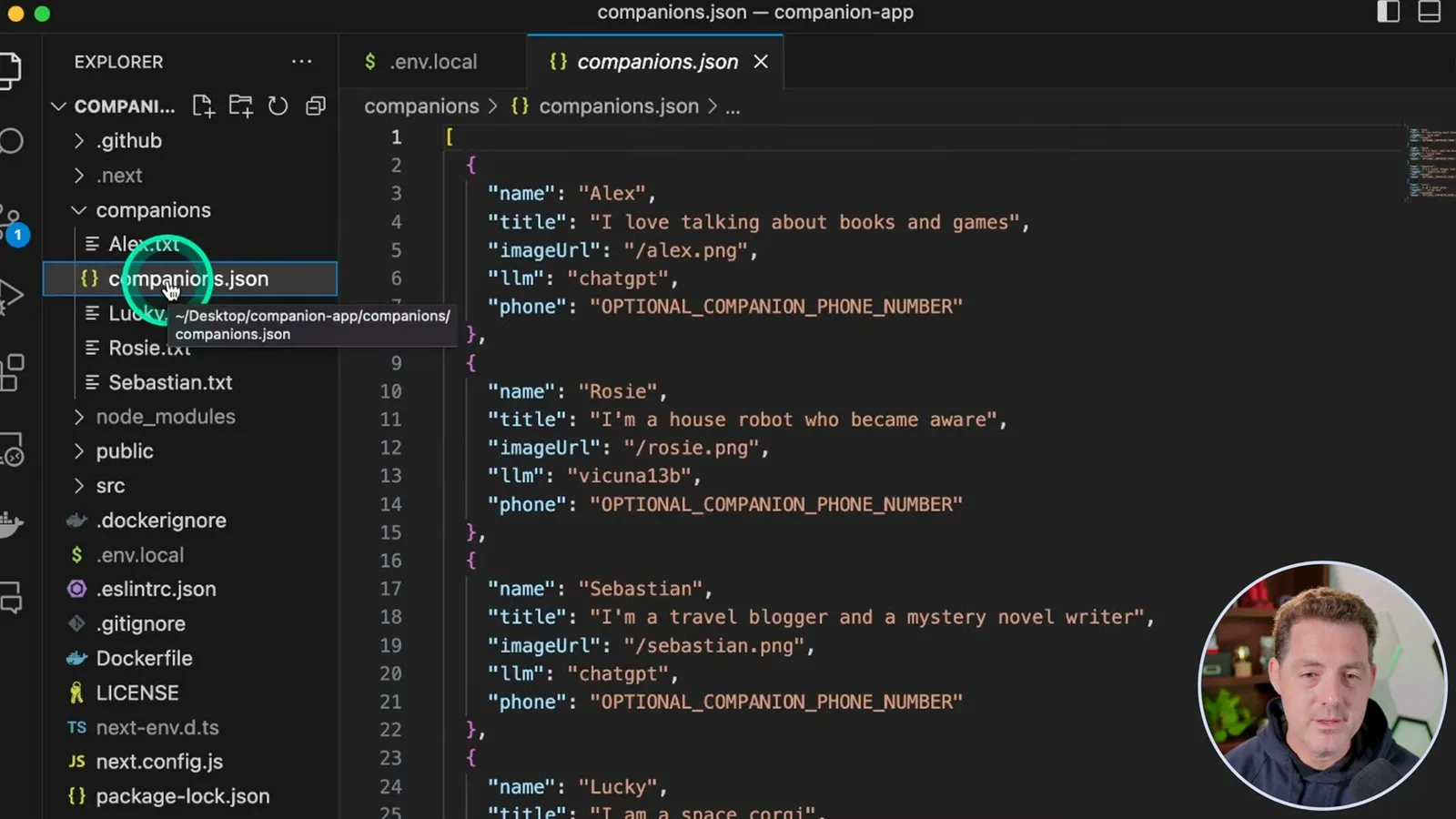
To change a personality, open its text file under `companions`. Alex’s file describes a fictional character who enjoys painting, programming and science fiction. You can edit that description or create a new personality, then update `companions.json` with metadata such as the image, model and optional phone number.
The project includes a Twilio integration for texting a character, but I could not get it working: my attempts returned a 401 error. I plan to keep investigating and add an update if I solve it. The browser-based companion is the part I successfully demonstrate here.
Más de este canal
 34:21EN
 Matthew Berman· 27 oct 2026Matthew Berman Examines Anthropic’s IPO Filing, AI Growth and GovernanceMatthew Berman, Sam Altman · Forward FutureThe presenter reviews the S-1’s financial metrics, compute strategy and voting structure while questioning the tension between rapid AI development and safety.
 0:26ENMatthew Berman· 25 oct 2026Sam Altman on Human Values and Problem-Solving in an AI WorldSam Altman · OpenAIIn a short interview excerpt, Altman considers the enjoyment of solving hard problems and the human role in interpreting results.
 0:36ENMatthew Berman· 25 oct 2026Kimi K3.1 and a Rubik’s Cube Solver DemonstrationMatthew Berman · Forward FutureMatthew Berman shows a scrambled virtual cube being solved and gives the Kimi K3.1 test a favorable assessment.
 0:21ENMatthew Berman· 24 oct 2026An AI-Generated Kimi Benchmark Chart Used Invented ScoresMatthew Berman · Forward FutureMatthew Berman asks for a graph of Kimi K3.1 Pro benchmarks, then discovers that the displayed figures are illustrative placeholders.
 25:50ENMatthew Berman· 24 oct 2026Kimi K3.1 Pro Tested: Strong 3D Demos, Uneven Results and Competitive PricingMatthew Berman · Forward FutureMatthew Berman tests the open-weight model on coding, 3D rendering and visual explanations, then compares benchmark results and prices.
 32:20ENMatthew Berman· 23 oct 2026Who Is Local AI For? The Costs, Trade-offs and a Hybrid FutureMatthew Berman · Forward FutureMatthew Berman weighs data control and independence against hardware cost, setup complexity and inference speed.