In 30 Sekunden
In June 2023, Matthew Berman uses a Windows conda environment to install Text Generation WebUI and troubleshoot dependency errors. He then explains three historical ways to obtain models, checks model-card prompt templates and walks through the interface’s loading, chat and generation settings. The software has since changed, so the specific build flags and dependency workarounds are not general current instructions. Model compatibility, memory, licenses and safe handling of remote code depend on the chosen model and setup.
- 1Windows and condaBerman creates and activates a Python 3.10.9 environment before installing PyTorch and the 2023 project dependencies.
- 2Troubleshooting dependenciesHe works through a llama-cpp-python build failure, a bitsandbytes CUDA issue and a PEFT compatibility error. His OpenBLAS fallback alone does not prove GPU acceleration.
- 3Three model download pathsThe demonstrated version supports interface, script and manual downloads; the necessary files and formats depend on the model.
- 4Prompt templates and settingsBerman checks the model card for its expected prompt format and reviews CPU, device and loader options.
- 5Chat and generation controlsHe switches to chat mode and shows history and sampling settings; prior turns are subject to context limits.
Das Wichtigste
- The 2023 demonstration uses Windows, conda and Python 3.10.9 to install the then-current WebUI and dependencies.
- Berman encounters build, CUDA and package compatibility errors; his fixes apply to his historical setup rather than every installation.
- Models were downloaded through the interface, a command-line script or manual file placement in the displayed version.
- Model format, loader, hardware and the model’s prompt template all influence whether a model runs correctly.
- Enabling remote model code executes repository-supplied code, so inspect and trust its source before enabling it.
- Chat history is supplied as context within limits; it is not unlimited permanent model memory.
Den bearbeiteten Text nach Kapiteln lesen
Preparing the Windows environment
Berman introduces the 2023 Text Generation WebUI and creates a conda environment. He installs PyTorch, clones the repository and installs dependencies.
Text Generation WebUI is an open-source interface for running compatible language models locally. In this June 2023 video I install it on Windows and explain model downloads and settings. The project and its installation process have changed since the recording; its current repository documentation is the appropriate starting point for a new setup.
The repository at the time offers one-click installers, a conda method and Docker. I choose conda because the one-click route has not worked for me. My experience is not a universal result, and which method works depends on the project version and system.
In the Windows Anaconda prompt I create a conda environment named `tg` with Python 3.10.9 and activate it. An isolated environment helps manage dependencies, although it does not by itself guarantee compatible packages or eliminate installation errors.
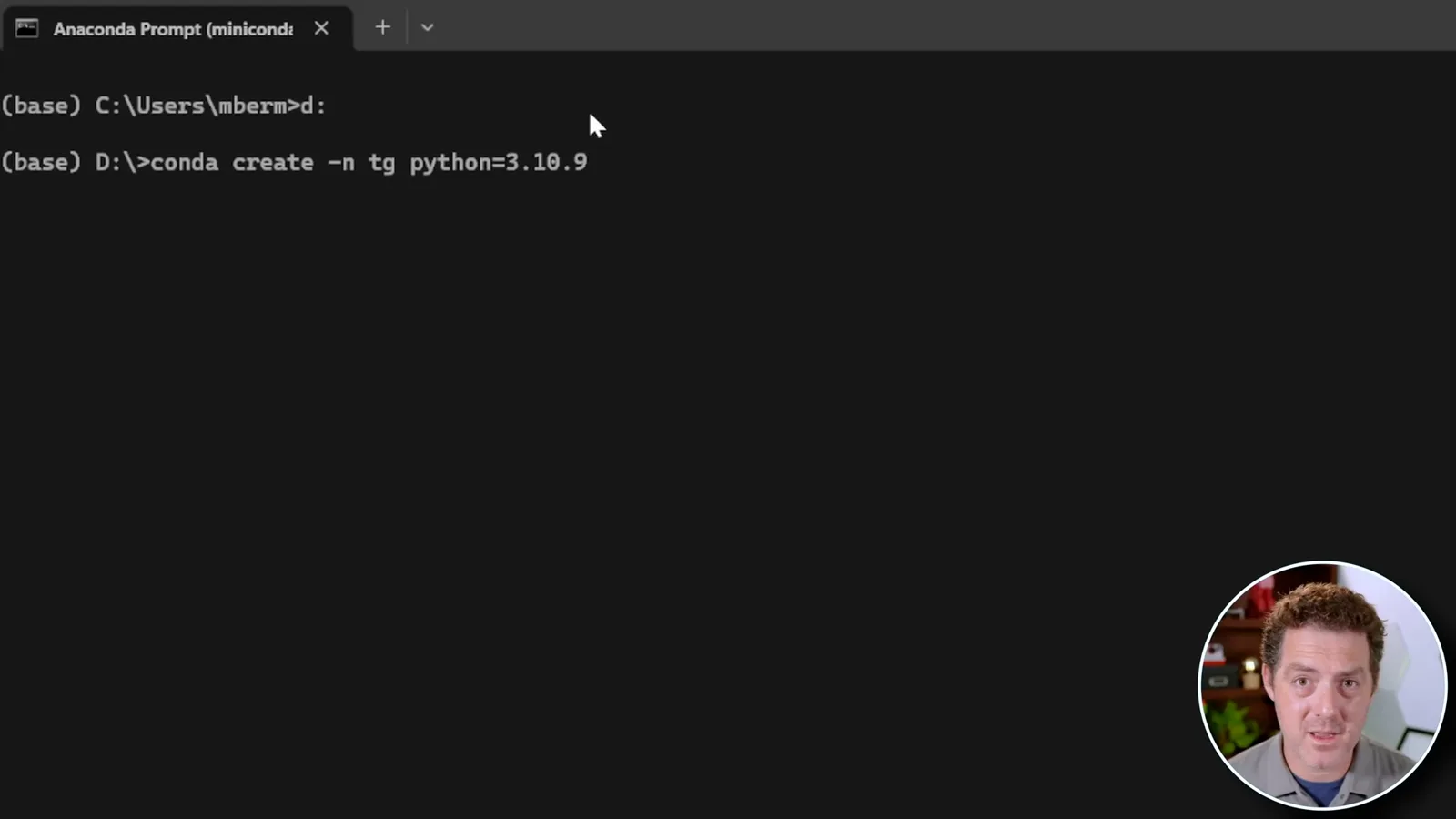
I install PyTorch and related libraries using a CUDA 11.7 package index, then clone the repository, change into its folder and install its requirements. These package choices were part of my 2023 configuration; current versions and hardware may require different instructions.
Resolving installation errors
He attempts a GPU-related build and encounters several dependency errors. The workarounds are specific to the displayed software and hardware configuration.
I attempt to rebuild `llama-cpp-python` with the flags shown in the old guide and encounter a wheel-build failure. My retry uses an OpenBLAS flag and completes the build. That fallback is not evidence that the resulting llama.cpp build has CUDA acceleration; support depends on the actual build and backend.
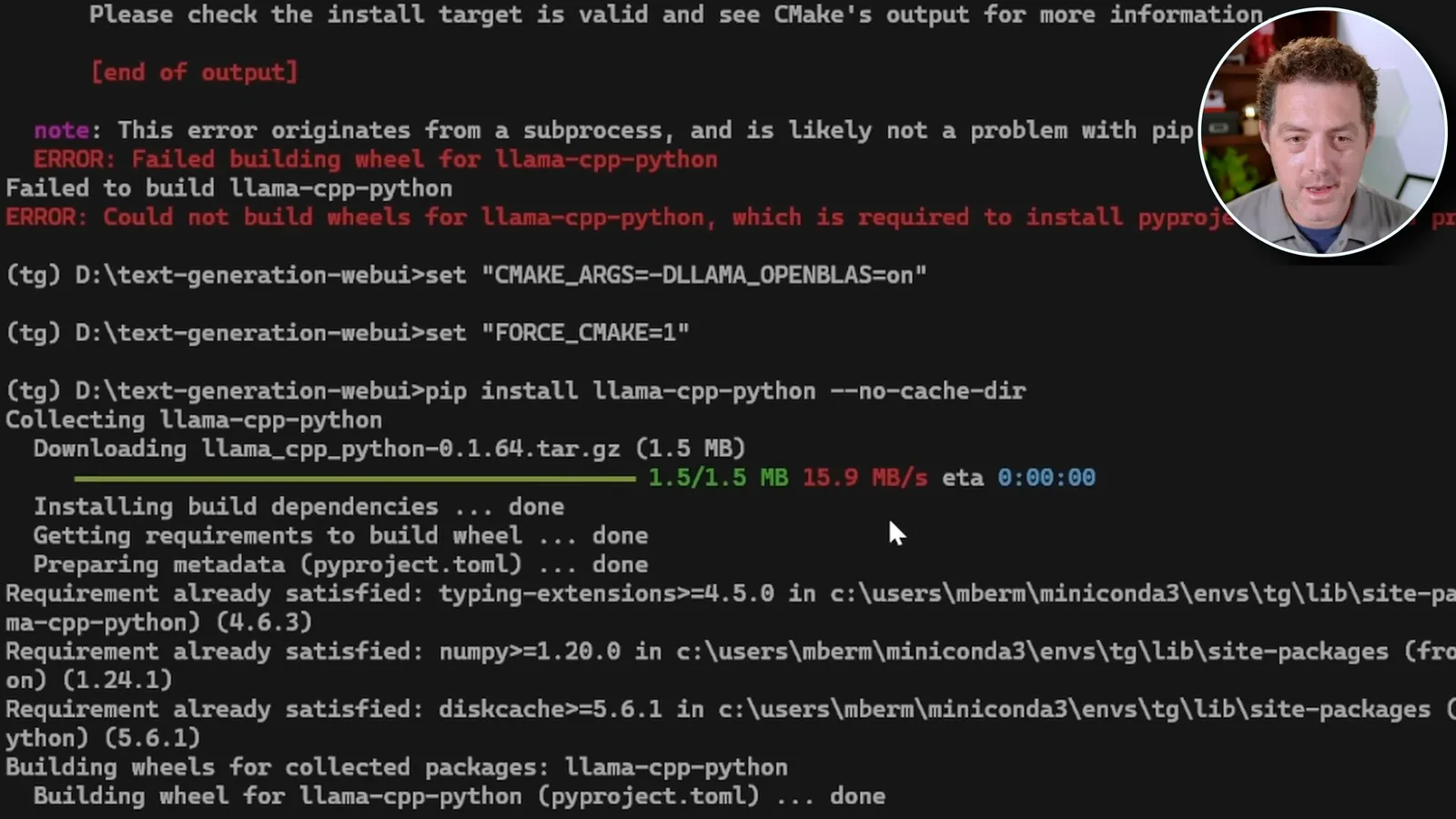
A separate check reports that PyTorch sees CUDA 11.7, but starting the server produces a bitsandbytes CUDA error. I install a Windows-specific bitsandbytes package, then encounter a missing `Linear4bit` attribute and use a particular PEFT revision to get my historical environment running. These are troubleshooting observations, not universally appropriate fixes.
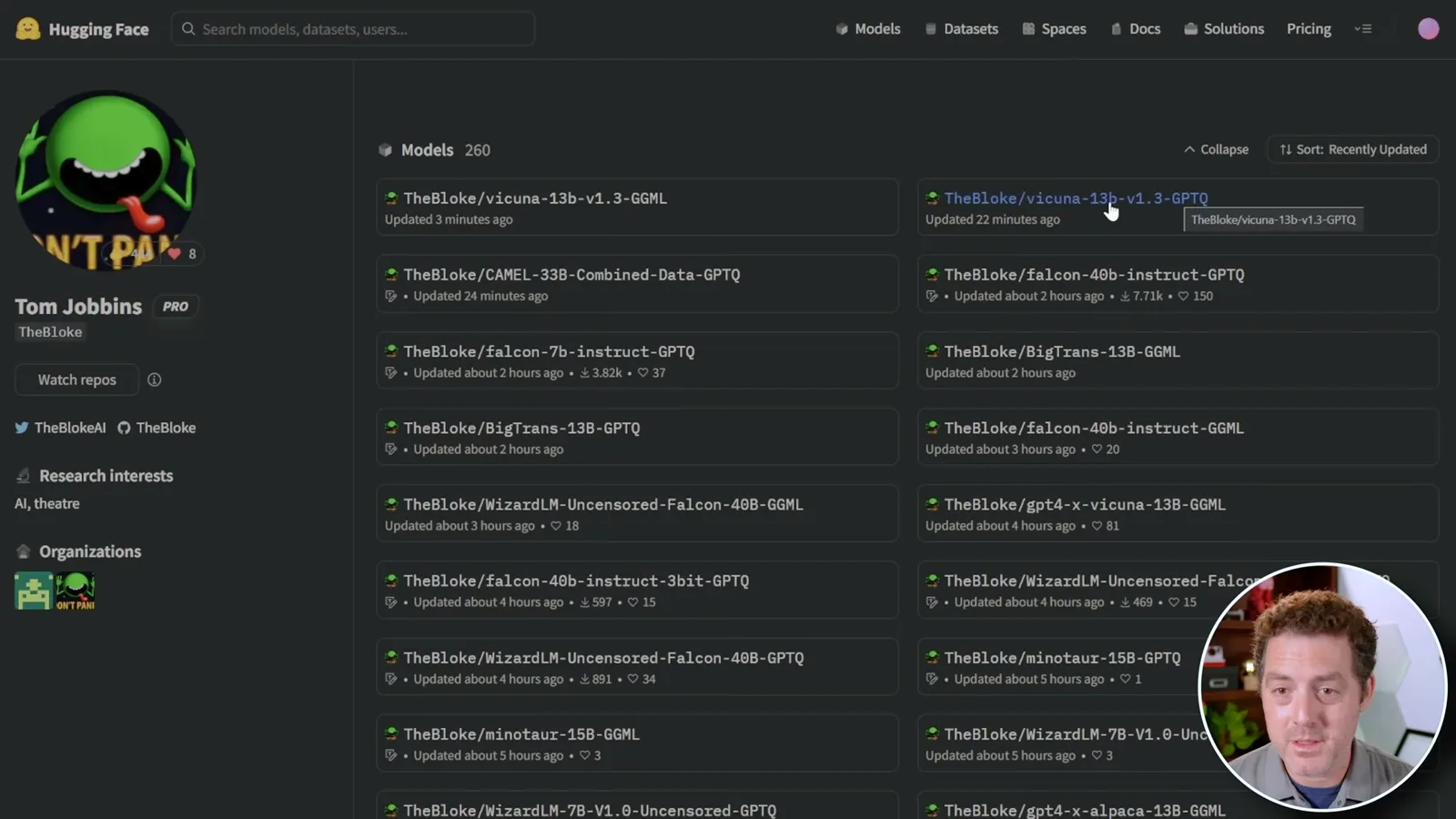
Once the server starts, I open its local address in a browser. I then explain how the interface can download models from Hugging Face and show TheBloke’s GPTQ and GGML variants of Vicuna and other models. A model’s format, license and hardware needs must be checked separately; the interface cannot run every model on every machine.
Downloading models
He explains the interface, script and manual download paths. Quantized formats and model files require compatible loaders and hardware.
The first download method in this version is to paste an author/model identifier into the Model tab and click download. The second is a command-line download script, which I prefer when retrieving multiple models. Both methods depend on the project version and access to the model repository.
The third method is to download the needed files manually from the model’s repository and place them in the WebUI models directory. A large weights file alone may not be sufficient: configuration, tokenizer and other files can also be required. The example shown is about 7.45 GB, and runtime memory needs can be higher.
Templates, devices and chat settings
Berman reviews model-card prompt templates, device settings, chat mode and generation parameters. The available controls reflect the version shown in 2023.
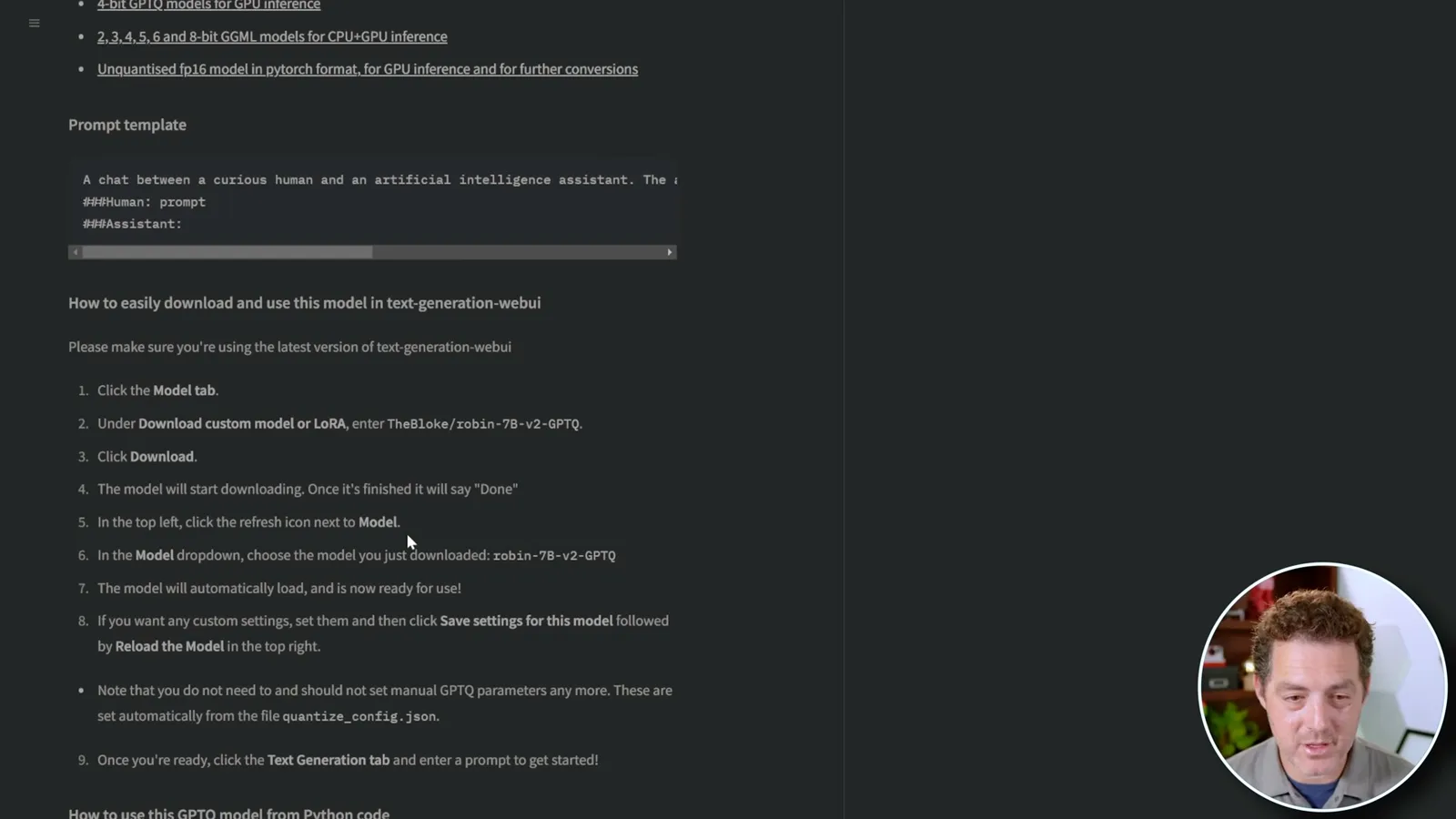
I recommend reading the model card for the compatible loader and any special settings. A model trained on a particular instruction format may work better when the input follows its expected prompt template. The old interface offers templates and lets users edit them.
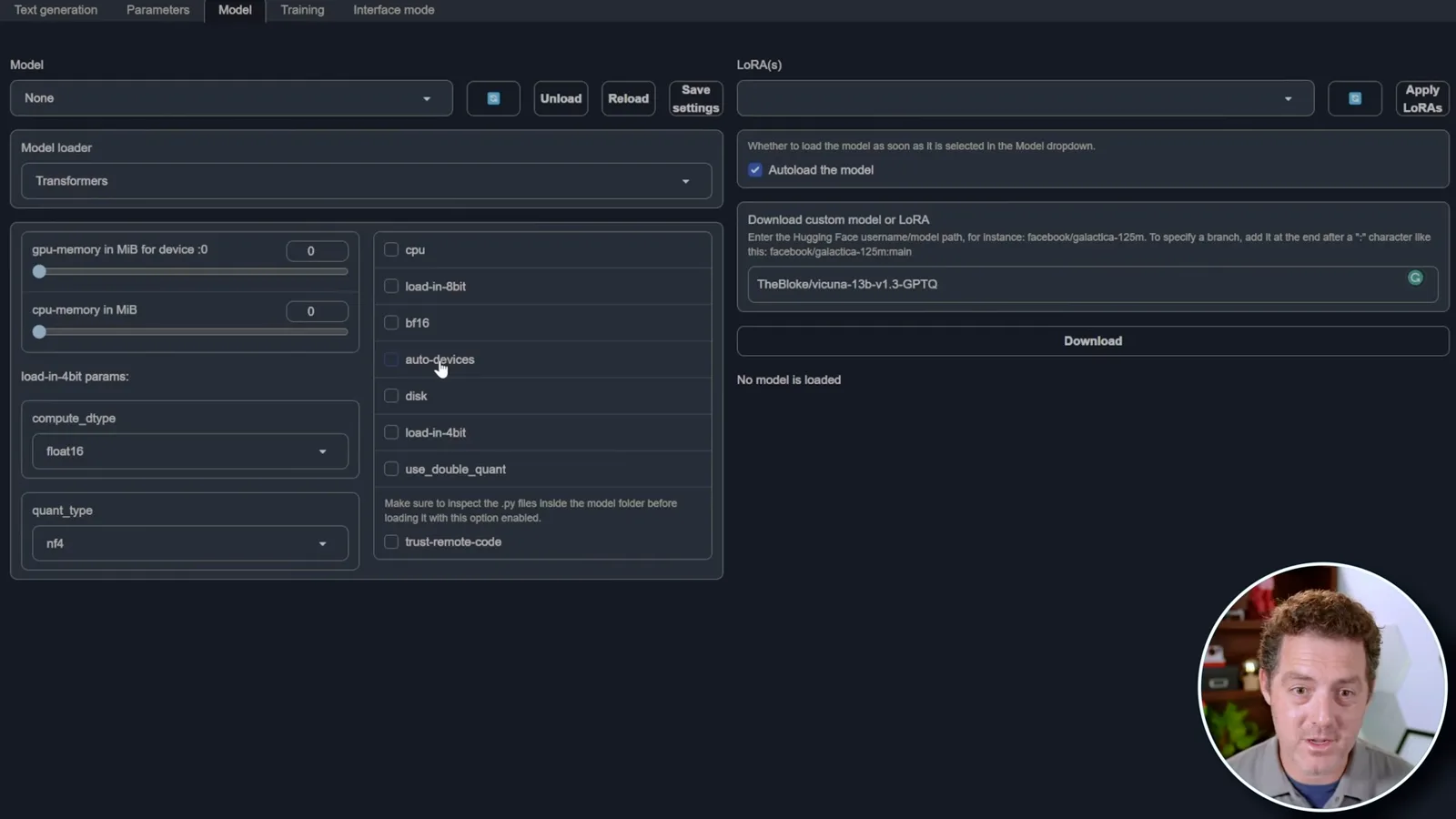
The Model tab includes CPU and automatic device options, along with a `trust-remote-code` setting. That option can execute code supplied by the model repository, so inspect the code and enable it only when you trust the source; an error message alone is not a reason to turn it on blindly.
I switch from instruct mode to a chat-style interface and show the option to upload chat history. The application can pass earlier turns back as context, subject to the model’s context window and settings; this is not a guarantee of unlimited or permanent memory.
The Parameters tab exposes sampling controls such as temperature, top-p and top-k. I also point out a Training tab for fine-tuning, without conducting a training demonstration. For actual use, check the model’s requirements and the current project documentation rather than assuming the 2023 steps remain compatible.
Mehr aus diesem Kanal
 34:21EN
 Matthew Berman· 27. Okt. 2026Matthew Berman Examines Anthropic’s IPO Filing, AI Growth and GovernanceMatthew Berman, Sam Altman · Forward FutureThe presenter reviews the S-1’s financial metrics, compute strategy and voting structure while questioning the tension between rapid AI development and safety.
 0:26ENMatthew Berman· 25. Okt. 2026Sam Altman on Human Values and Problem-Solving in an AI WorldSam Altman · OpenAIIn a short interview excerpt, Altman considers the enjoyment of solving hard problems and the human role in interpreting results.
 0:36ENMatthew Berman· 25. Okt. 2026Kimi K3.1 and a Rubik’s Cube Solver DemonstrationMatthew Berman · Forward FutureMatthew Berman shows a scrambled virtual cube being solved and gives the Kimi K3.1 test a favorable assessment.
 0:21ENMatthew Berman· 24. Okt. 2026An AI-Generated Kimi Benchmark Chart Used Invented ScoresMatthew Berman · Forward FutureMatthew Berman asks for a graph of Kimi K3.1 Pro benchmarks, then discovers that the displayed figures are illustrative placeholders.
 25:50ENMatthew Berman· 24. Okt. 2026Kimi K3.1 Pro Tested: Strong 3D Demos, Uneven Results and Competitive PricingMatthew Berman · Forward FutureMatthew Berman tests the open-weight model on coding, 3D rendering and visual explanations, then compares benchmark results and prices.
 32:20ENMatthew Berman· 23. Okt. 2026Who Is Local AI For? The Costs, Trade-offs and a Hybrid FutureMatthew Berman · Forward FutureMatthew Berman weighs data control and independence against hardware cost, setup complexity and inference speed.