In 30 Sekunden
Matthew Berman demonstrates an early version of SuperAGI, an agent framework with a graphical interface and tool integrations. He configures Docker and service keys, creates an agent with a research goal, and follows its search and file-writing steps. The walkthrough describes the software and service setup at the time of recording.
- 1Agents with tools and a GUIBerman introduces SuperAGI and its ability to run agents with integrations and a graphical interface.
- 2Docker and credentialsHe clones the project, configures service credentials and builds the containers; he says the example keys will be revoked.
- 3Creating an agentIn the local interface he sets a research goal, picks a model and enables tools such as Google search and file writing.
- 4Following the runThe agent searches for AI topics and writes information to a file, displaying a plan and self-criticism along the way.
Das Wichtigste
- SuperAGI's 2023 interface let users create agents, choose tools and run agents concurrently.
- The demonstrated setup used Docker and credentials for OpenAI, Pinecone and Google search.
- The test agent searched for AI topics and wrote results to a file, a narrow example rather than proof of general autonomy.
- Installation options, service quotas and project configuration may have changed since the video.
Den bearbeiteten Text nach Kapiteln lesen
SuperAGI overview
Berman introduces the framework, its interface and tool integrations. He compares its features with Auto-GPT.
SuperAGI is an agent framework with a graphical interface, support for tools and the ability to run multiple agents in parallel. I compare it to Auto-GPT and show the project from Transformer Optimus, including integrations for services such as search, email and GitHub. This walkthrough shows an early version of the project.
Installation and service setup
He installs Docker, clones the project and configures OpenAI, Pinecone and Google credentials. He builds and opens the local application.
I start by installing and running Docker. In Visual Studio Code I open a terminal, clone the SuperAGI repository and open its folder. I rename the configuration template to config.yaml, where the version in the video stores service settings and keys.
For this demonstration I configure OpenAI, Pinecone and Google search. I create an OpenAI API key, a Pinecone key and environment setting, and a Google API key and custom search engine ID. I say that I will revoke the keys displayed in the video; the exact interfaces and service quotas shown are historical and may have changed.
After saving the configuration, I use Docker Compose to build and start the services. Docker packages the components so I don't have to manage the same Python dependencies manually. Once the build is running, I open the local application at localhost:3000.
Running a research agent
He defines an agent and selects tools. The demonstration follows a search and file-writing workflow.
In the Agents tab I create a test agent with the goal of researching AI topics for YouTube videos. I choose GPT-3.5 Turbo for speed, while noting that GPT-4 can be selected if the user has access. I inspect the available tools and select Google search and file-related tools for the task.
I click create and run. The interface shows the agent's details and progress, while the terminal provides more logs. The agent plans to search Google for relevant AI topics, receives search results and decides to save information for later.
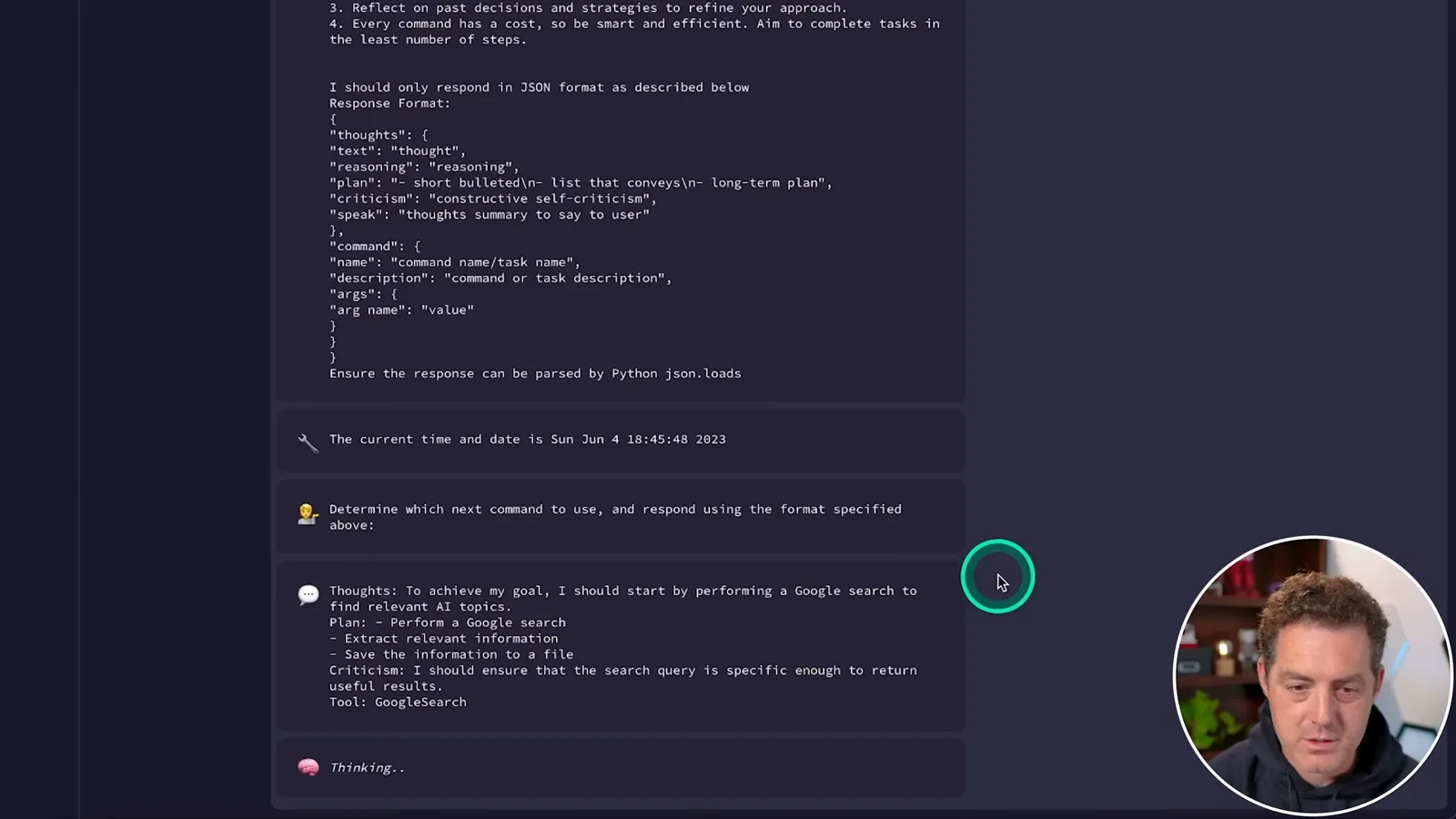
The run uses the write-file tool to create an AI topics text file, then declares the goal complete. It also displays a plan and self-criticism, similar to the pattern I associate with Auto-GPT. The example demonstrates a particular search-and-save workflow; it does not establish that the agent will reliably achieve arbitrary goals.
Mehr aus diesem Kanal
 34:21EN
 Matthew Berman· 27. Okt. 2026Matthew Berman Examines Anthropic’s IPO Filing, AI Growth and GovernanceMatthew Berman, Sam Altman · Forward FutureThe presenter reviews the S-1’s financial metrics, compute strategy and voting structure while questioning the tension between rapid AI development and safety.
 0:26ENMatthew Berman· 25. Okt. 2026Sam Altman on Human Values and Problem-Solving in an AI WorldSam Altman · OpenAIIn a short interview excerpt, Altman considers the enjoyment of solving hard problems and the human role in interpreting results.
 0:36ENMatthew Berman· 25. Okt. 2026Kimi K3.1 and a Rubik’s Cube Solver DemonstrationMatthew Berman · Forward FutureMatthew Berman shows a scrambled virtual cube being solved and gives the Kimi K3.1 test a favorable assessment.
 0:21ENMatthew Berman· 24. Okt. 2026An AI-Generated Kimi Benchmark Chart Used Invented ScoresMatthew Berman · Forward FutureMatthew Berman asks for a graph of Kimi K3.1 Pro benchmarks, then discovers that the displayed figures are illustrative placeholders.
 25:50ENMatthew Berman· 24. Okt. 2026Kimi K3.1 Pro Tested: Strong 3D Demos, Uneven Results and Competitive PricingMatthew Berman · Forward FutureMatthew Berman tests the open-weight model on coding, 3D rendering and visual explanations, then compares benchmark results and prices.
 32:20ENMatthew Berman· 23. Okt. 2026Who Is Local AI For? The Costs, Trade-offs and a Hybrid FutureMatthew Berman · Forward FutureMatthew Berman weighs data control and independence against hardware cost, setup complexity and inference speed.