En 30 secondes
In this August 2023 tutorial, Matthew Berman installs Meta’s AudioCraft, generates music with MusicGen, and tries a community AudioGen interface for sound effects. The commands reflect the version shown; the code and model weights have different licenses, and the AudioGen pull request was not merged.
- 1Set up the environmentThe historical Mac walkthrough creates a Python 3.9 Conda environment, installs FFmpeg and clones the repository.
- 2Launch MusicGenBerman starts a Gradio demo, enters a music prompt and explores model, melody and sampling controls.
- 3AudioGen community interfaceAfter notebook difficulties, he checks out a community pull request and generates a barking sound.
- 4License distinctionThe project code uses MIT licensing, while the model weights are released under CC BY-NC 4.0.
À retenir
- A Conda environment, FFmpeg and the AudioCraft repository were the basis of the demonstrated Mac installation.
- MusicGen accepts text prompts and, with the melody model, an optional audio melody for conditioning.
- Model downloads and generation can take time, particularly on a CPU; options and duration limits depend on the version.
- AudioGen generates sounds from text; the demonstrated Gradio interface came from an unmerged community pull request.
- AudioCraft code is MIT-licensed, while the model weights use CC BY-NC 4.0.
- The Gradio `--share` option requests a shareable link even when the demo also provides a local address.
Lire le texte remanié, chapitre par chapitre
Prepare the Mac environment
Berman introduces AudioCraft and creates a Conda environment. He installs FFmpeg and clones the repository.
AudioCraft is Meta’s project for generating music and sound effects. I will show the local workflow on a Mac using MusicGen and AudioGen. This tutorial was recorded in August 2023, so commands and dependencies should be checked against the current AudioCraft repository before following them.
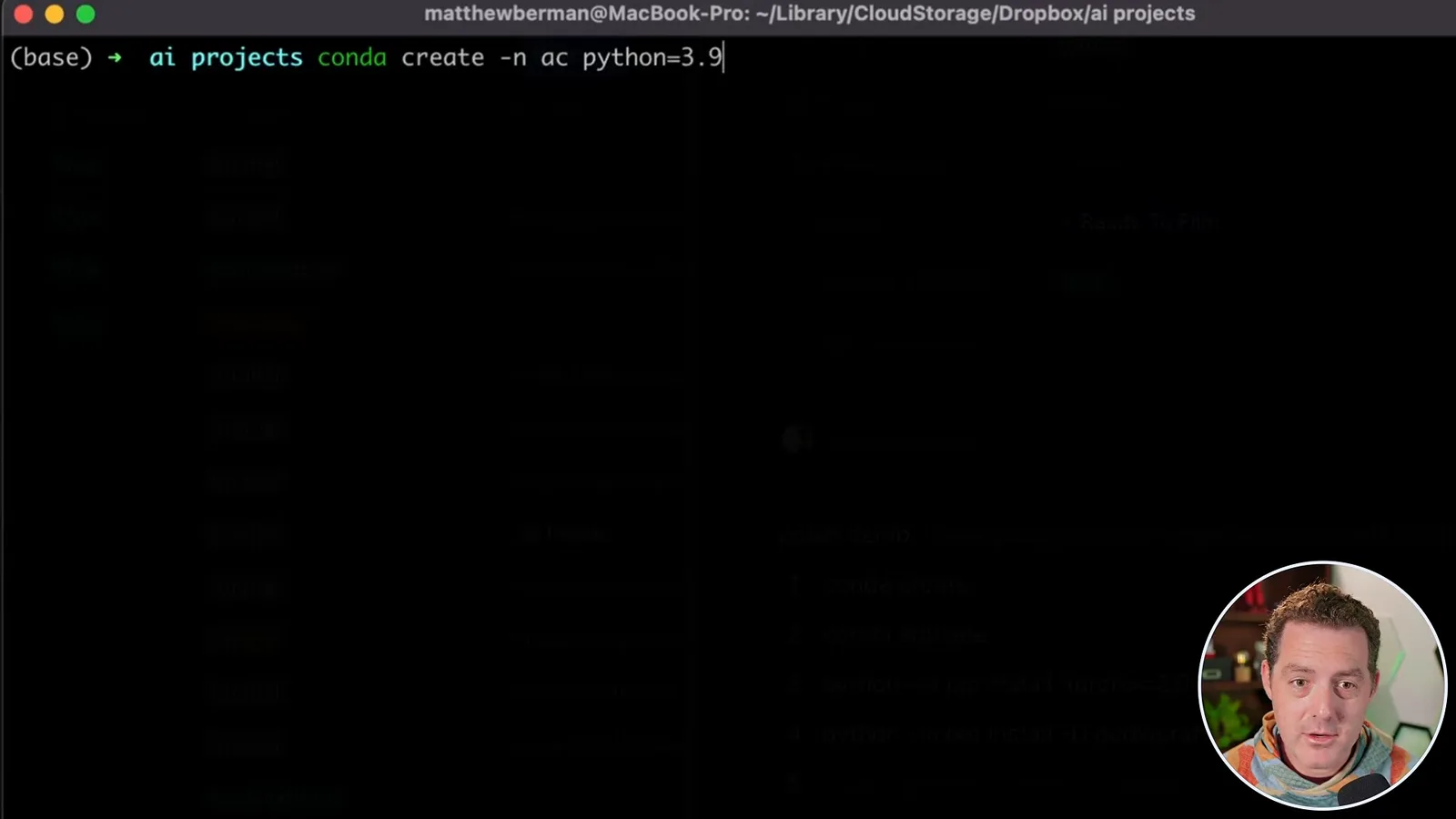
First I create and activate a Conda environment with `conda create -n ac python=3.9` and `conda activate ac`. The environment name appears in the terminal once activation succeeds. I am using macOS; I expect a similar workflow on Windows, but the video does not demonstrate or verify Windows installation.
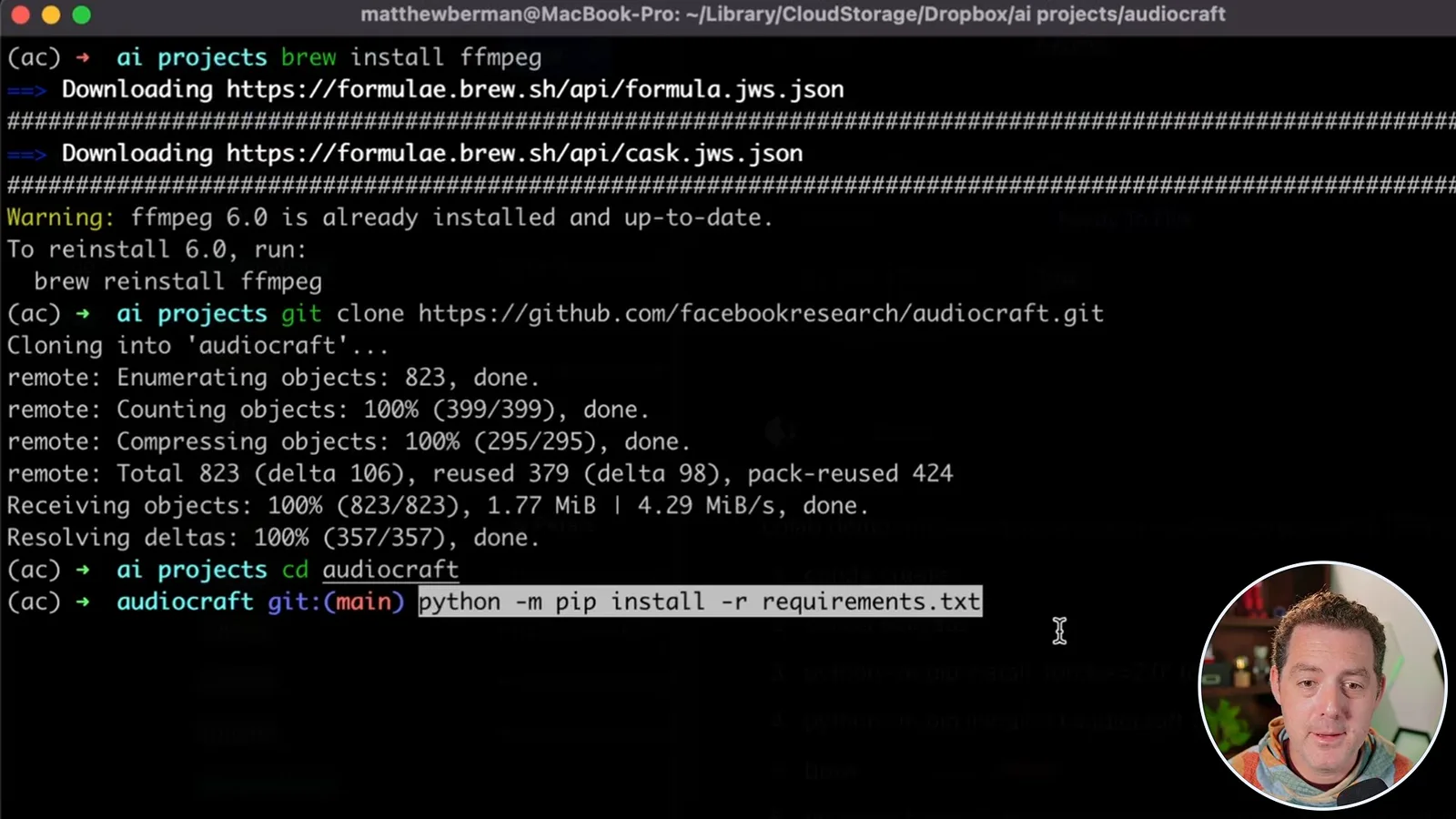
AudioCraft also needs FFmpeg. On my Mac I use `brew install ffmpeg`; Homebrew reports that it is already installed. The current project documentation also describes installing FFmpeg through Conda, alongside specific Python and PyTorch dependencies.
I copy the repository address from GitHub, run `git clone https://github.com/facebookresearch/audiocraft.git`, and enter it with `cd audiocraft`. In the 2023 walkthrough I install its requirements with `python -m pip install -r requirements.txt`. Installation methods and dependency versions can change, so consult the project README for the current procedure.
Generate music with MusicGen
He starts a Gradio demo and enters a music prompt. He explains model selection, optional melody conditioning and generation settings.
To start the MusicGen Gradio demo I run `python -m demos.musicgen_app --share` and open the local URL printed in the terminal. The `--share` option also requests a shareable Gradio link; it is not necessary to assume that every access route is local or private.
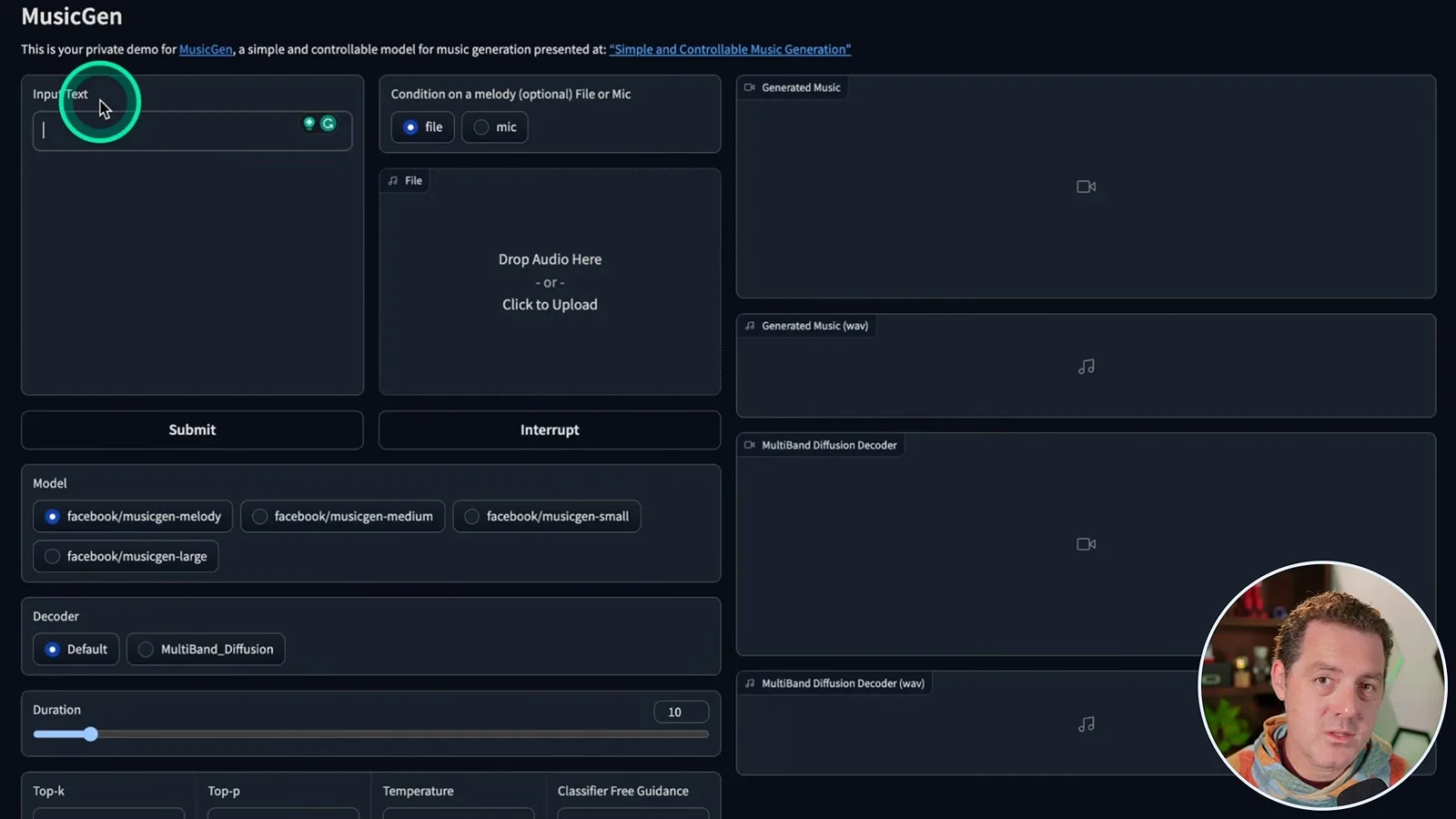
The MusicGen screen provides a text box for a musical description and an optional audio input for conditioning on a melody. I enter “90s hip hop West Coast” and submit it. On the first run, model weights must be downloaded, so startup takes longer than on my machine, where the download is already complete.
Generation is taking a while; I believe my run is using the CPU. The interface lets me choose the melody model or small, medium and large variants, adjust duration, and experiment with top-k, top-p and temperature. The optional audio input conditions a melody-capable model; it is not a general promise that any model performs arbitrary audio-to-audio transformation.
I keep the example at ten seconds and listen to the result. I suggest experimenting with the controls and describe the demonstrated interface as allowing a duration up to two minutes. Available limits and extended-generation behavior depend on the version and model; the original MusicGen code uses a 30-second model window with an extension mechanism for longer outputs.
Generate sound effects with AudioGen
He switches to a community pull request providing an AudioGen interface. He generates a dog-barking example and discusses local experimentation.
For sound effects I turn to AudioGen. I had trouble using its code and Jupyter notebook on my Mac, so I use a community Gradio interface proposed by cocktailpeanut in AudioCraft pull request 185. My own demonstration worked, but that does not guarantee the same setup will work on every computer.
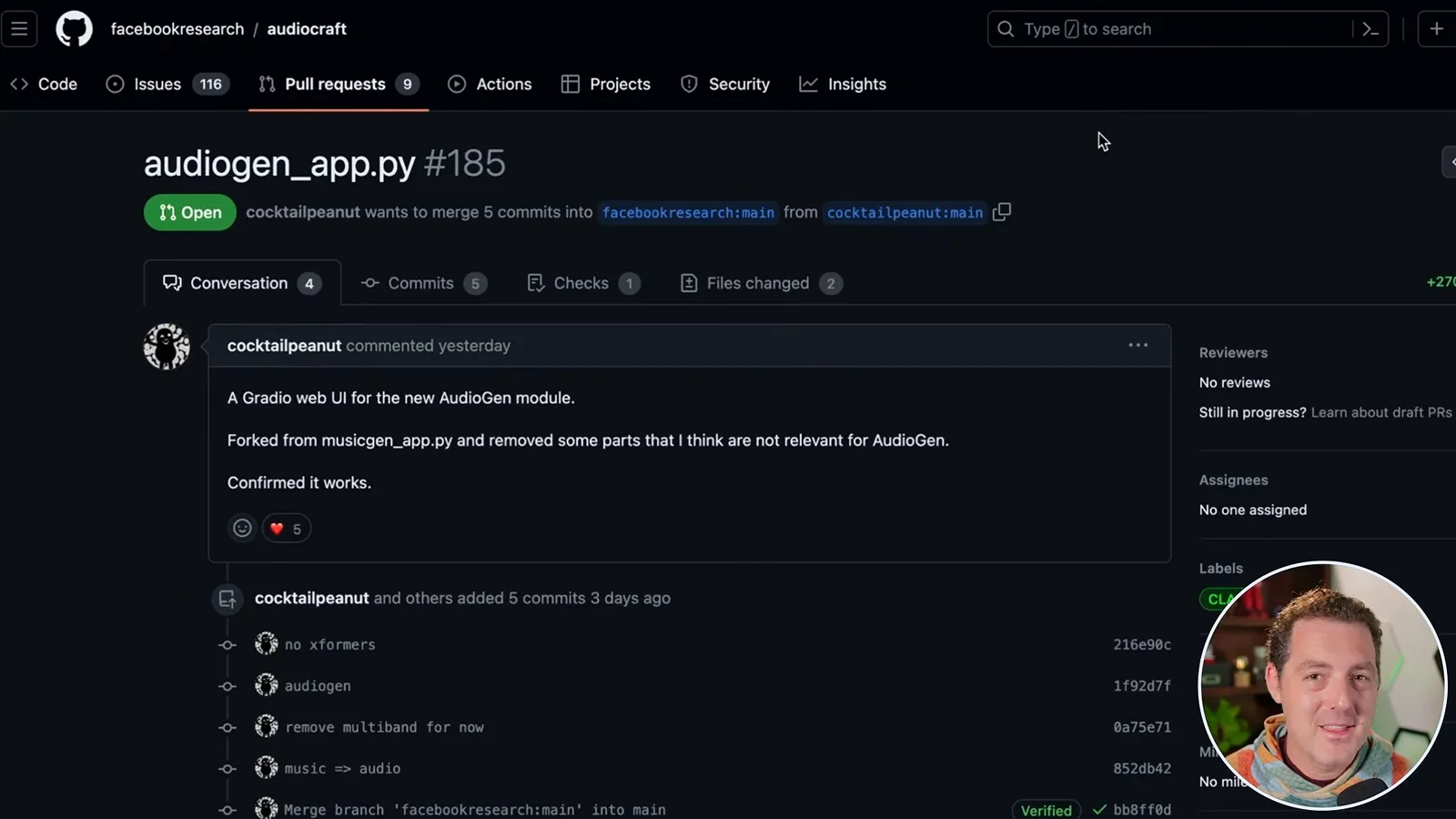
At recording time the pull request had not been merged, so I fetch it with `git fetch origin pull/185/head:PR185`, then switch with `git checkout PR185`. I expected it might be merged later, but the project page still lists this proposal as open; it should not be assumed to be part of the main branch.
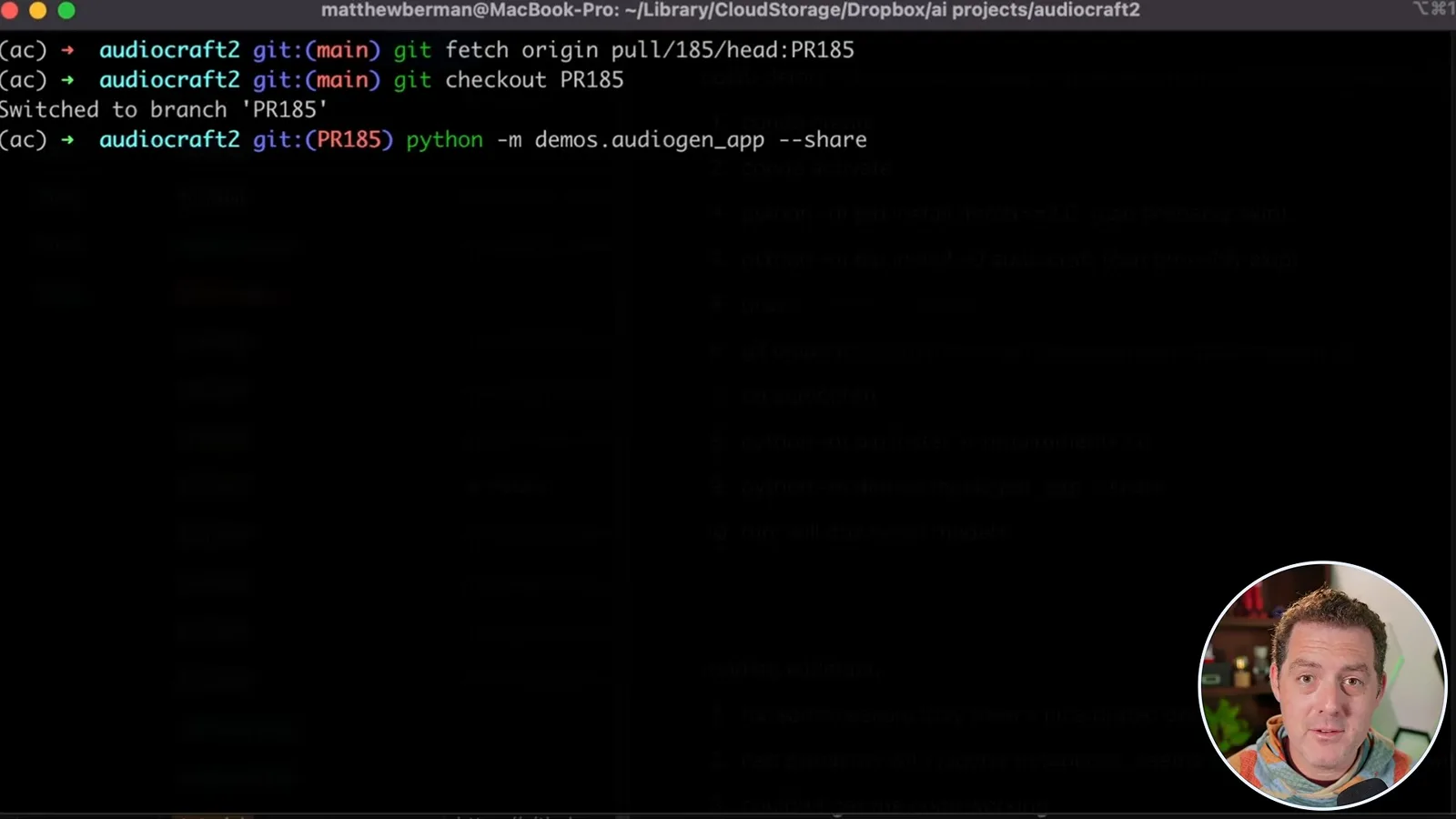
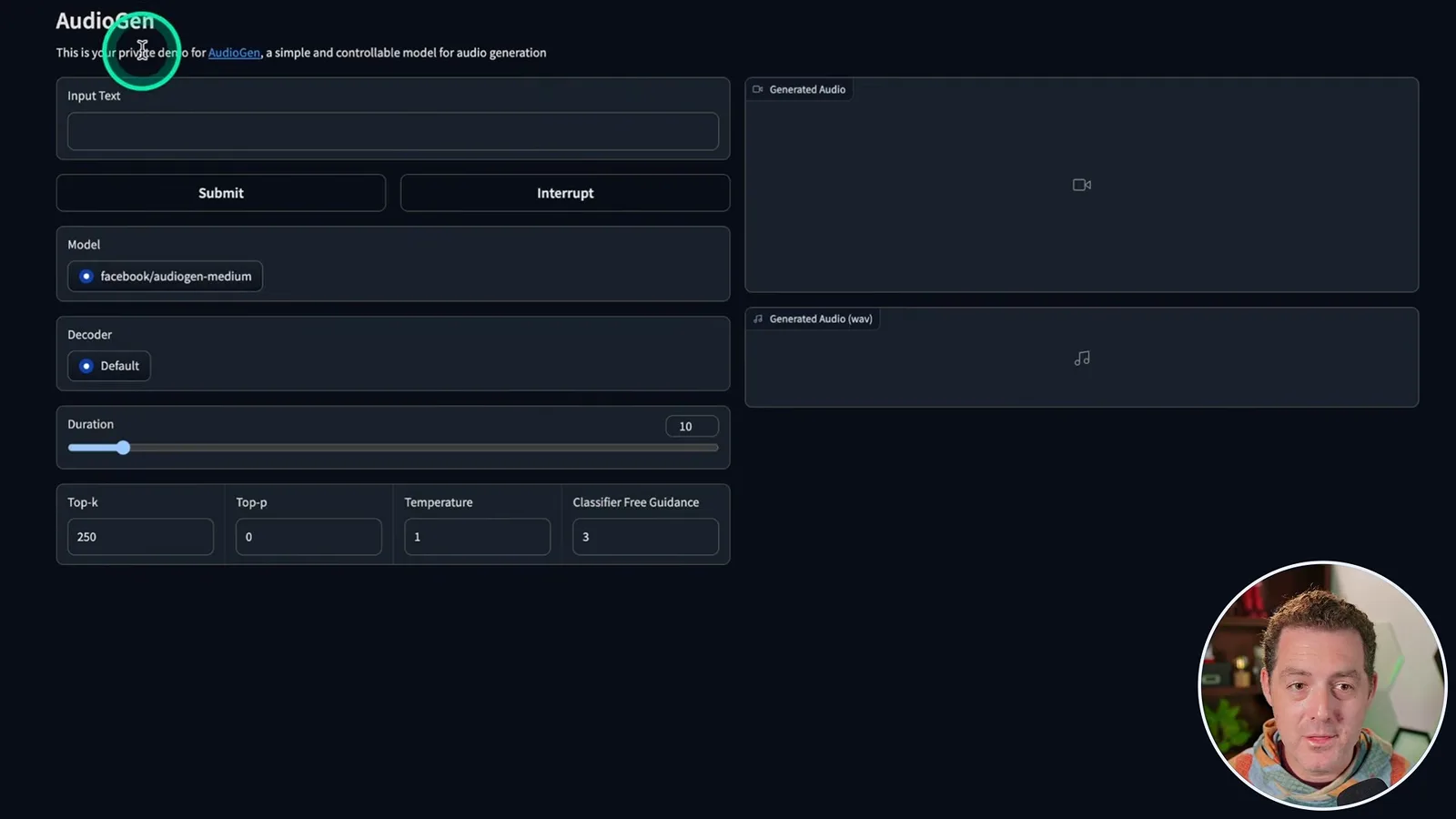
From that branch I run `python -m demos.audiogen_app --share`, open the local URL, and enter “dog barking.” The first use needs to download the AudioGen model; mine was already cached. The resulting sound resembles a small dog, and I find it convincing.
The demonstration is free to try locally, but licensing deserves a distinction: AudioCraft repository code is MIT-licensed, while the released model weights are under CC BY-NC 4.0. Check the applicable terms before using the weights, especially for commercial purposes. I encourage viewers to experiment with the audio settings and results.
Sur la même chaîne
 34:21EN
 Matthew Berman· 27 oct. 2026Matthew Berman Examines Anthropic’s IPO Filing, AI Growth and GovernanceMatthew Berman, Sam Altman · Forward FutureThe presenter reviews the S-1’s financial metrics, compute strategy and voting structure while questioning the tension between rapid AI development and safety.
 0:26ENMatthew Berman· 25 oct. 2026Sam Altman on Human Values and Problem-Solving in an AI WorldSam Altman · OpenAIIn a short interview excerpt, Altman considers the enjoyment of solving hard problems and the human role in interpreting results.
 0:36ENMatthew Berman· 25 oct. 2026Kimi K3.1 and a Rubik’s Cube Solver DemonstrationMatthew Berman · Forward FutureMatthew Berman shows a scrambled virtual cube being solved and gives the Kimi K3.1 test a favorable assessment.
 0:21ENMatthew Berman· 24 oct. 2026An AI-Generated Kimi Benchmark Chart Used Invented ScoresMatthew Berman · Forward FutureMatthew Berman asks for a graph of Kimi K3.1 Pro benchmarks, then discovers that the displayed figures are illustrative placeholders.
 25:50ENMatthew Berman· 24 oct. 2026Kimi K3.1 Pro Tested: Strong 3D Demos, Uneven Results and Competitive PricingMatthew Berman · Forward FutureMatthew Berman tests the open-weight model on coding, 3D rendering and visual explanations, then compares benchmark results and prices.
 32:20ENMatthew Berman· 23 oct. 2026Who Is Local AI For? The Costs, Trade-offs and a Hybrid FutureMatthew Berman · Forward FutureMatthew Berman weighs data control and independence against hardware cost, setup complexity and inference speed.