En 30 secondes
Matthew Berman demonstrates where to select Nano Banana 2.1 in the Google AI Studio playground and tries a portrait prompt. He says the model is paid and praises the detail in the resulting image. The interface and availability shown reflect the video’s October 2026 recording.
- 1Open the playgroundBerman opens Google AI Studio and locates the model selector on the right.
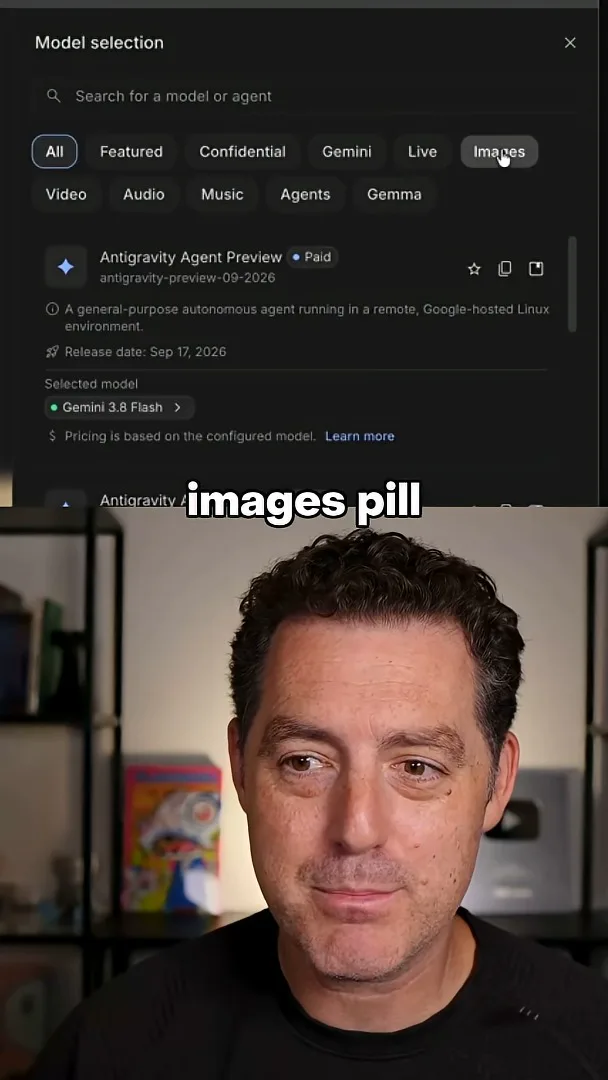
- 2Filter for imagesHe selects the Images filter and chooses Nano Banana 2.1, which he describes as paid.
- 3A portrait promptHe requests a hyperrealistic close-up and comments on the face, hair and jacket details.
À retenir
- In the shown interface, the model selector has an Images filter for finding Nano Banana 2.1.
- Berman says the model is paid in the demonstrated setup.
- The portrait is one example, and Berman’s assessment of its detail is subjective.
Lire le texte remanié, chapitre par chapitre
Find and select the model
Berman opens the Google AI Studio playground, selects the Images filter and chooses Nano Banana 2.1. He notes that the model is paid in the shown setup.
To find Nano Banana 2.1 in the Google AI Studio interface shown in October 2026, I open the playground and use the model selector on the right. I choose the Images filter and select Nano Banana 2.1. I note that the model is paid in this setup; the interface, availability and pricing can change.
Generate a portrait
He asks for a hyperrealistic close-up of a woman and examines the resulting detail. His positive assessment is based on this one example.
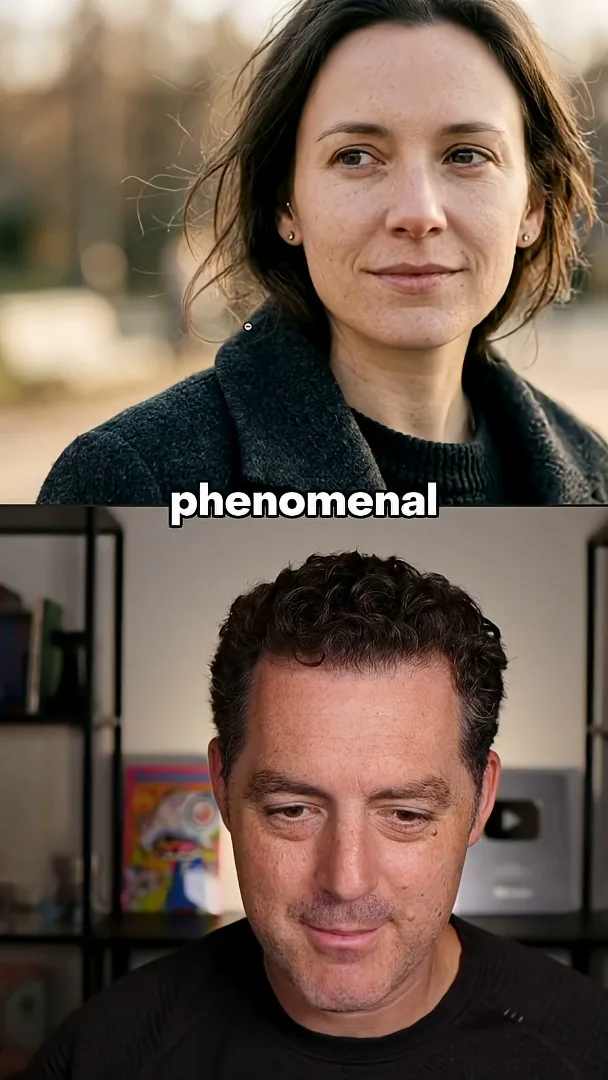
I ask it to generate a hyperrealistic close-up of a woman. Looking closely at the result, I notice facial texture, wrinkles around the eyes, individual hairs and fibers in the jacket. I find this image impressive, though it is one example rather than a systematic comparison.
Sur la même chaîne
 34:21EN
 Matthew Berman· 27 oct. 2026Matthew Berman Examines Anthropic’s IPO Filing, AI Growth and GovernanceMatthew Berman, Sam Altman · Forward FutureThe presenter reviews the S-1’s financial metrics, compute strategy and voting structure while questioning the tension between rapid AI development and safety.
 25:50ENMatthew Berman· 24 oct. 2026Kimi K3.1 Pro Tested: Strong 3D Demos, Uneven Results and Competitive PricingMatthew Berman · Forward FutureMatthew Berman tests the open-weight model on coding, 3D rendering and visual explanations, then compares benchmark results and prices.
 32:20ENMatthew Berman· 23 oct. 2026Who Is Local AI For? The Costs, Trade-offs and a Hybrid FutureMatthew Berman · Forward FutureMatthew Berman weighs data control and independence against hardware cost, setup complexity and inference speed.
 1:03:37ENMatthew Berman· 23 oct. 2026Matthew Berman’s Team Tests Kimi K3.1 on Animation, Games, and ChartsMatthew Berman, Alex, Brian · Forward FutureA live team AMA turns into an informal test of Kimi K3.1, from personal-agent workflows to motion graphics, a browser game, and a benchmark chart.
 0:53ENMatthew Berman· 22 oct. 2026Sam Altman on AI and the Discovery of New KnowledgeSam Altman · OpenAIAltman expects progress in mathematical discovery to extend to biology, materials and energy.
 0:22ENMatthew Berman· 21 oct. 2026A Robot Bodyguard Video Shows Dramatic Rescue ScenariosMatthew Berman · Forward FutureMatthew Berman reacts to a short robot demonstration depicting fighting and vehicle-rescue scenarios.