En 30 secondes
Peter Yang demonstrates a Hermes setup for an always-available personal assistant, from choosing a host and connecting a model to messaging, integrations, and recurring briefings. He recommends separate credentials and limited access for personal data. The tutorial reflects the software and pricing available when recorded; users should check current documentation and review permissions before enabling actions.
- 1Choose a host and modelPeter compares a dedicated Mac, a primary computer, and a cloud server, then demonstrates desktop installation and model selection.
- 2Connect TelegramCreate a bot, configure its token and permitted user ID, restart the gateway, and choose a home channel.
- 3Personalize and troubleshootRecord preferences, inspect memory and personality files, and use diagnostic tools when setup fails.
- 4Add voice and integrationsPeter demonstrates voice replies and discusses connecting services used in his workflows.
- 5Connect Google WorkspaceThe demonstration sets up cloud APIs and OAuth, then tests email, calendar, and document access with attention to permissions.
- 6Build and schedule routinesCreate a skill, test the output manually, then schedule examples such as weekend planning and a morning briefing.
À retenir
- Choose a host based on uptime, cost, and maintenance; a separate account can limit access.
- Connect a messaging bot using its token and an allowed user ID, then test the gateway.
- Personalize the agent with preferences and check what it stores in memory files.
- Connect only the Google services and permissions needed, and verify changes to documents and calendars.
- Build and test a skill before scheduling a recurring briefing; protect credentials and review any backup for secrets.
Lire le texte remanié, chapitre par chapitre
What the course covers
An overview of Hermes as a personal assistant.
Peter Yang presents a practical course for configuring Hermes as a personal AI assistant. He covers installation, messaging, voice, Google Workspace, and scheduled routines. His recommendations, model choices, and price examples reflect the time of the video; check the current product documentation and account terms before configuring your own setup.
Choose a host and install
Compare hosting choices and connect a model.
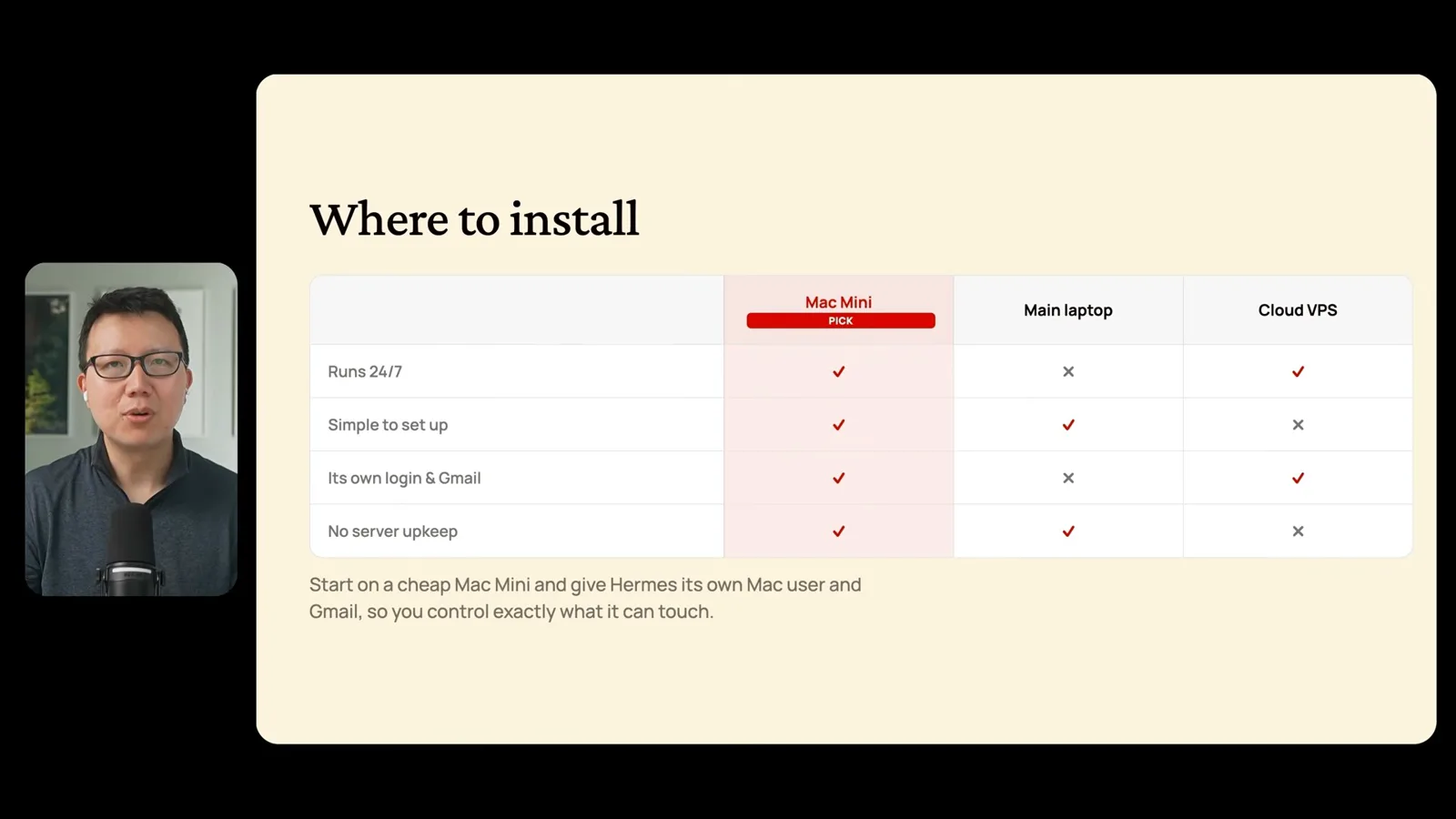
The first choice is where the agent should run. Peter compares a dedicated Mac, an everyday laptop, and a rented cloud server. A machine that is asleep or offline cannot reliably run local scheduled jobs, while a server requires maintenance. He prefers a separate Mac user and email account so he can control what the assistant can access.
Peter installs the desktop application, connects a model provider, and checks that the intended model and effort setting are actually selected. Model availability, subscription eligibility, and costs can change, so the choice should be checked against the current provider terms and usage limits.
Connect Telegram
Create a bot and configure the gateway.
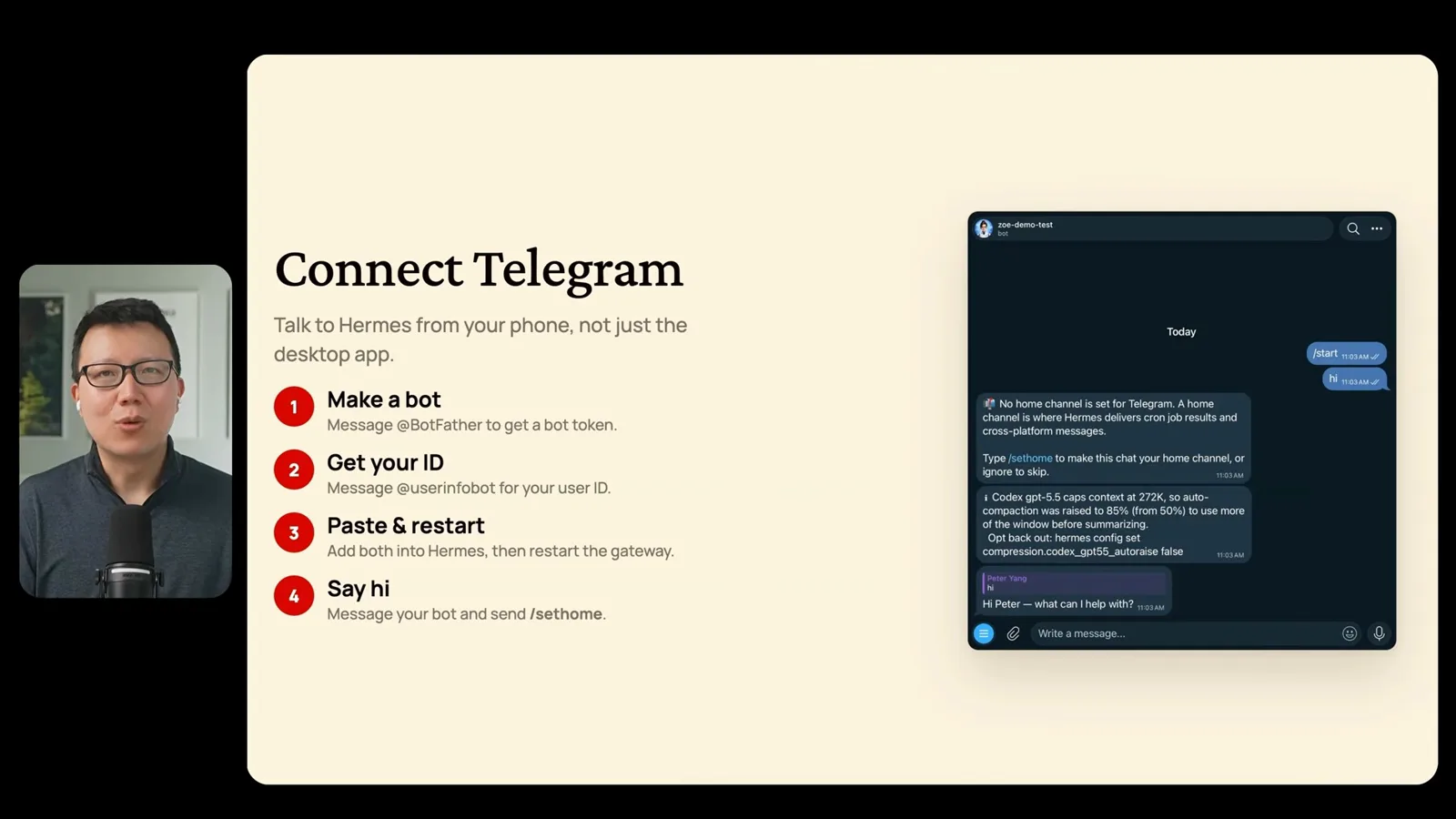
To connect Telegram, he creates a bot with BotFather, places its token and his permitted Telegram user ID in Hermes, restarts the gateway, and sets a home channel for scheduled messages. The bot token is a credential: keep it private, restrict who can use the bot, and rotate it if exposed.
How the agent works
The gateway, model, tools, memory, and skills.
Peter explains the basic flow: a message enters through the gateway, the model plans a response, and the agent may call tools to retrieve information or make changes. Memory and skills can preserve useful preferences and workflows, but users should inspect what is stored and be deliberate about sensitive information.
Personalize and troubleshoot
Set preferences and investigate setup problems.
For personalization, he asks the assistant questions about his preferences and reviews the user and personality files it creates. For troubleshooting, he demonstrates diagnostic and gateway-restart commands and suggests consulting the documentation or a coding assistant. Review proposed fixes before allowing them to change the system.
Voice and integrations
Enable voice replies and consider other services.
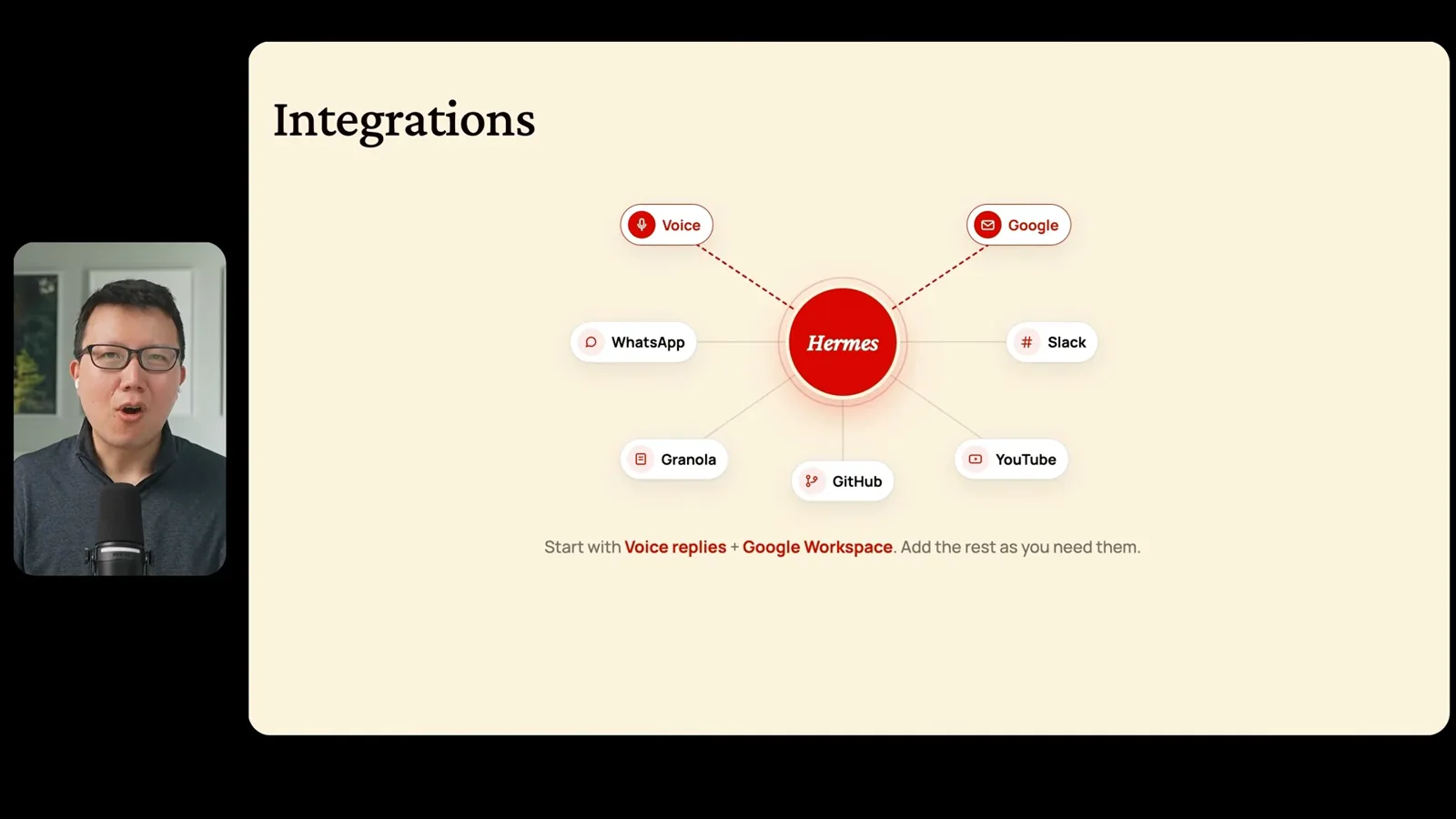
Peter enables voice replies through the messaging interface and discusses voice selection. He also demonstrates suppressing some system messages and routinely approving permissions. Those are his preferences; keeping visibility into actions and reviewing each permission can help users understand what their agent is allowed to do.
Connect Google Workspace
Set up APIs and authorization, then test the connection.
The Google Workspace walkthrough creates a cloud project, enables relevant APIs, configures an OAuth application and a test user, and completes authorization. Peter says his normal setup uses a separate account, read access to email and calendar, and selective access to files. In the demonstration he grants broader permissions to test features, so the precise access actually granted should be checked rather than assumed.
He tests an inbox summary, creates a calendar event after confirmation, and asks the agent to update a document. The first document edit disrupts formatting, and he asks for a correction. This illustrates why users should verify changes and limit write access to the specific resources and actions they intend to permit.
Other integrations and backups
Messaging, meeting notes, repositories, and video research.
Other examples include WhatsApp or Slack, meeting notes, GitHub backups, and YouTube research. Peter suggests a private repository for backing up the setup; before doing so, exclude or securely manage bot tokens, OAuth files, and other secrets. Availability of transcripts and integrations varies.
Schedule useful routines
Test a skill and turn it into a recurring job.
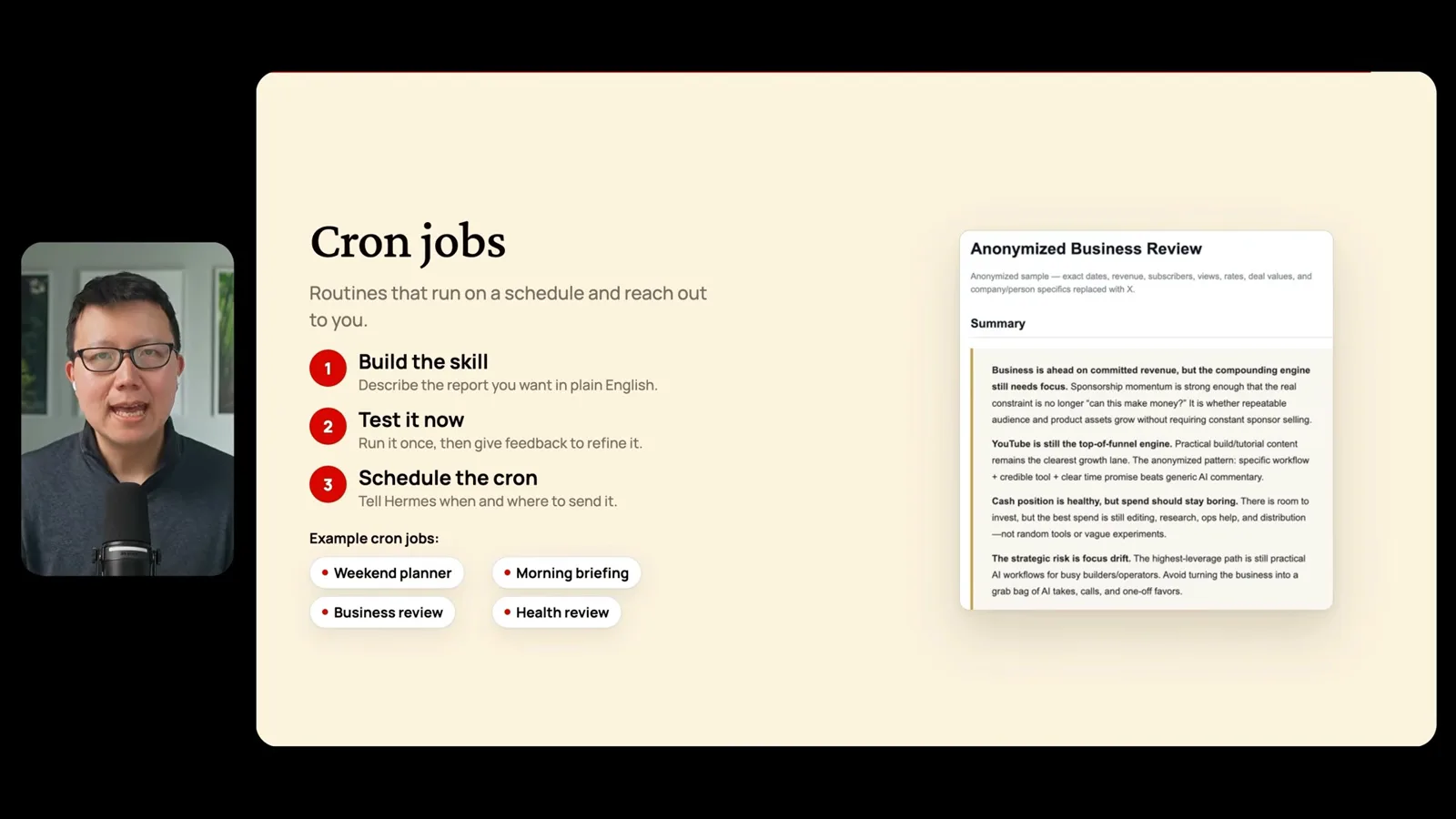
For recurring work, Peter recommends a three-step loop: create a skill, run it manually and refine the result, then schedule it. His examples include weekend activity ideas, a morning briefing, and business or health summaries. Check sources and outputs, especially for sensitive or consequential decisions, and make sure the host is running when the job is due.
Sur la même chaîne
 46:40EN
 Peter Yang· 8 nov. 2026Podcast · 2 voixAshley Alexander: How AI Helps Me Care for My Parents With CancerInvité : Ashley Alexander · Anime : Peter YangA caregiver uses AI to prepare for appointments, organize records and ask better questions—while keeping doctors at the center of treatment.
 17:50ENPeter Yang· 4 nov. 2026PodcastPeter Yang’s Five Steps for Using AI to Help Care for His MotherYang uses a shared care brief and organized records to navigate appointments, while making time for family.
 15:03ENPeter Yang· 3 nov. 2026PodcastHow Peter Yang Used an AI Phone Agent to Negotiate His Internet BillAn AI call negotiated a lower price and faster service, but Yang still had to approve the change himself.
 33:09ENPeter Yang· 1 nov. 2026Podcast · 2 voixJaclyn Konzelmann: When AI Can Build More, Choose What Deserves to ExistInvité : Jaclyn Konzelmann · Anime : Peter YangGoogle Labs pairs short strategy documents with prototypes, user co-creation and lessons from experiments that end.
 13:05ENPeter Yang· 28 oct. 2026PodcastPeter Yang Tests Genie 4: Convincing Worlds, Unfinished GameplayFive live demonstrations show scenes that respond to prompts and sound, alongside inconsistent actions and limited game mechanics.
 1:06ENPeter Yang· 26 oct. 2026PodcastPeter Yang on Setting Up Payroll for a One-Person BusinessIn a paid partnership, Yang describes the paperwork he encountered and a payroll product integrated with a business account.