In 30 seconds
In this 2023 tutorial, Matthew Berman downloads Mistral 7B Instruct with LM Studio, starts its local server and points an existing AutoGen example at it. He observes the agent exchange but says prompt templates and termination still need tuning. Interfaces and APIs may have changed since the recording.
- 1Download a modelBerman selects Mistral 7B Instruct v0.1 and a quantized file in LM Studio.
- 2Start a local serverHe loads the model and starts LM Studio’s local server.
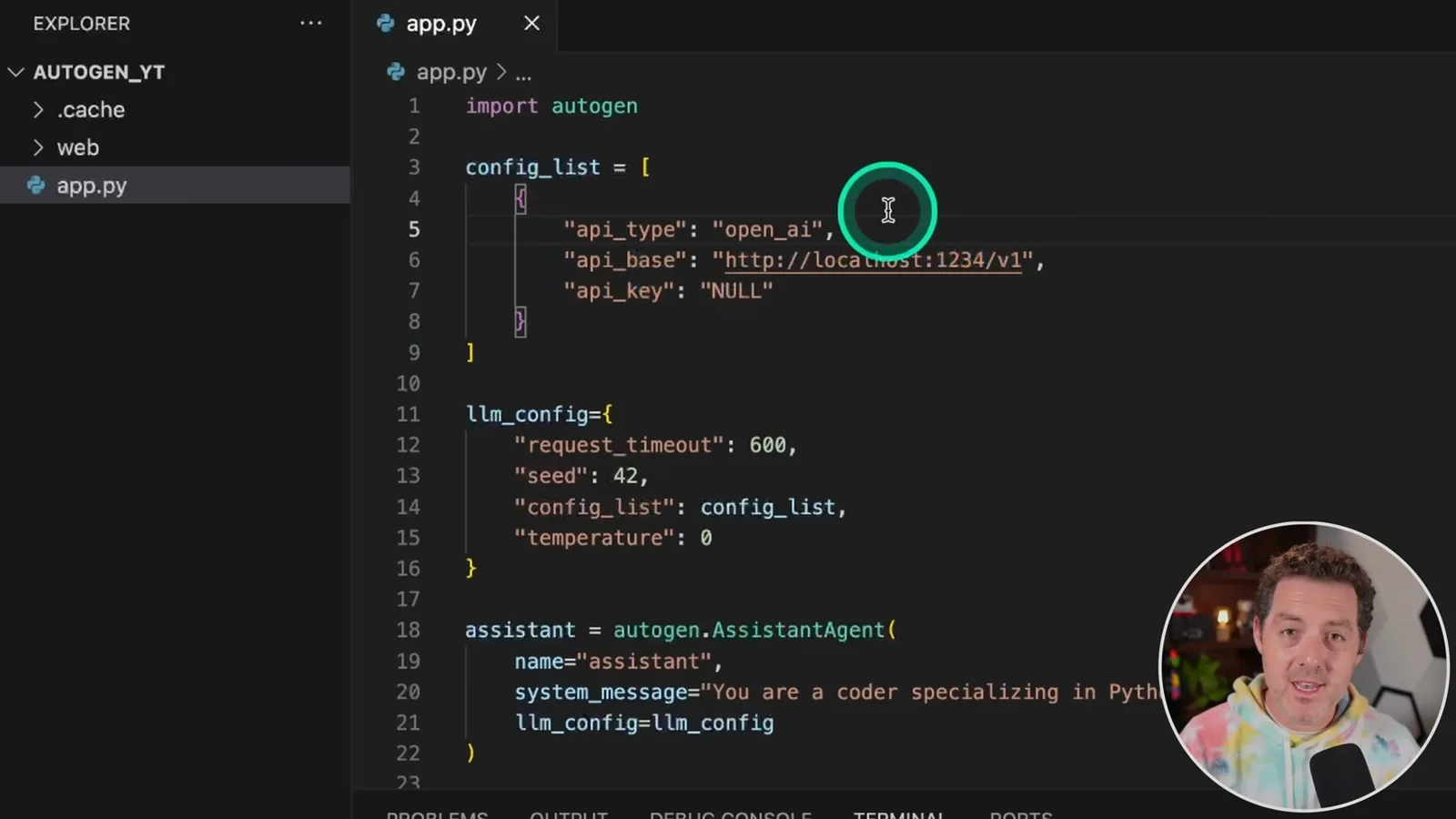
- 3Point AutoGen to localhostHis existing example uses an OpenAI-compatible configuration with http://localhost:1234/v1 and a placeholder key.
- 4Tune agent behaviorThe agents exchange messages, but he says they sometimes fail to terminate as expected.
Takeaways
- LM Studio can serve a downloaded model through a local OpenAI-compatible API.
- Berman connects an existing AutoGen configuration to localhost port 1234.
- Agent quality depends on model selection, prompt formatting and termination behavior.
- The demonstration uses historical versions; current setup details may differ.
Read the edited text by chapter
Select and download a model
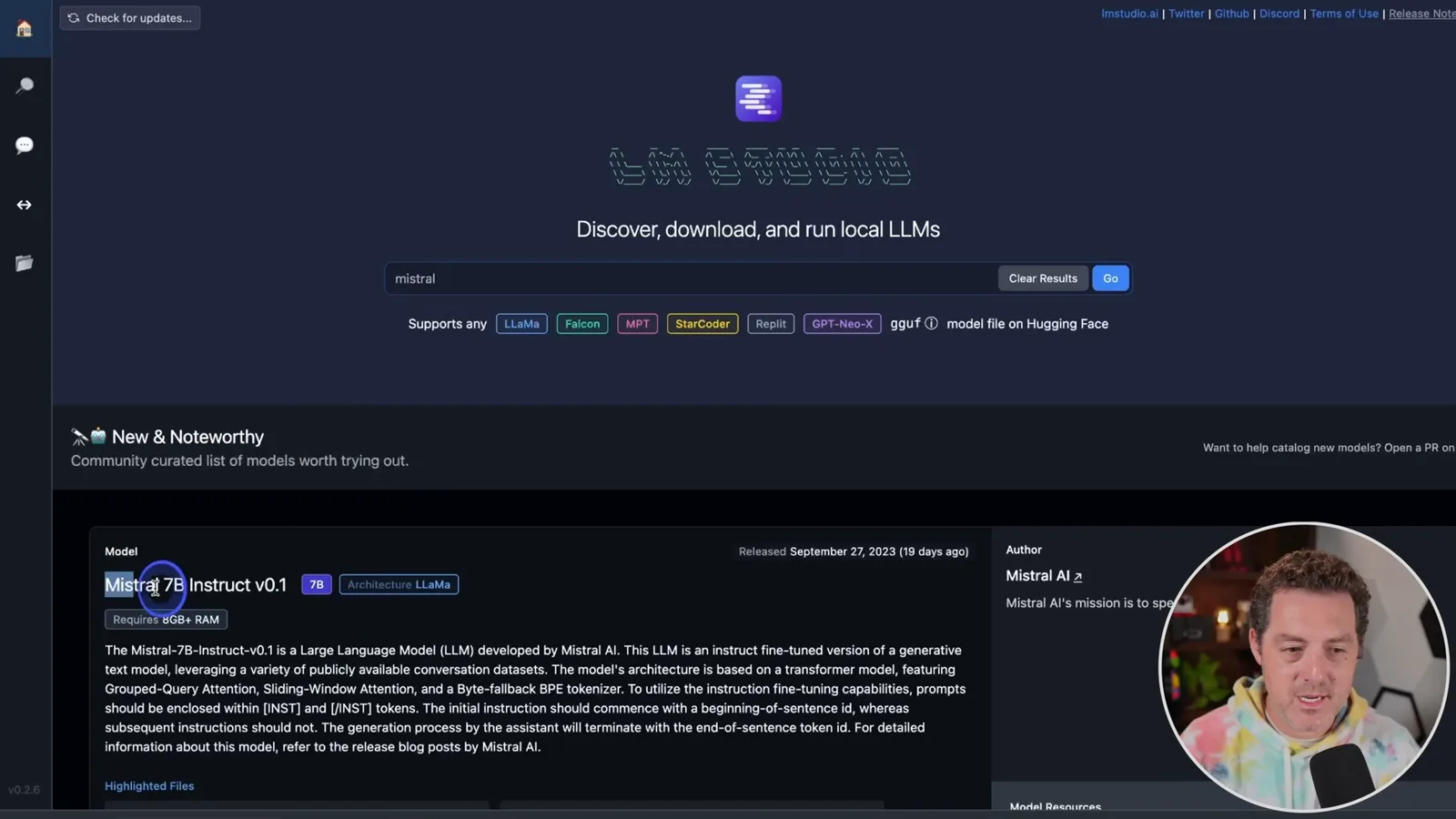
Berman introduces LM Studio and chooses a quantized Mistral model for local inference.
I want to use an open-weight model with AutoGen on my own computer. The connection is straightforward, but finding a model and prompt template that make the agents behave well takes more experimentation.
I use LM Studio to search for and download a model, chat with it locally and run a server. In this demonstration I select Mistral 7B Instruct v0.1 and a quantized version; I normally use Q5 on my M2 Max MacBook Pro. The suitable model and quantization depend on your hardware and task.
Connect the local server
He starts a server and changes an existing AutoGen configuration to use its local endpoint.
In LM Studio I select the downloaded model and start the local server. Then I open an AutoGen example I already configured in an earlier video. LM Studio provides an OpenAI-compatible interface, so I point the example’s API base to http://localhost:1234/v1 and use a placeholder key for this local setup.
Run and evaluate the agents
He tests a simple Python task and discusses remaining prompt and termination issues.
My assistant is instructed to specialize in Python, and the user proxy asks it to output the numbers from one to 100. I run the example and observe inference and logs in LM Studio, along with messages exchanged between the assistant and user proxy.
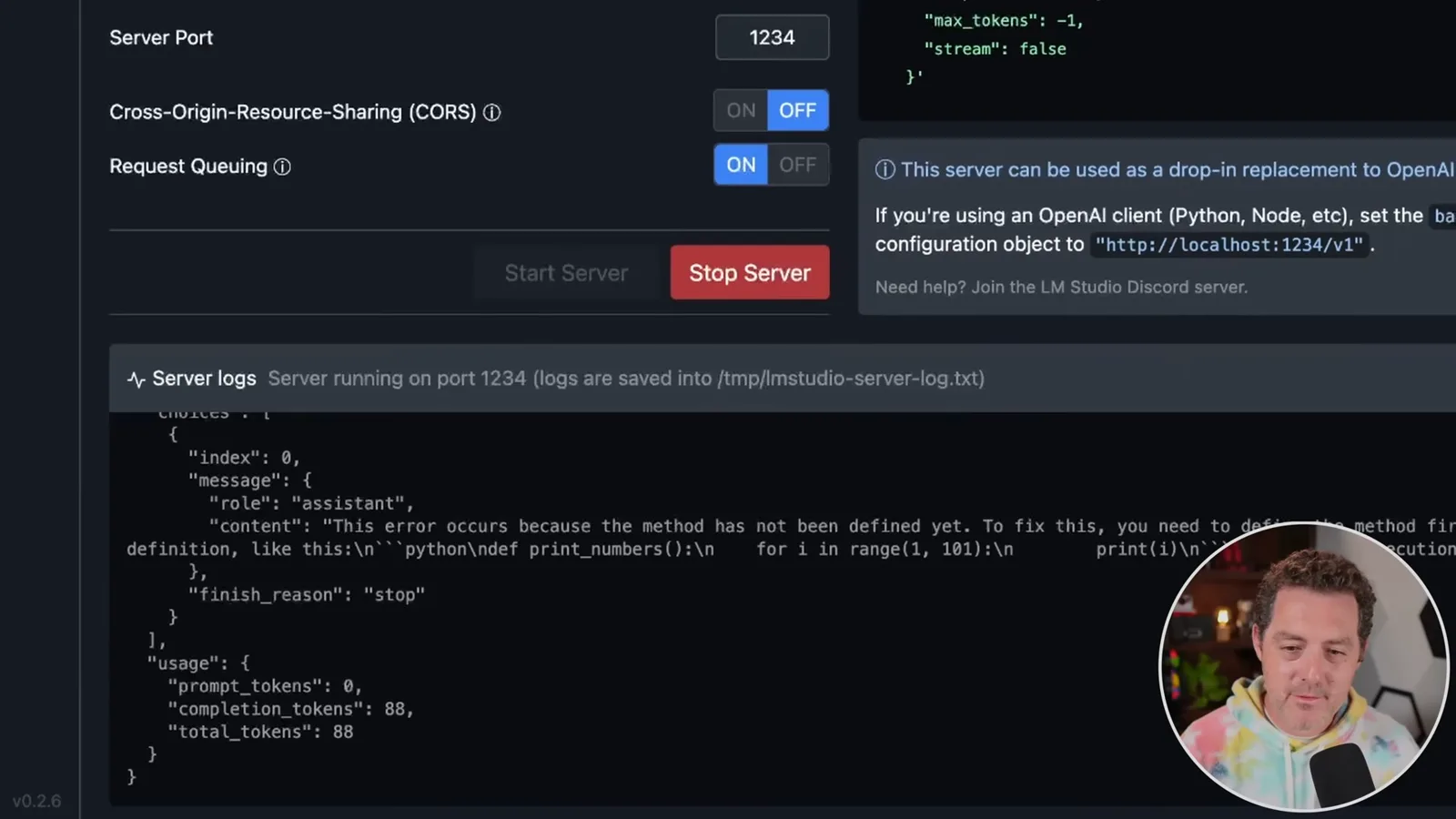
The connection works, but the agents do not always behave as I want: for example, they sometimes do not terminate when expected. I suspect prompt formatting matters and plan to keep experimenting. This is a historical demonstration; consult current LM Studio and AutoGen documentation for version-specific settings.
More from this channel
 25:50EN
 32:20EN
 45:08EN
 12:14EN
 10:36EN
 17:37EN