In 30 seconds
Matthew Berman demonstrates two basic chatbot interfaces: a Python notebook using Gradio and a Bubble app using an API connector. The video uses older API and SDK conventions, so readers should check current documentation and protect their API credentials.
- 1Python setupA Colab notebook installs the OpenAI and Gradio libraries.
- 2Request and responseThe example sends a user message and extracts the returned message content.
- 3No-code connectorBubble’s API Connector provides a POST action with private authentication.
- 4Workflow and displayThe button sends the input, stores the response and displays it in a text element.
Takeaways
- The Python example wraps an API call in a Gradio text interface.
- The Bubble example connects a button workflow to an API action and a response display.
- The original tutorial uses historical model names and SDK syntax that may need updating.
- API keys must remain private and should not be embedded in shared notebooks or client-side code.
- The demo is a basic prompt-and-response interface rather than a full conversation-history implementation.
Read the edited text by chapter
Python and Gradio
Berman sets up a notebook and wraps a chat-completion call in a simple interface. The demonstration uses historical API syntax.
I demonstrate two ways to build a simple chatbot using the OpenAI API: a Python notebook with Gradio and a no-code interface in Bubble. This is a historical tutorial using the API and libraries available at the time; current interfaces, model names and SDK syntax may differ.
For the Python example I use an OpenAI API key and a Google account for Colab. I create a notebook and install the OpenAI and Gradio libraries. Colab runs notebook cells and makes it easy to experiment without setting up a local Python environment.
The example imports the libraries and configures API access, then defines a function that sends the user’s prompt to the chat-completion endpoint. The demonstrated model is GPT-3.5 Turbo. API credentials should be kept secret rather than embedded in shared notebooks or client-side code.
The request contains a messages array with a user role and the entered text. I explain that a system message can provide general instructions for the assistant, while the user message contains the prompt. The response contains choices, from which the example extracts the returned message text.
I create a Gradio interface around the function with text input and output, then launch it in Colab. A test prompt asking for a joke returns a response. This is a simple prompt-and-response demonstration; the video does not build a persistent conversation history.
Bubble API connector
He creates a no-code app and configures an authenticated JSON API action. Credentials must remain private.
The second approach uses Bubble. I create an app, install its API Connector plugin and configure a private authorization header, a JSON content type and a POST action for the chat-completion endpoint. Credentials need to stay private and server-side when an app is shared.
The request body specifies the model and a user message, with a dynamic value for the prompt. I initialize the call using an example prompt so Bubble can inspect the response structure. This tutorial uses the endpoint and settings shown in the video, which may require updates with newer versions.
Page and workflow
He adds input, button and response elements, then binds the workflow to the returned message. A preview tests short and longer prompts.
In Bubble’s design view I add a multiline input, a submit button and a text element to display the answer. The goal is a functional interface: the appearance can be customized later.
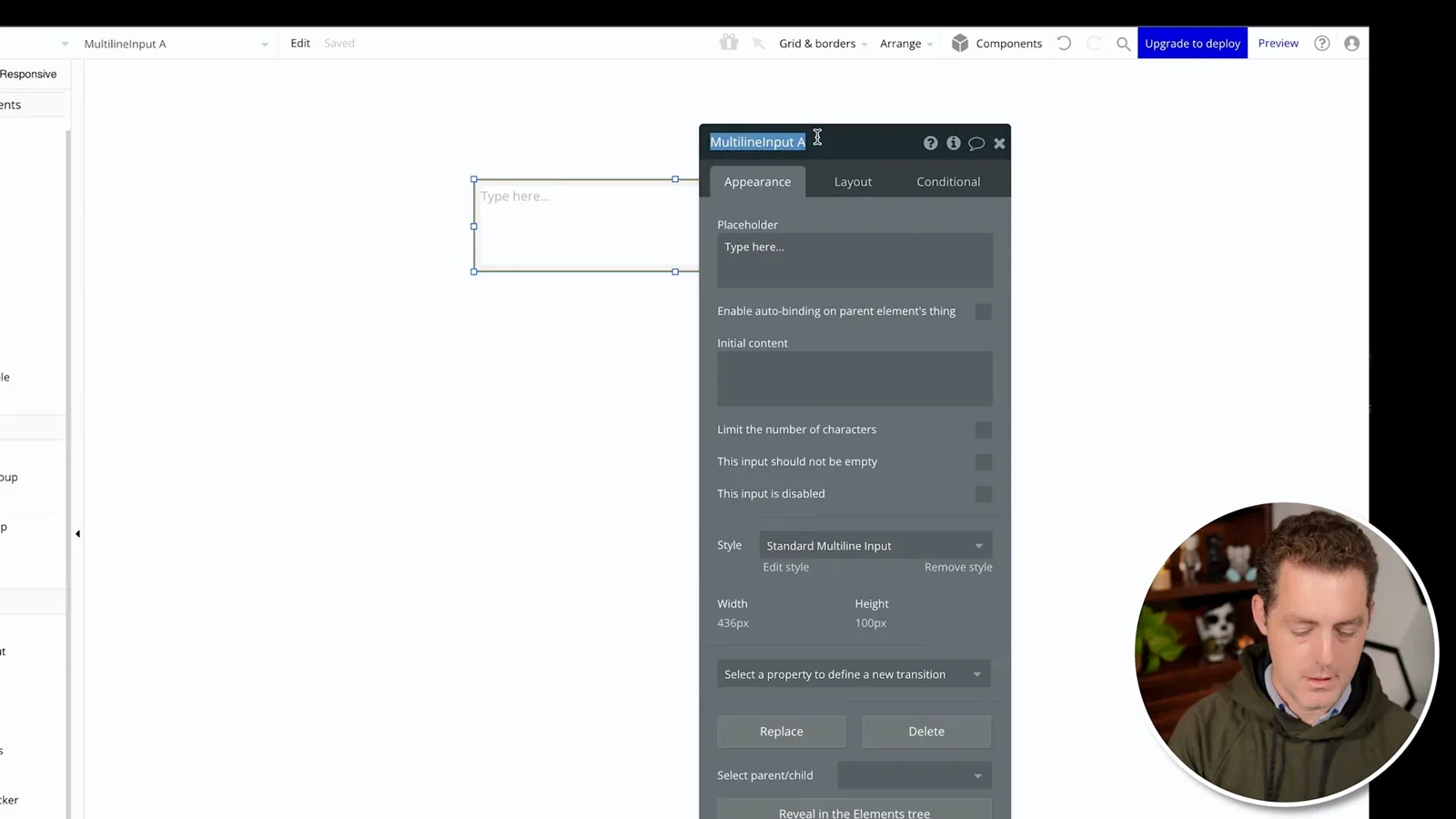
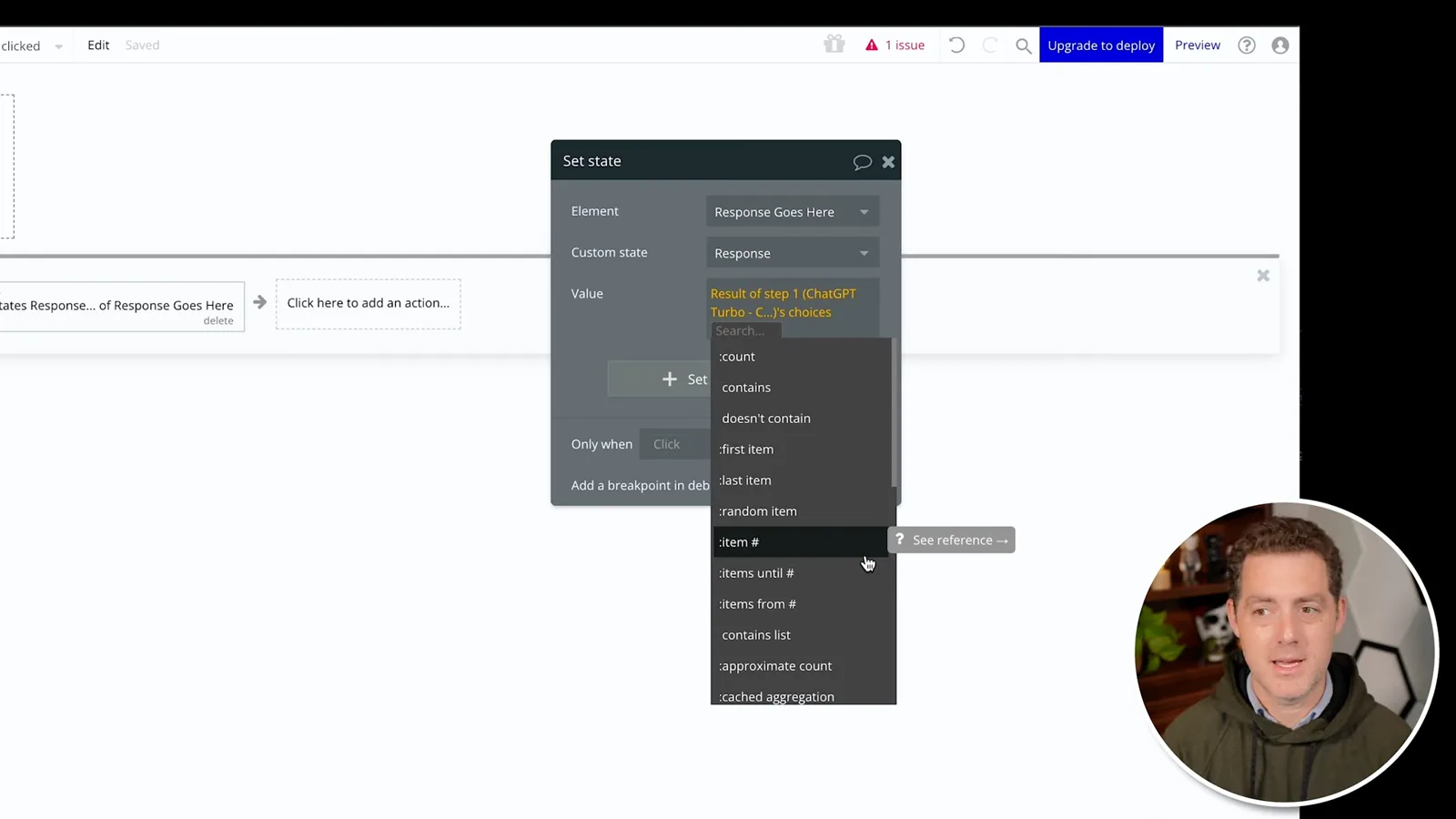
The button workflow calls the API action and supplies the input field’s value. A second workflow step stores the first returned message’s content in a custom state on the response element. The display element is then bound to that state.
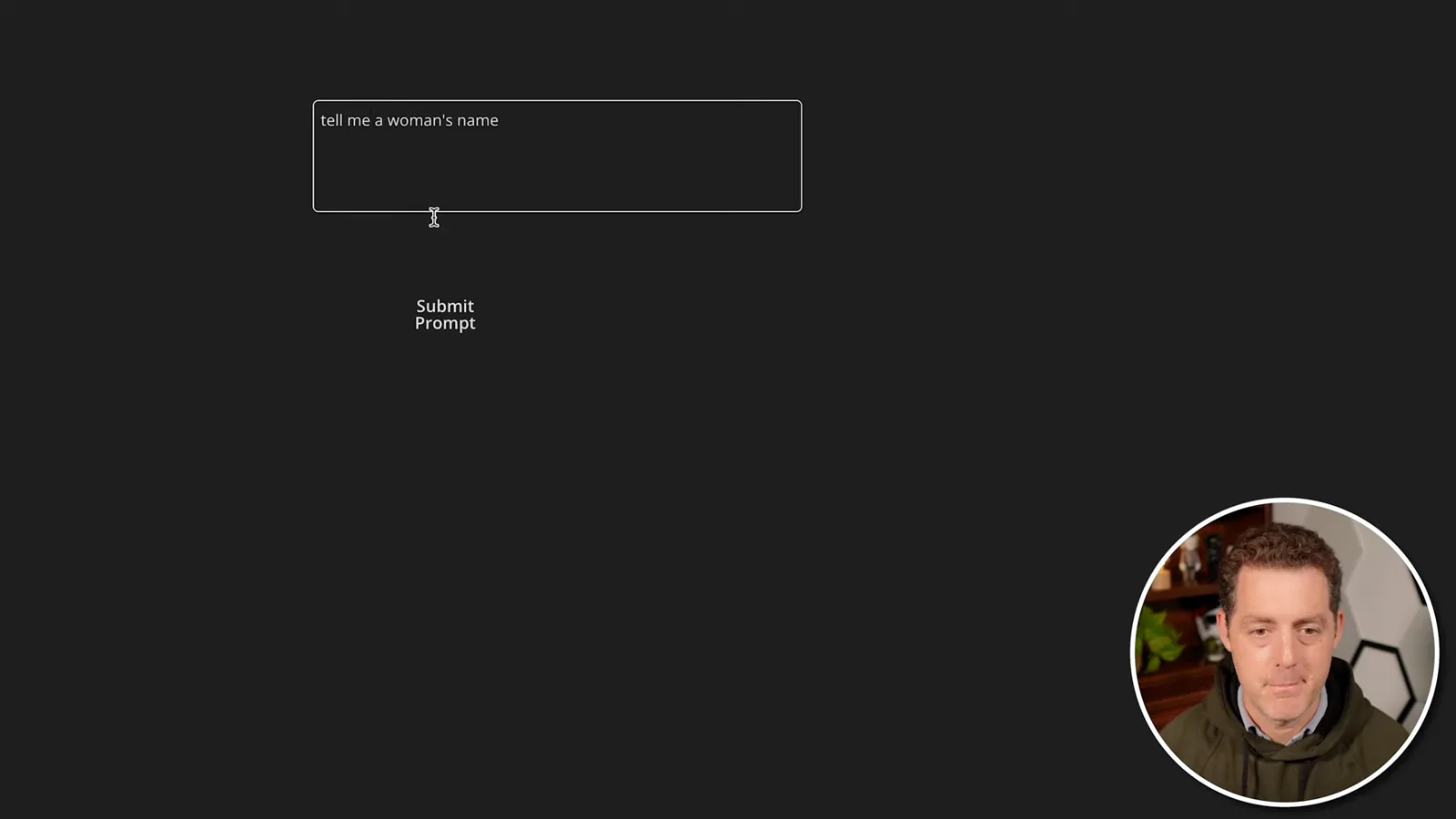
In preview, I submit a prompt asking for a name and receive responses. A longer answer is initially clipped, so I enlarge the text element and test again. Both approaches demonstrate how a user interface can send a prompt and display the API response.
More from this channel
 25:50EN
 32:20EN
 1:03:37EN
 0:53EN
 0:22EN
 45:08EN